
Reader Mode in Safari is a fantastic feature for Safari on iPhone and iPad that lets you more easily read just about any web page, and works particularly great on longer articles or pages with a lot of clutter.
Basically Reader mode will strip away any and all other page content except for the article text, so whatever you’re reading is very clearly the focus, without any distractions.
If you’re unfamiliar with Reader mode in Safari for iPhone and iPad, you should acquaint yourself with this handy feature, and the first start to doing that is by learning how to access and use Reader in Safari for iOS and iPadOS.
How to Access Reader Mode in Safari for iPhone & iPad
- From Safari, navigate to any webpage with an article to try out Reader mode (like the one you’re reading right now)
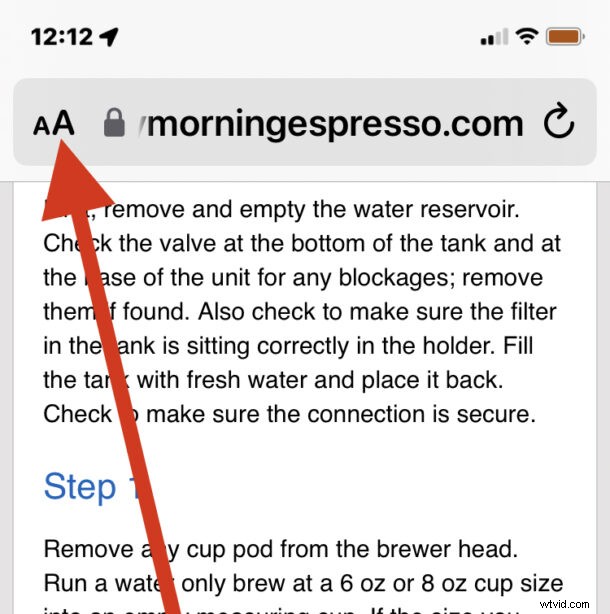
- Tap on the “aA” button in the address bar of Safari
- Tap on “Show Reader” to instantly switch the webpage into Reader mode
- Reader view will remain visible until the aA button is tapped again, or until you navigate to a different web page
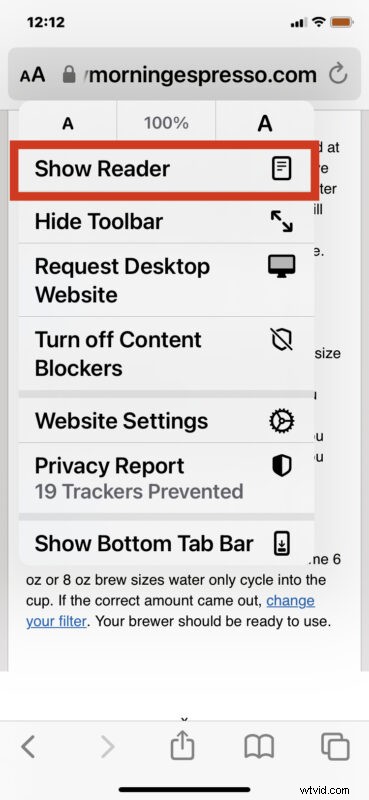

This works the same on Safari for both iPhone and iPad.
One super handy use of Reader mode is that since it strips away all other page content except the article, it makes it great for printing out articles and webpages without ads, allowing you to save ink and paper.
Reader mode has been around a very long time, but how you access it has changed a bit over the years, as Apple apparently likes to keep us all on our tows and switch their interfaces up from time to time. In earlier versions of iOS the feature was enabled right away from the URL bar, whereas now the same button toggles a menu with a whole array of things to do.