

You may already know that you can search Safari browser tabs on iPhone or iPad for matching terms, words, and keywords, but a lesser known iOS and iPadOS Safari trick allows you to close those search-matched Safari tabs too.
For example, if you have a bunch of browser tabs open in Safari on an iPad or iPhone that are recipes, you can search tabs for ‘recipe’ and selectively close all of those ‘recipe’ keyword matched tabs in iOS and iPadOS. Sounds convenient, right?
How to Close Search-Matched Safari Tabs on iPhone or iPad
Here’s how you can search for and close matched browser tabs in Safari for iOS / iPadOS:
- From Safari in iOS or iPadOS, use the Safari tab search feature to locate tabs matching the term, word, or keyword you’re looking to close browser tabs related to (you can access Safari Tab Search by scrolling to the very top of the Safari tab view then pulling down to access the Search feature, or simply rotate the iPhone sideways)
- Now tap and hold on the “Cancel” button
- Tap and hold on the ‘Close Tabs Matching “word”‘ button when it appears
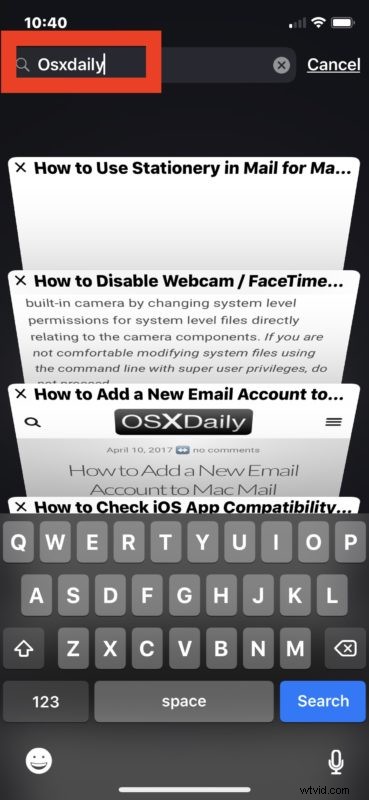
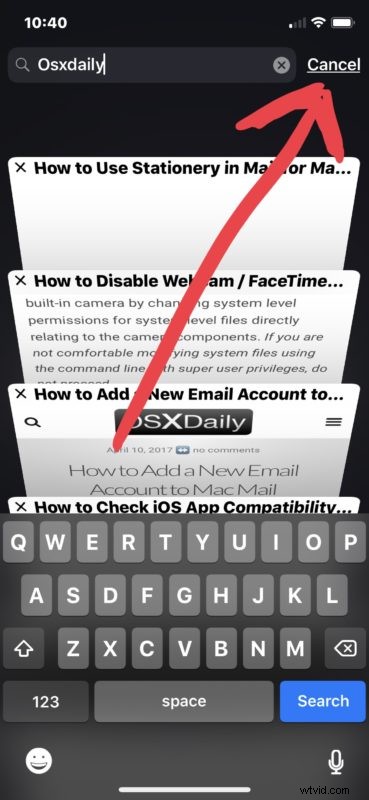
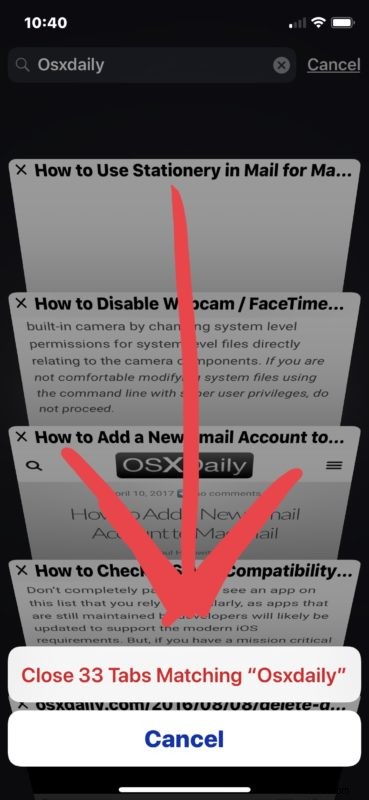
In the example screenshots above, we’re searching all open Safari tabs for ‘osxdaily’ and then closing tabs that match that search and matched phrase. Try it yourself with any other keyword, like ‘recipe’ or ‘mail’ or ‘news’ or anything else you might have a lot of browser tabs in Safari open for.
This obviously allows you to search and close tabs at a very specific level, which is what makes it uniquely useful. Of course you can also close tabs individually in Safari for iOS, or if you want a much more sweeping closure of open Safari tabs in iOS or iPadOS, you can also close all Safari tabs on iPhone or iPad with a tap and hold trick too.
This should be a useful trick to iPhone and iPad users who open tons of tabs when browsing, or who keep open many tabs while browsing as many of us do. If you’re one of us who is constantly opening a new browser tab in Safari for iOS for a new search or when viewing a website, you’ll likely find the ability to search and close term matched browser tabs particularly useful.
Currently this feature only appears to allow for searching for webpage titles and page content in Safari to search and close tabs for, searching for a URL does not have the same effect and won’t turn up anything unless it’s in the page title.