

Did you know you can translate webpages in Safari on iPhone and iPad? If you’re on a foreign language website, you can easily translate it into English using a fantastic language webpage translation feature built into Safari for iOS and iPadOS. And yes, this feature also exists in Safari for Mac, in case you were wondering.
Not everything that you see on the web is written in English, and whether you’re browsing foreign news sites or just ending up with something not in English, you may find it useful to translate a webpage into something you can read. Safari now has this capability, and you can easily convert a webpage from French, Spanish, Chinese, etc, into English with just a few taps. This is similar to a Chrome language translation for webpages on iPhone and iPad, except of course it’s using Safari, the default browser in iOS and iPadOS.
Ready to use and access the built-in translator for webpages in Safari for iPhone and iPad? Let’s get to it!
How to Translate Webpages on iPhone & iPad with Safari
As long as your iPhone or iPad is running iOS 14 / iPadOS 14 or newer, the language translation feature will be available. Here’s how it works:
- Open “Safari” on your device head over to the website or webpage that needs to be translated. (if you just want to test this out, try going to orange.es or lemonde.fr or something similar)

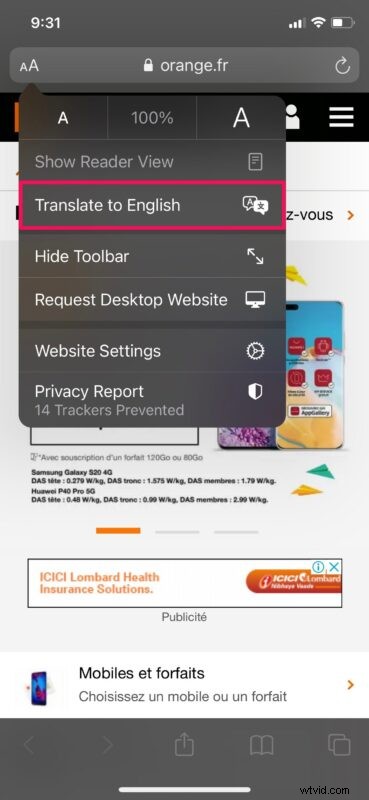
- Once the page loads up, tap on the “aA” icon located to the left side of the address bar.

- This will give you access to more options. Here, choose “Translate to English” as shown in the screenshot below.
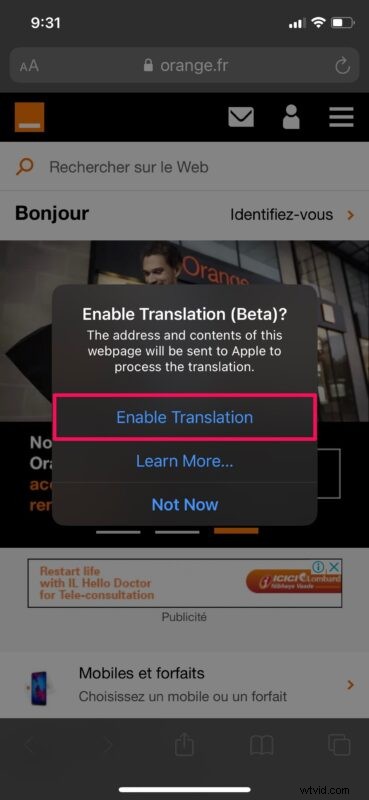
- Now, you’ll get a pop-up on the screen prompting you to turn on the translation feature. Tap on “Enable Translation” to continue.
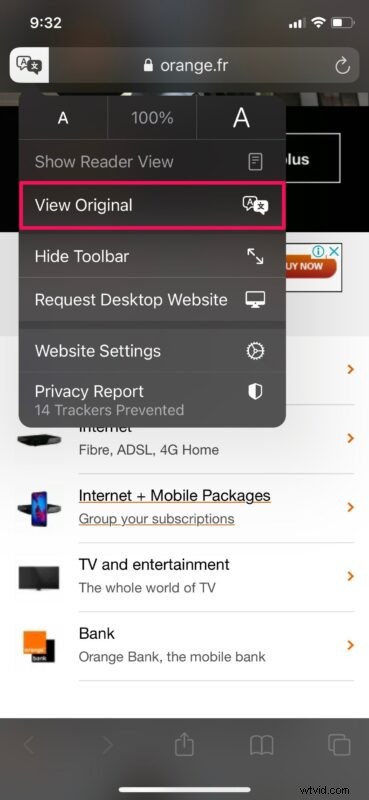
- The page will now reload in English. When you navigate through the website, Safari will automatically translate other webpages to English too. To switch back to the original language, tap on the translate icon located at the top-left corner of your screen.

- Now, simply choose “View Original” and you’re good to go.
Now you know how to go about translating webpages in Safari natively on the iPhone and iPad. No new apps or third party downloads are required.
If you can’t find the Translate feature within Safari despite running a compatible system software version, it’s probably because Safari’s built-in translator is currently limited to users in select regions, but the feature is rolling out elsewhere too as it is refined by Apple.
If your iPhone or iPad is running an older version of iOS/iPadOS, or isn’t compatible with the iOS 14/iPadOS 14 update, you can still translate webpages in Safari using Microsoft Translator. You’ll of course need to download the Microsoft Translator app from the App Store and keep it installed to access this feature within Safari.Switching to Google Chrome is an alternate option as well, and the translation feature in Chrome works flawlessly and it can automatically translate most of the webpages to not just English, but any of your preferred languages if you’re not a native English speaker. This makes Chrome a great choice if you’re in an area that isn’t supported by Safari webpage translations yet.
What do you think of Safari’s built-in translator tool for converting foreign webpages to English? Do you use this feature? Do you have another method to convert a webpage to English from another language? Share with us your tips, thoughts, and comments below!