

Did you know your iPhone and iPad can translate text for you from foreign languages? If you’ve been on international trips, or interacted with anyone who speaks a foreign language, you likely know it can be difficult to communicate with people who aren’t writing or speaking the same language as you. Apple intends to make this a lot easier with the Translate app, which is native to modern iPhone and iPads. Much like you can translate speech, you can also translate written text too.
The Translate app first arrived with iOS 14 and iPadOS 14 devices to make language translation easy and convenient. At the moment, Apple supports real-time translation for 11 different languages. Although the language selection is pretty limited compared to the likes of Google or Microsoft, it’s handy to have this feature available directly on your device. Plus, Apple offers offline translation for all the supported languages via the app, and you can use either voice or text to make translations. The same capability also is in Safari to translate webpages, but for our purposes here we’ll focus on inputted text to translate.
Let’s review how you can translate text by using the Translate app on iPhone or iPad.
How Use Translate on iPhone & iPad to Translate Text
You need to make sure that your iPhone or iPad is running iOS 14 or later before you will be able to use this feature.
- Launch the “Translate” app on your iPhone or iPad. If you can’t find the app in your home screen, use Spotlight search to see if it’s located in your app library.
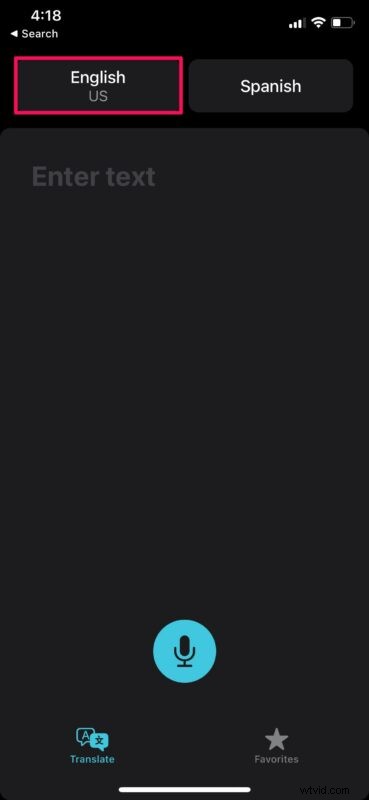
- By default, English is selected as the language to be translated. Tap the language option on the left to change it.
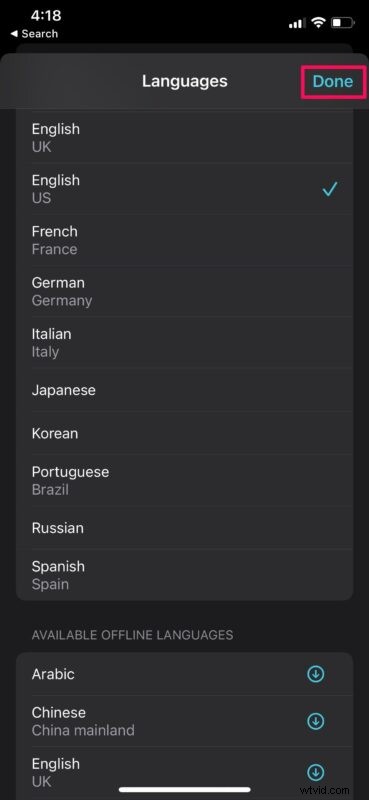
- Now, simply select a language of your choice and tap on “Done” to continue.
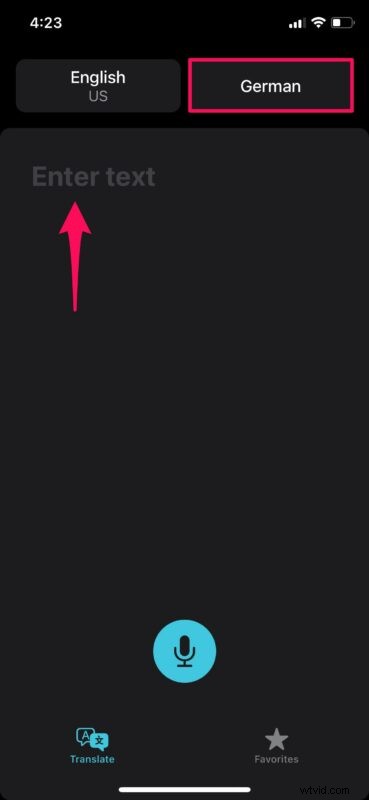
- Next, to choose the translated language, tap the language option located on the right, as indicated here. Once you’re done with the language selection, tap on the “Enter text” area to continue.
- Now, type in the sentence that needs to be translated and tap on “go” on your keyboard.

- You’ll be able to view the translated text immediately within the app. To play the translated text as audio, tap on the play icon as shown in the screenshot below.

Pretty easy and convenient to translate language with Apple’s Translate app in iOS or iPadOS, wouldn’t you say?
From now on, when you’re having issues communicating with a foreigner, pull out your phone and open the Translate app for real-time language translations.
While you’re traveling, you cannot expect to stay connected to the internet at all times. This is where offline translations come in handy. To access this feature, you’ll need to download translations for the respective languages from the language selection menu in the app.
Apart from translating your texts, Apple’s Translate app can also be used to translate speech. It can recognize the language you’re speaking into the microphone and convert it to the language that you selected. This makes translation even quicker as it can be used to record exactly what a foreigner is trying to convey.
We hope you were able to use Apple’s new Translate app to its full potential on your iPhone. Have you been enjoying the new iOS 14/iPadOS 14 update? What’s your favorite feature so far? Do share your valuable thoughts and opinions in the comments section down below.