

Google’s Chrome web browser offers a convenient way to translate web pages in foreign languages to English, and you can use it to translate languages of web content right on your iPhone and iPad using the Chrome mobile app.
Not everything on the web is written in English. If you’re a heavy internet user, you might run into foreign websites with different languages, and language barriers could stop you from reading the content that’s displayed on the screen. Chrome’s built-in translation service is capable of automatically detecting the language a particular web page is written in, and then instantly convert it to English at the press of a button.
If you’ve used this on your computer before, you might be excited to learn how it works on your iOS or ipadOS device, especially if you already use Chrome as your default browser. Here, we’ll be discussing exactly how you can use the Chrome browser to translate web pages on both the iPhone and iPad.
How to Translate Webpages on iPhone & iPad with Chrome
If you usually use Safari to browse the web, you’ll need to download and install Google Chrome from the App Store before you go ahead with the procedure. Now, simply follow the steps below to translate web pages.
- Open the “Chrome” app on your iPhone or iPad.
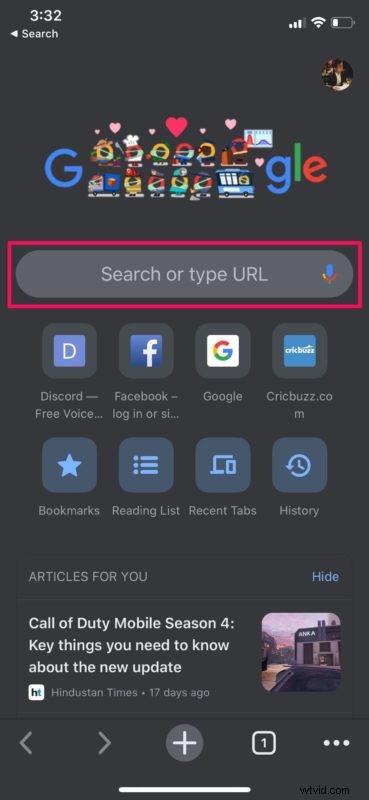
- Type the website URL in the search box as shown in the screenshot below to visit a foreign website.
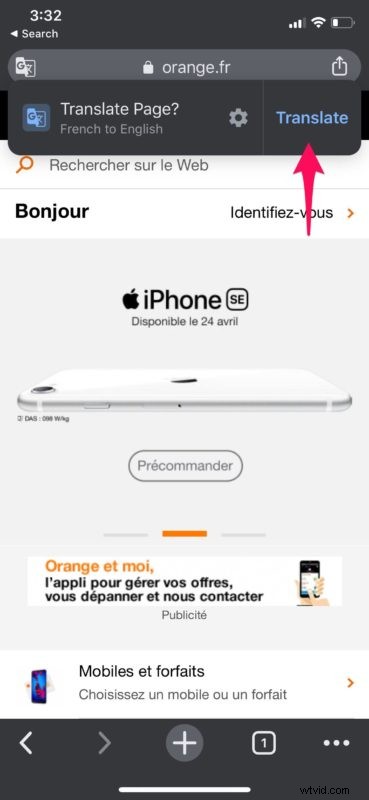
- Wait for the page to load up completely. If Chrome detects that the web page is in a different language, you might automatically get an option to translate it to English as shown in the screenshot below. Tap on “Translate” to reload the web page in English.
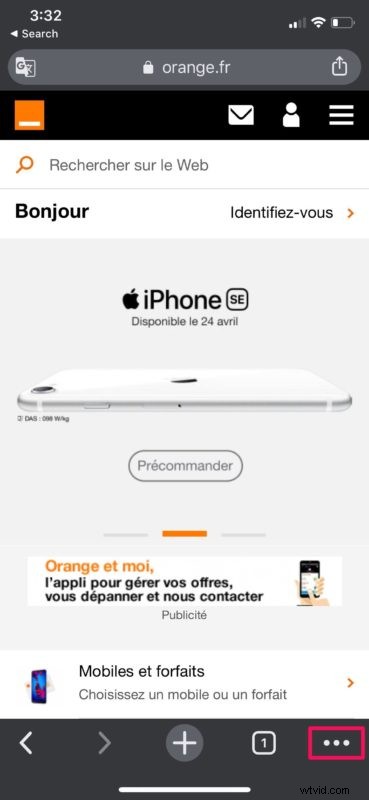
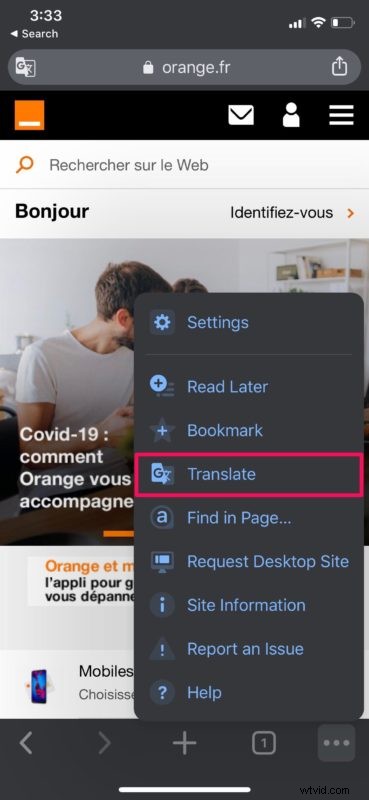
- However, if you don’t get the Translate pop-up like the previous step, don’t worry. Tap on the “more” icon located at the bottom-right corner of the screen.
- Now, select “Translate” from the list of options that pop up.
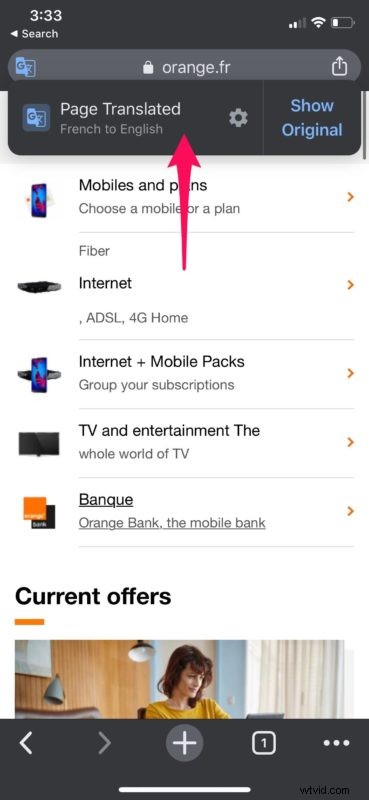
- Chrome will now reload the web page in English as shown below and notify you about it. You can switch back to the original language by tapping on “Show Original” in the pop-up.
Now you’ve learned how to translate web pages using the Chrome app for iPhone and iPad, and it’s a pretty great feature isn’t it?
Although Chrome is a very popular web browser, most iOS and iPadOS users resort to Safari to browse the web. Safari comes pre-installed, works flawlessly and eliminates the need to install any other third-party app for browsing the internet.
Unlike Google Chrome, some versions of Safari don’t have a built-in option to translate web pages to English (though this feature exists in iOS 14 and iPadOS 14 and later). However, there’s a workaround which requires you to install Microsoft Translator, after which you should be able to translate any web page to English in a very similar way. You can also use Siri for translation if you just want to look up certain words and sentences.
If you’re not a native English speaker, you can also set the language that you want Chrome to automatically translate to, when you visit a foreign website. This can be easily done by heading over to Settings -> Chrome -> Language. From now on, language barriers aren’t going to stop you from reading your favorite content on the web.
We hope you figured how easy it actually is to translate web pages using Chrome on your iPhone and iPad. How often do you find this feature useful? Do you want Apple to add a translation feature to Safari? Do let us know your thoughts and opinions in the comments section down below.