
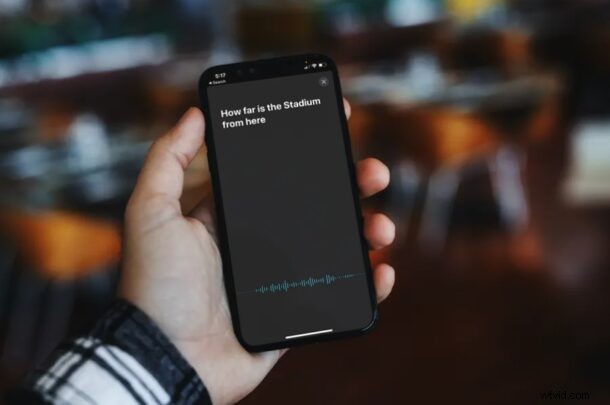
Did you know your iPhone or iPad can help you to translate speech? Whether you’re traveling or just talking with someone who does not speak the same language, the Translate app on iPhone and iPad can help you to translate speech between different languages, making conversation a lot easier with foreign language speakers.
Let’s take a look at how the Translate app for iPhone and iPad allows you to easily translate speech, right from your device. You will need iOS 14 or later on your device to have this capability.
How to Translate Spoken Speech on iPhone & iPad Between Languages
Make sure you’re on a modern iOS or ipadOS version before attempting this, as the Translate app does not exist on earlier versions.
- Open the “Translate” app on your iPhone or iPad. Use Spotlight search to find the app if it’s located in your App Library instead of the home screen.
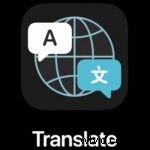
- English is selected as the language to be translated by default. Tap the language option on the left to change it.
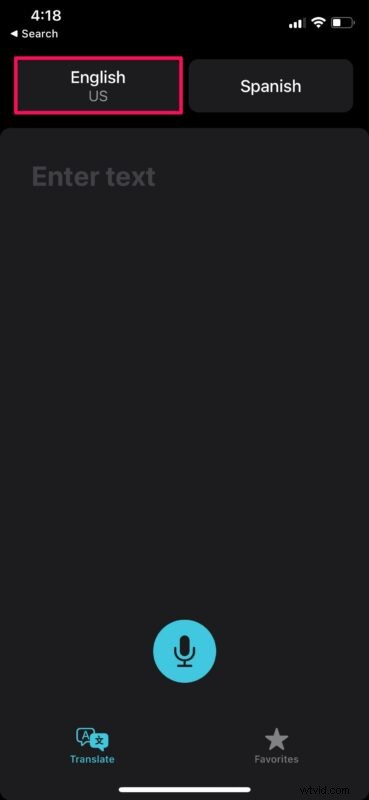
- Now, simply select a language of your choice and tap on “Done” to proceed further.
- Next, to choose the translated language, tap the language option located on the right, as indicated here. Once you’re done with the language selection, tap on the microphone icon to record external audio as shown here.
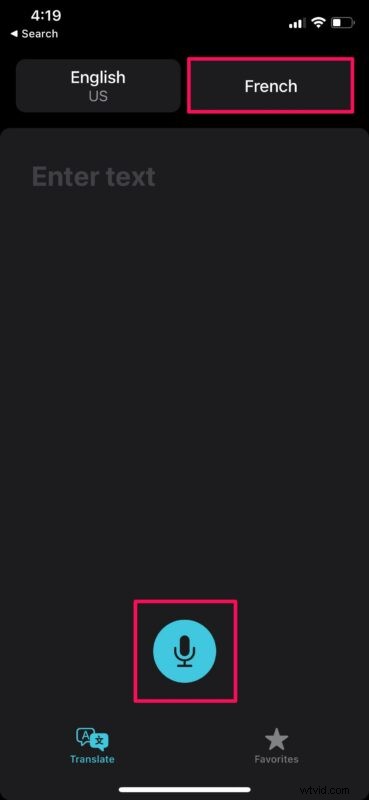
- Now, simply speak the phrase or sentence that needs to be translated.

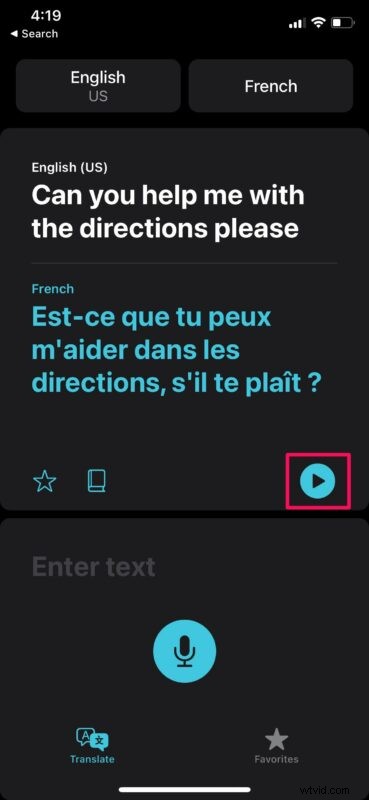
- You’ll be able to view the translated text immediately within the app. To play the translated text as audio, tap on the play icon as shown in the screenshot below.
Now that you’ve learned how to use the Translate app to translate your speech to a foreign language, you can use it anytime you’d like right on your device.
Next time when you’re having trouble communicating with a foreigner, grab the phone out of your pocket and open the Translate app for language translations in real-time.
This can also be a great tool to help in learning foreign languages, so don’t miss it the next time you’re taking a course, or even using something like Duolingo.
You cannot expect to stay connected to the internet at all times, especially when you’re traveling. What if you need translation when you’re in the middle of a flight or anywhere with no cellular connectivity? This is where offline translations could prove to be extremely useful. For offline use, download translations for the respective languages from the language selection menu in the app.
Don’t want to look awkward while trying to translate your speech in public? No worries. Apart from translating your speech, Apple’s Translate app can also translate text and typed words to the language you want. Simply type the phrase or sentence you want to translate in the “Enter text” area and you’re good to go.
Do you use the Translate app on iPhone or iPad? How well do you feel that it works for you? Let us know your thoughts and experiences with this feature in the comments.