
 If you have ever been reading a web page or website in Safari for iOS and wanted to quickly locate a particular text phrase or word within that active webpage, you’ll be happy to know that searching for matched text in Safari has gotten much easier on the iPhone, iPad, and iPod touch with the latest releases of iOS.
With modern iOS releases, you’ll find a simple to use and easy to access “Find on Page” option in Safari, which quickly matches any searched text on a webpage in the Safari browser. This is a very useful feature that is now quite simple to access, let’s review how finding on page works in the latest versions of Safari for iOS.
Searching on Web Pages for Words & Text Matches in Safari for iOS 12, iOS 11, iOS 10 with Find On Page
Using Find On Page in Safari is demonstrated here on an iPhone but it works the same on Ipad and iPod touch with the latest releases of iOS:
- Open Safari if you haven’t done so already and go to the website you wish to search (for example, the always wonderful and informative https://osxdaily.com)
- Tap on the top of the screen to make the URL bar and sharing buttons visible in Safari, then tap on the Share button which looks like a little box with an arrow coming out of it
- Scroll through the secondary action items in the Sharing options screen, scroll past Favorites, Add Bookmark, Copy, etc to find “Find On Page”
- Type the text or number to match within the current webpage to search for it, then tap on the “Search” button, the first match will immediately be visible and highlighted in the Safari browser
- Use the arrow keys next to the search box to find next and previous text matches for your search phrase on the web page, when finished tap on “Done”


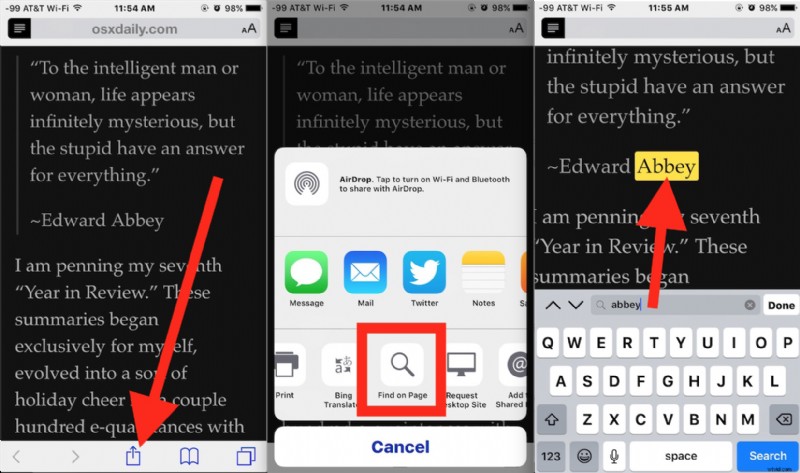
You can clear the search phrase and search again, or just tap the “Done” button and be done with it if you found what you were looking for. In the example shown, a webpage was searched for “Abbey” and the resulted was found, matched, and highlighted on screen.
This applies to Safari in iOS 9 and newer, older releases have different methods which are linked to below.
This approach is much easier to find matching text on pages compared to what existed in prior versions of iOS on the iPhone, iPad, and iPod touch. While matching text phrases is possible in prior versions, searching for text on web pages in Safari for iOS 8 and iOS 7 and finding matches in Safari for iOS 6 and iOS 5 was much more difficult and a bit more confusing to access, which led many users to believe the feature didn’t exist at all. While Apple has changed this option several times, hopefully the newest version which is quite easy to use and access for finding text match on any web site will stick around.
If you have any other tips or tricks for searching for matched text on a webpage with Safari in iOS on either iPad or iPhone, share them in the comments below!