
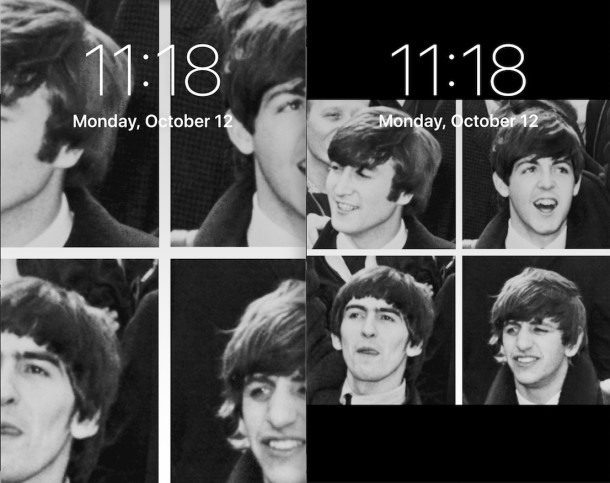
The new versions of iOS zoom into a wallpaper image when it is set as the wallpaper on both the lock screen and home screen of an iPhone, iPad, or iPod touch, effectively resizing the image. While this can make efficient use of some sized images and look great with certain types of pictures, the zooming wallpapers do not look so great with portraits, group photos, and just pictures of people or multiple subjects in general. While there’s no direct way to stop the zooming, there’s a little workaround trick you can utilize to stop the wallpaper image from being zoomed into on an iPhone or iPad, here’s how it works.
For this example walkthrough, we’ll use an iPhone and set this picture of The Beatles from UPI Wikipedia commons as the wallpaper, since most people who have bothered by the wallpaper zooming feature in iOS encounter it when using a group picture of people.
Workaround to Set a Whole Image as Wallpaper Without Zooming / Resizing to Fit the Screen in iOS
This trick works the same for both iPhone and iPad with iOS and iPadOS:
- Open the Photos app in iOS if you haven’t done so already
- Locate and open the the picture you want to set as the wallpaper without the zoom effect on the iPhone or iPad
- Tap on the picture to hide the editing and sharing tools, this will place a black border around the picture
- Now press the Volume Up & Power Button (or Home button and Power button, depending on device and model) concurrently to take a screenshot of the onscreen picture with the black border around it
- Now locate the screen shot of the picture you just created in Photos app Camera Roll, tap on it, choose the Sharing button, then choose “Set As Wallpaper” – no more zooming!
While this prevents the wallpaper picture from being zoomed in on, the obvious downside is that you’ll have a black border on the image.
The before and after seen above demonstrates how dramatic the difference is, with the prior picture so zoomed in you can’t see half the faces, whereas the screenshot image is appropriately sized with no zoomed effect. You can see the effect by hitting the Power button once the wallpaper has been set to enable the lockscreen.
Note this is not the same as turning off the face-zoom feature on the iPad picture frame.
This is obviously very much a workaround, but it’s necessary for now until (if) iOS changes the way that wallpaper images are handled. The zoomed wallpapers have been in place for multiple major versions now, so don’t expect a change anytime soon. For now, just take a screenshot of the picture on your iPhone, iPad, or iPod touch, and use that as the wallpaper instead, no zooming.