
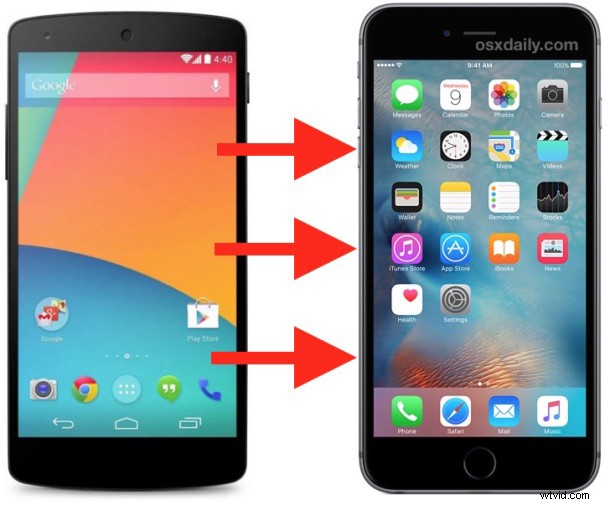
Changing phone platforms is easier than ever before, and if you’re moving from an Android phone to an iPhone, you’ll find that Apple has made this process incredibly simple with the help of a free migration tool. Appropriately called “Move to iOS”, the utility is easy to use and migrates all contacts, photos, calendars, notes, and much more, transferring everything from the Android phone to the new iPhone.
The best time to migrate everything from an Android to an iPhone is when the iPhone is being setup as new, if you’ve already set it up you can easily reset it to factory settings and start over, making the transfer process simple. We’re going to work under the assumption that the iPhone is new and being setup as new.
How to Migrate Everything on Android to iPhone with “Move to iOS”
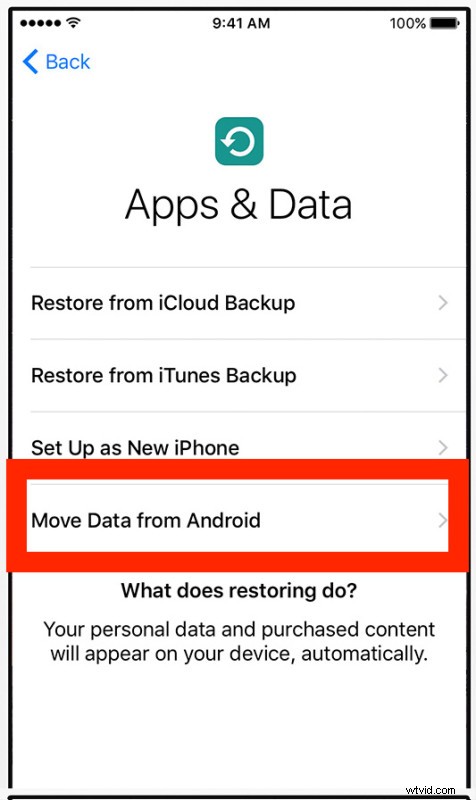
- Begin the new iPhone setup as usual, when you get to the “Apps & Data” screen, tap on “Move Data from Android”
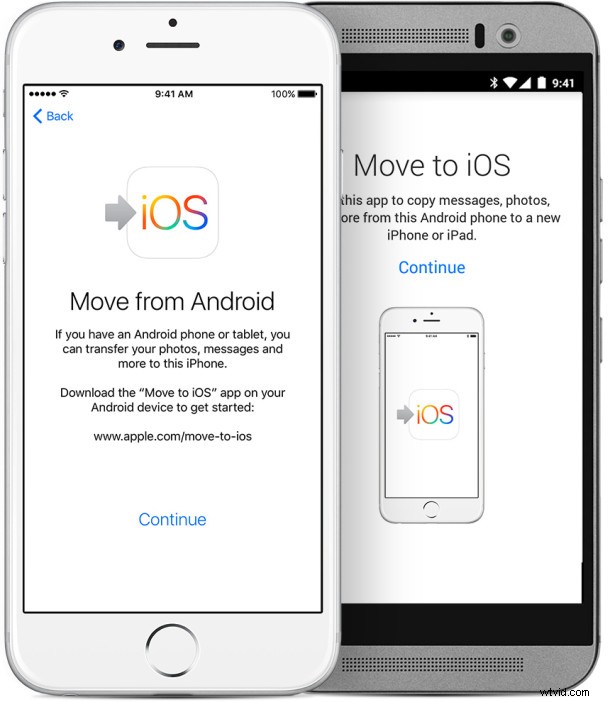
- Now on the Android, download the “Move to iOS” app from the Google Play Store here and launch the app when finished
- Tap through the agreements and continue through Move to iOS on the Android app, in a moment an option for verifying the transfer will appear with a code
- Back on the iPhone at the Move from Android screen, wait for the confirmation code to arrive and enter this code as seen onto the Android phone
- Choose the items, content, contacts, photos, and other details you want brought from Android over to the iPhone, once the transfer process starts let the Android and iPhone sit still for a while as the migration completes – this process can take a while depending on how much stuff you have and how fast the connection is
- Once finished, tap on “Done” and continue setting up the iPhone as usual
When the process has completed you should double-check the iPhone Photos app, Contacts, and other places to make sure everything you wanted to copy over has migrated. Move to iOS is quite reliable and works well, so everything should be in order.
If you have issues, you can always transfer contacts from Android to the iPhone manually as well with these instructions, and you can copy pictures from an Android to a Mac yourself as well, which can then be copied to the iPhone or just maintained on the computer.
Once you have finished migrating everything from the Android to the iPhone, confirmed everything is in order and that you have all your stuff, you’ll probably want to reset the Android to factory settings so that you can sell it or give it to a new owner.
And finally, enjoy the new iPhone! Start exploring and have fun. You can get started by learning tons of iPhone tips and tricks here.