
The latest versions of Mail in iOS allow iPhone and iPad users to quickly filter their email inbox to display unread messages with the simple touch of a button. The unread email message toggle will instantly change the currently viewed inbox in iOS Mail to display all unread emails in the active inbox, it’s simple and fast, but easily overlooked.
If you haven’t seen this feature before, here’s where to find it and how to use it so you can quickly show all unread email messages on your iPhone or iPad.
Note this is a different feature than using the dedicated unread email inbox in iOS, and it offers a faster approach to quickly toggle to view new messages in the currently active inbox (or all inboxes if you’re showing them all).
How to View All Unread Email Messages in Mail for iPhone and iPad
- Open the Mail app in iOS if you haven’t done so yet
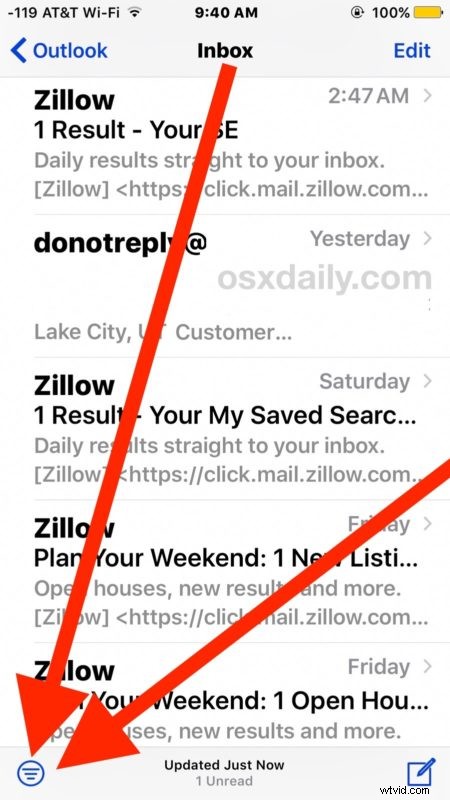
- From the primary Inbox window, look in the corner for the tiny round button with three lines through it and tap on that to immediately toggle the display only unread email messages in the current Mail inbox
- Browse through all unread emails in the iOS mail inbox as desired
- Toggle the button again to return to the regular inbox view, showing all messages read and unread included as usual
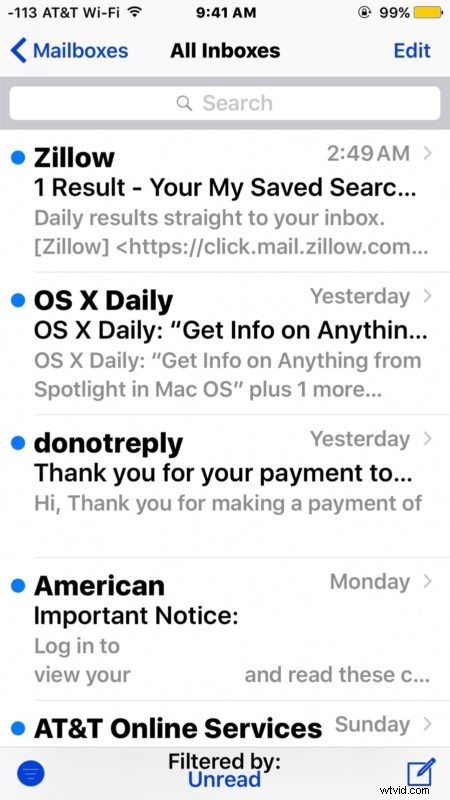
You can mark emails as read or unread from this screen and they will show or hide depending on their status and the view you are using. For example, if you showing the Unread messages but you read a message or mark an email as read, or mark everything as read, it will no longer be visible in the Unread messages view.
You’ll need a modern version of iOS to have this feature, if you haven’t done so yet be sure you update your iPhone or iPad to the most recent versions, a minimum of iOS 10.0 is required to have the Unread email messages toggle.
Other versions of iOS also support the unread email inbox, which remains a valid approach if you don’t want to deal with the toggle