
The latest versions of iOS Mail app include a “Trash All” function that allows you to quickly delete all emails in an inbox on any iPhone, IPad, or iPod touch. This is the fastest way to delete all emails in an inbox from an iOS device, and can be helpful if you want to clear out all locally stored mail messages from iOS, whether for spring cleaning purposes, because you don’t need the emails anymore, or perhaps to free up space taken up from a hoard of emails on an iOS device.
Do note that this method will not remove the email account from the iOS device, but that deleting all email messages this way sends them to the Trash folder, and once deleted from there this can not be undone unless you were to restore from a backup made prior to trashing the emails. Whether or not these deletes the emails from the mail server as well depends on if the email account is SMTP or IMAP. If you have any doubts about whether you want the emails in the future or not, backup your iPhone before beginning. If you simply want to get rid of the red alert icon on Mail app, marking all as read is likely a better option in that it doesn’t remove the emails from the iOS device or Mail inbox.
How to Delete All Email from Inbox in Mail for iOS
To have the Delete All feature, you’ll need to be running iOS 9 or later on the iPhone, iPad, or iPod touch. Earlier versions do not have the Trash All Mail feature and would need to go with a different approach.
- Open the iOS Mail app as usual and go to the Inbox you wish to delete all email messages for (select from the Mailbox list if you’re not currently in the inbox you want to delete all emails from)
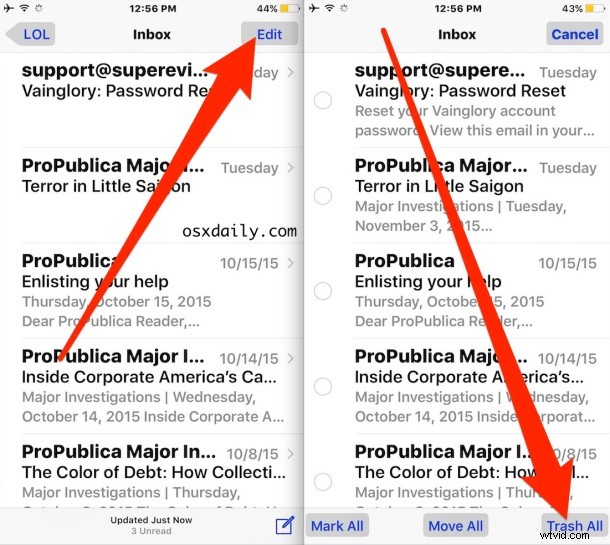
- Tap on the “Edit” button in the corner
- At the bottom of the Mail app window, tap on the “Trash All” button
- Confirm you wish to delete all emails by tapping on “Trash All”
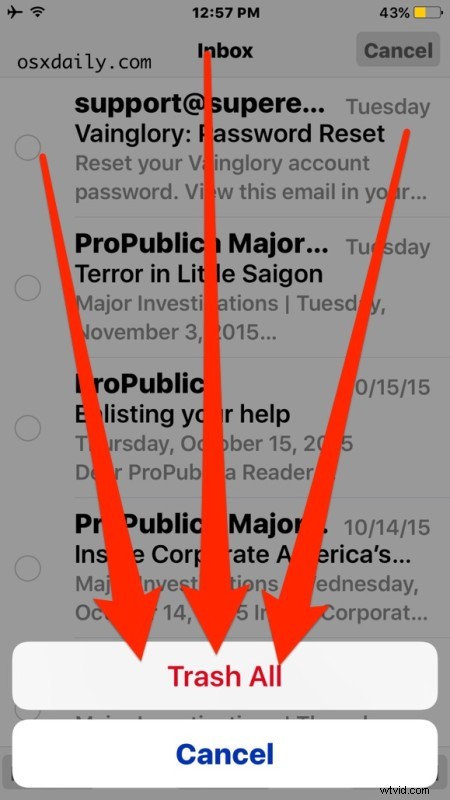
This sends all of the messages into the Trash box of the Mail app, these will remove themselves eventually but if you want to manually intervene and delete every email message you just sent there right now you can do that too.
Deleting All Trashed Emails in Mail for iOS Instantly
After the emails are sent to the Trash folder, you can instantly delete them all with these steps:
- Tap on the “Mailboxes” button in the upper left corner of the Mail app
- Select “All Trash” (if it’s not visible, tap on the Edit button and enable the All Trash inbox by selecting it from the list so that a blue checkbox appears alongside the name)
- Enter the All Trash inbox, tap on “Edit” and tap on “Delete All” – this can not be undone so do not do this if you are not absolutely positive you never want these emails again
Once you Delete All, every email in the Trash folder is gone for good, removed from the iOS Mail app entirely.
As mentioned before, this is only available in modern versions of iOS. Earlier Mail app versions allow for deleting multiple emails at once by manually selecting them and sending to Trash which can then be deleted overtime or manually the same as instructed above.
You can also delete individual emails in iOS Mail with a swipe gesture, which is much more targeted than trashing everything in an inbox.