
Having full email access from anywhere is one of the great perks of an iPhone. Forwarding an email is one of the more popular Mail app abilities in iOS, but it is commonly misused or even accidentally used. Let’s review how to properly forward an email from iOS Mail app in order to pass it along to another email address, so that you can be sure you’re using the feature as intended.
And yes, many users will know how to forward emails properly from iPhone, iPad, or iPod touch, so if you’re well versed in iOS Mail functionality you can skip this guide.
Remember, Forwarding an email allows you to take an email from your inbox and pass it along (as in forward it along) to someone else, effectively sending an existing email to a different email address. It’s a handy feature that is commonly used for work and personal environments where someone may send you an email but you’d like to pass along that information to another person. It’s also commonly misused or unintentionally used, as many users often confuse the Forward function and the Reply function. Remember, an email reply quite literally means to reply to the sender of the email, whereas Forward means you are taking an existing mail message and passing it along to someone else. These are two different functions but in iOS they share the same starting point. You can learn how to reply to email with iPhone Mail here if interested.
Forwarding Email from iPhone with Mail App
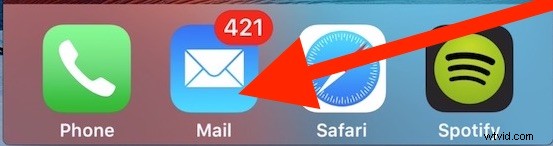
- Open the Mail app on the iPhone, it’s the little mail icon in the Dock at the bottom of the home screen
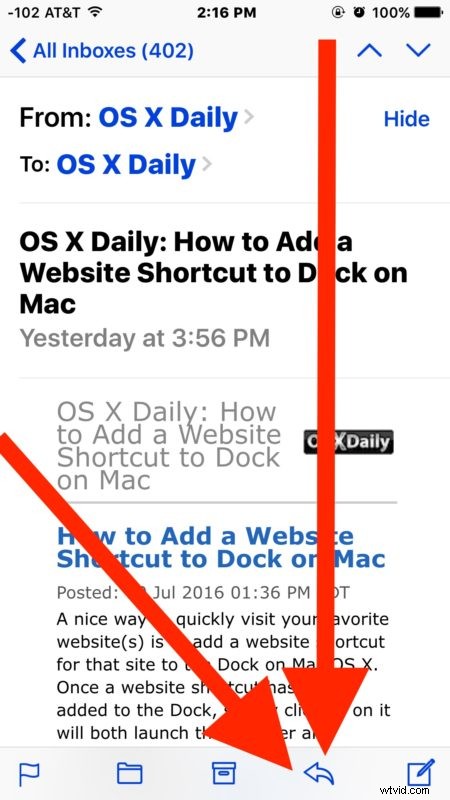
- From the inbox, tap to select the mail message you want to Forward to another email address recipient – it is important to select the proper email to forward otherwise you may send the wrong email
- Tap the Forward / Reply / Print action button, it looks like an arrow pointing to the left *
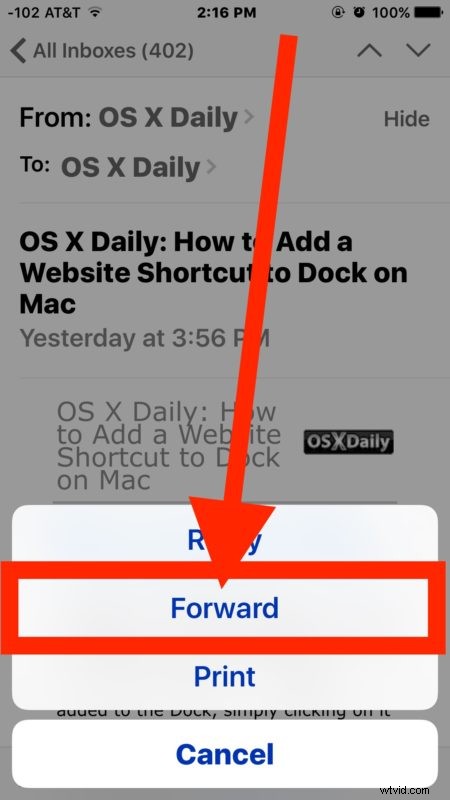
- At the email action option screen, choose “Forward” – this is important, if you choose Reply you are sending an email to the person who sent you the message rather than forwarding it on
- Type a message you want to include at the top of the email forward, you can add photos or attachments as well if need be, then tap on the “Send” button in the corner to send off the forwarded email
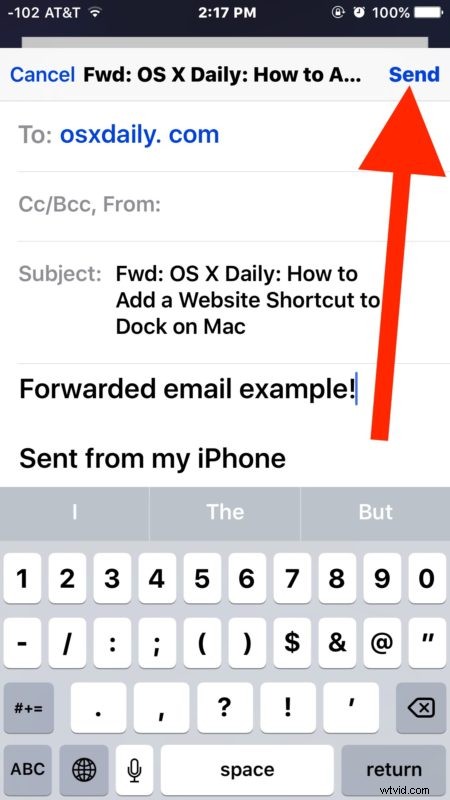
Forwarded email messages will include the same subject, but default to prefixing the subject with “Fwd” to indicate the message is a forward. Contrast that to an email reply, which prefixes a replies message subject with “Re”.
Once you send the forwarded email, the original mail message will be included along with your optional message.
* The email action button serves to Forward, Reply, and Print emails. This can lead to some confusion, since the initial interaction button looks the same but the secondary actions you may use are different. It’s important to select “Forward” if you want to actually forward the email to someone else, as a reply does not serve that function. These functions being under the same action menu likely lead to some degree of mistakes, and could explain why many people accidentally reply to emails rather than forward them, or forward an email rather than reply to them. It happens more often than you’d think!
Now that you’ve got forwarding emails down, don’t forget to review replying to email with Mail on iPhone too.