
Wi-Fi Assist is a feature on modern versions of iOS which allows an iPhone to automatically start using the cellular data connection if the established wi-fi connection is poor. Enabling Wi-Fi Assist tends to make overall internet connectivity more reliable, but it has the potential downside of an increase in cellular data usage, which is why some users may want to disable Wi-Fi Assist on iPhone instead. Whether or not to turn off Wi-Fi Assist or leave the feature turned on is really a matter of personal preference and data use, but we’ll show you how to do either on iPhone and cellular equipped iPad devices.
It’s worth mentioning that many users will not notice much of a data use change whether they have Wi-Fi Assist turned on or off, because Wi-Fi Assist is generally not activated often (how often is your wi-fi connection worse than your cellular connection?). In fact, if you have the feature enabled, you can actually see exactly how much increased cellular data is being used by Wi-Fi Assist offloading to cellular when you go to toggle the setting to fit your needs.
How to Disable (or Enable) Wi-Fi Assist on iPhone
The iOS device must have cellular capabilities as well as wi-fi, which is why this feature is most commonly encountered on an iPhone but it does work on cellular iPad models as well. Here is how you can turn the feature off or on:
- Open the Settings app on iPhone and go to “Cellular” (sometimes called ‘Mobile’ in other areas)
- Scroll to the very bottom of the Cellular options and toggle the switch for “Wi-Fi Assist” to the OFF position to disable Wi-Fi Assist, and to the ON position to enable Wi-Fi Assist
- Changes are immediate, so when finished exit out of Settings
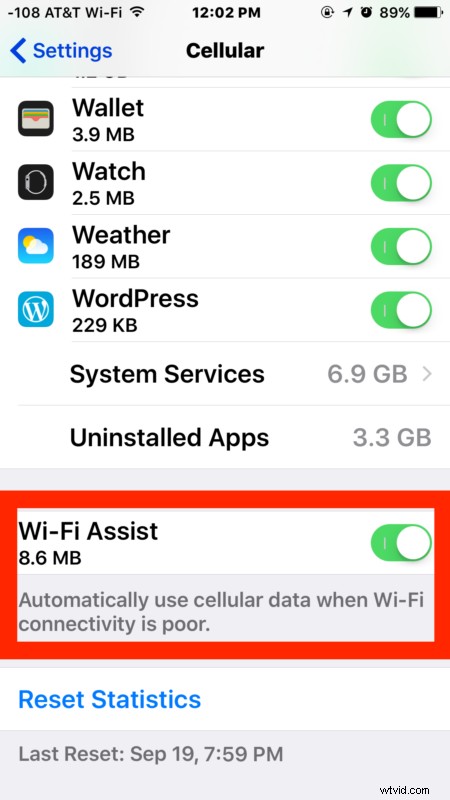
Generally speaking unless you’re often on low quality wi-fi networks, Wi-Fi Assist won’t be used too often. As you can see in the example screen shot, this particular iPhone model has used the feature so sparingly that only about 8MB of data was offloaded to cellular.
Personally I leave wi-fi assist on because I want to be able to have my iPhone connected as often as possible, but some users may find it advantageous to disable, whether due to unusually high mobile data usage (as seen by some after updating iOS and the feature being turned on), or for whatever other reason.