

The “Hey Siri” voice activated control feature on modern iOS devices is a great feature that many people find tremendous use with, but not everyone enjoys it. Some users may wish to disable “Hey Siri” on iPhone or iPad, which will prevent the voice activated ability from listening for the appropriate commands, but turning off Hey Siri has no impact on the broader ability to use Siri by accessing it from the Home button.
To be perfectly clear, this does not disable Siri in general, it only turns off the “Hey Siri” voice activation feature, which allows a user to summon and command Siri from afar. If you don’t use Siri at all, you can disable Siri in iOS completely, which will turn off all aspects of the intelligent assistant agent, including remote voice activation.
How to Disable “Hey Siri” on iPhone and iPad
- Open the “Settings” app in iOS and then go to “Siri & Search” or to “General”
- Choose “Siri”
- Locate the switch for “Allow ‘Hey Siri'” or “Listen for Hey Siri” and toggle that to the OFF position
- Exit out of Settings as usual
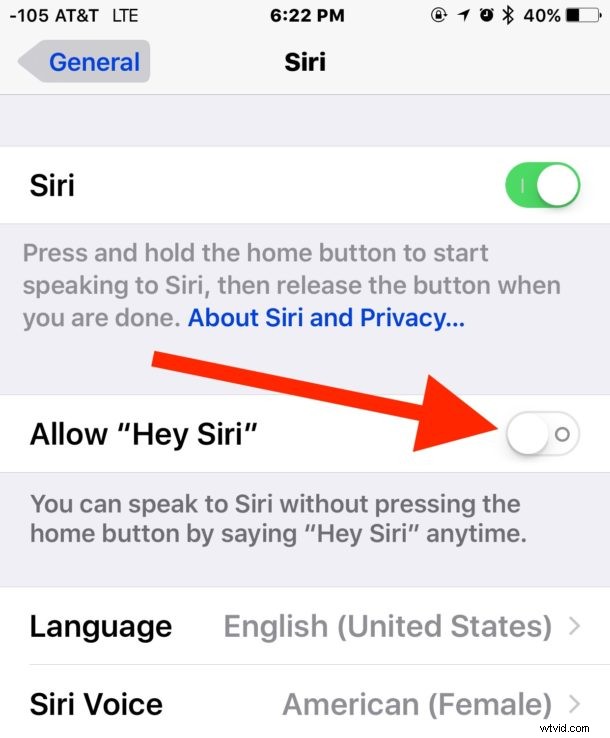
The “Hey Siri” feature is deactivated, meaning you or anyone else can now say “Hey Siri” as many times as you want and it won’t turn on. Instead, Siri has to be summoned the old fashioned way by pressing and holding on the Home button in iOS.
If you find yourself turning this off because Siri is talking out of the blue and seemingly unsolicited, you can use voice training to improve Hey Siri detection for your voice, which will help to prevent accidental triggers and summons for the virtual assistant.
Like any other feature of iOS, you can always re-enable “Hey Siri” voice activation again if you decide you like the feature and want it back on your compatible iPhone or iPad.