

Many iPhone users will send and receive picture messages through the Messages app, which arrive as iMessage if the recipient and sender is an iPhone user, or as MMS if the person is an Android or Windows phone user. Typically picture messages send without any issue, but if you are experiencing a problem where iPhone is not sending picture messages, read the steps below to resolve the difficulty in short order.
Note these steps are taken on the user end with your iPhone, if the recipients phone is having a problem, you’d have to have them follow the instructions separately. Picture messages will work across platform to and from iPhone, Android, Windows Phone, and other devices, assuming the necessary services and cellular mobile plan are available. If the phone or recipient has no data plan or service plan, the device will not be able to send or receive any pictures without a wi-fi connection.
Troubleshooting iPhone Not Sending Picture Messages
These steps apply to all iPhone models running all versions of iOS, it does not matter which device or version is running on the phone.
1: Confirm Cellular Data is Active, Wi-Fi On
To send pictures through iMessage, the iPhone must have an active cellular data plan or wi-fi connection.
- Go to the “Settings” app and then go to “Cellular”
- Be sure the “Cellular Data” toggle is switched to the ON position
Cellular data can be turned off if there is an active wi-fi connection instead, you can confirm that by swiping up from the bottom of the iPhone screen and tapping on the wi-fi icon to be sure a wireless connection is active and enabled.
2: Confirm MMS Enabled
MMS messaging is necessary to send media messages across platforms, you will want to be sure this is enabled if you’re having trouble sending image messages:
- Go to “Settings” app and then to “Messages”
- Be sure the “MMS Messaging” option is toggled to the ON position
- Go to the Settings app and to “Messages”, then be sure that iMessage is set to the ON position
- Hold the Power button and Home button concurrently until you see the Apple logo, usually about 10 seconds
- Open the “Settings” app and go to “General” and then to “Reset”
- Choose “Reset Network Settings” and confirm you wish to do so
- Is the cellular reception poor? That can cause failure to send messages and picture messages
- Is the recipients cellular reception bad or out of service? That can also cause a failure of sending picture messages
- Is there no data plan or wi-fi connection available? Having no data service will now allow iMessage to transmit texts or images
- Do normal text messages work to send and receive? If text messages won’t send from iPhone either, there may be other issues including a problem with the mobile plan
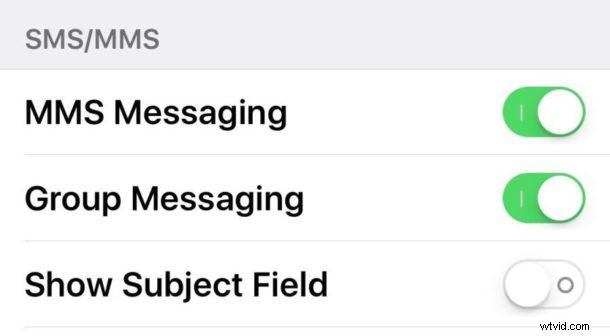
MMS Messaging is mandatory if you wish to send and receive picture messages from any Android, Windows phone, Blackberry user, and also any iPhone user who is not using iMessage.
3. Confirm iMessage is Enabled
Using iMessage is how most iPhone users communicate with one another, you’ll want to be sure the feature is enabled if you’re on an iPhone. Some users disable iMessage, but it is not recommended to do so and the vast majority of iPhone owners should use the service to communicate:
Note if you see “iMessage waiting for activation” then you may want to toggle the service.
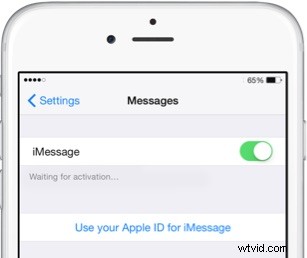
Sometimes simply toggling iMessage off and back ON again can also remedy issues with iMessage.
4. Reboot iPhone
Rebooting the iPhone can often fix erroneous behavior and other simple troubles, including an inability to send photo messages with iPhone.
This forcibly reboots the iPhone which often fixes problems with message sending and other strange behavior in ioS.
5. Reset Network Settings
Sometimes resetting network settings in iOS is necessary to fix picture sending on iPhone if the image sending and receiving functionality is not working properly. This is easy to do and only takes a moment:
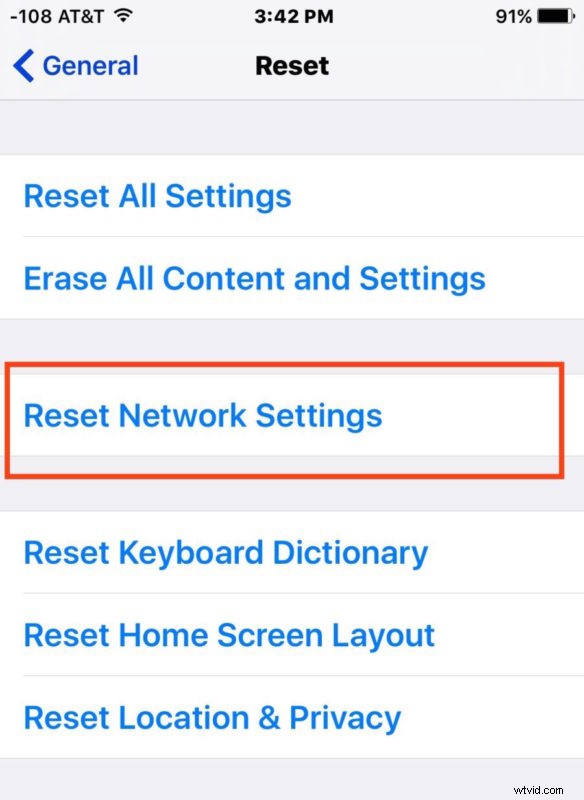
This will reset any remembered wi-fi connections as well as customizations to DNS and DHCP, so be prepared to enter passwords and any such data for wifi connections and routers again.
Other Considerations
Have any other tips or tricks to remedy a problem sending photo messages from an iPhone? Let us know what works for you in the comments, the vast majority of the time the steps above will fix your issue though!