
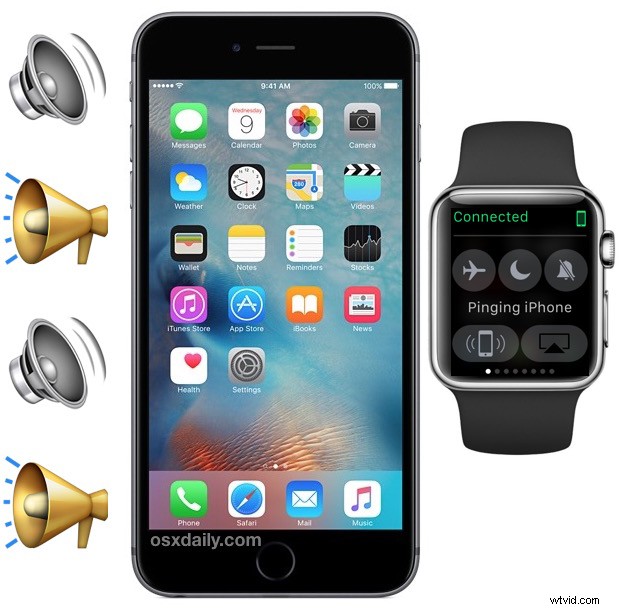
Misplacing an iPhone is a fairly regular occurrence for many of us, maybe it slipped between the cushions on a couch, maybe you left it in another room, maybe it fell somewhere under the seats in the car, maybe it’s in the backyard, anything is possible. Fortunately for Apple Watch owners, they can use the handy Ping iPhone feature to make their paired iPhone emit a loud pinging sound, making it easy to locate a lost iPhone within earshot.
The pinging iPhone feature is very useful, particularly for those of us who often place the iPhone somewhere and then forget where it exactly it went or where it fell to. Parents and sitters should find the feature to be helpful as well, since little ones have a knack for placing devices in unusual places, and being able to ping the iPhone to find it takes out much of the guess work.
How to Ping an iPhone with Apple Watch
This works between the Apple Watch and the iPhone it is paired with, you can’t ping other devices that aren’t related and paired.
- From the Apple Watch clock face, swipe up to access Glances as usual
- Swipe right a few times until you’re at the control panel Glance, with the iPhone connection status, AirPlane Mode, Do Not Disturb, Silence, Airplay, and what we’re looking for here…. Ping iPhone, be sure the iPhone is listed as “Connected” in green otherwise the two devices are likely too far apart for the feature to work and you may want to use iCloud to find the lost iPhone instead
- Tap the Ping iPhone button (it looks like an iPhone with soundwaves coming out of it) and follow the sounds to locate the misplaced iPhone
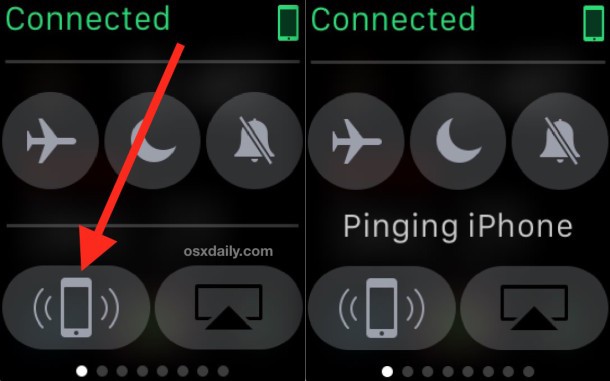
As long as it’s nearby and connected to the Apple Watch, you can ping the iPhone and help locate it fairly quickly.
The iPhone will let out a few very loud ping sounds, and you can keep pressing the pinging button to narrow down by the audio signal where the thing is located. If it sounds muffled, it’s probably stuck in a cushion or under a seat somewhere, or maybe it’s in the refrigerator, don’t rule anything out if the iPhone is missing!
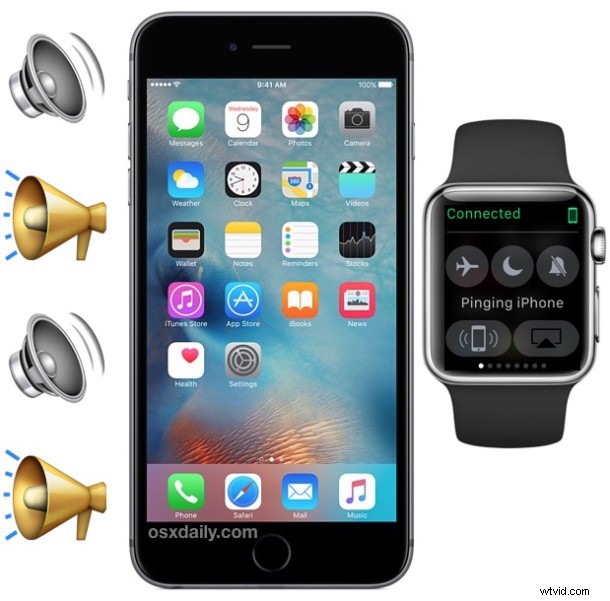
Ping Lost iPhone & Make the Camera Flash Blink
Another neat trick is a variation of the ping method, which causes the camera flash on the iPhone to blink in addition to the device sounding the normal dinging sound. The trick with this is to simply hold down the Ping button and the iPhone will both blink the camera flash in addition to making the chiming ping sound effect. This is great for finding a lost iPhone in a dark room, or if it’s stuck under a car seat or something similar.
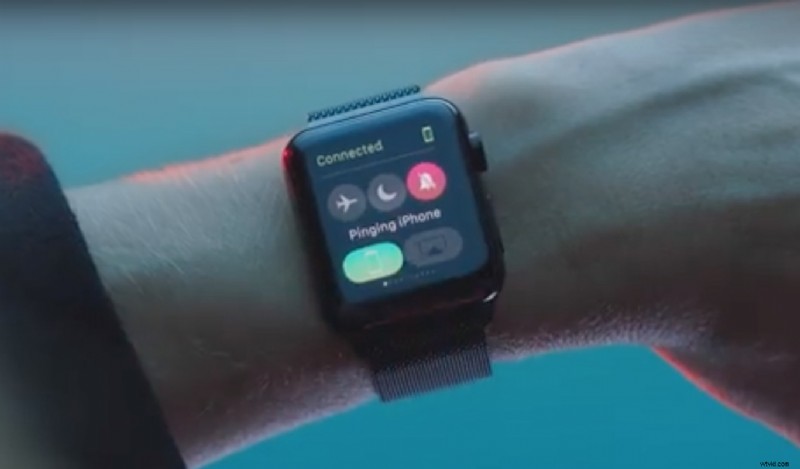
For a video demonstration of this feature, Apple ran an Apple Watch commercial called ‘find’ which shows off how to use the pinging feature from the Watch to track down an iPhone, that video is embedded below:
As mentioned before, if the Apple Watch shows a red ‘Disconnected’ message you won’t be able to ping the iPhone, and instead you’d need to rely on finding the lost iPhone with iCloud which can also ping a device and place it on a map, that method has the benefit of being accessible from another iOS device or web browser.
If you’ve tried both iCloud and the Apple Watch and still can’t find the device, you’ll probably want to place it in lost mode with Remote Lock so that it’s unusable without your Apple ID.