

If you take a lot of selfies with the iPhone you’ll be pleased to know that you can quickly access every selfie ever taken with the front facing iPhone camera by using a simple sorting album in the iPhone Photos app. Likewise, if you just want to see all the selfies taken by someone else, you can quickly access every selfie taken with the iPhone camera by using the same selfie album on their phone.
This is often overlooked, but it’s a really simple trick to use. All it requires is the iPhone have at least a modern version of iOS like 9 or later installed on the device, as prior versions don’t have the Selfies photo sorting album option. And of course the iPhone must have some selfies, since the iPhone is smart enough to determine what photos were taken with the front camera versus the rear camera.
How to See All Selfies Taken with iPhone Camera
Ready to see every selfie taken with the iPhone camera on a device? Here’s all you need to do:
- Open the Photos app as usual but tap on the “Albums” button
- From the “Albums” view (tap back to Albums if you’re in Camera Roll), scroll down to find the “Selfies” album, tap on that to show a picture album of every picture taken with a front facing camera that is stored on the iPhone
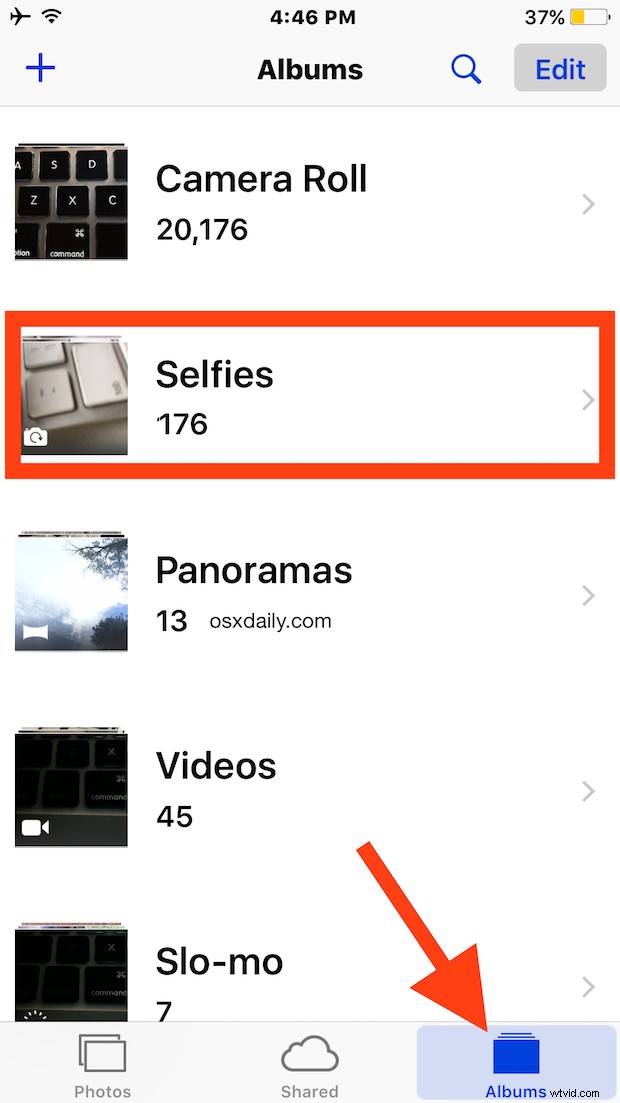
This album will also include other selfies taken by other iPhone users who have shared the picture with the current iPhone, assuming the picture has been saved locally to the device.
While this is a popular feature for people who take many pictures of themselves and like to share them through iMessage or the various social media channels, it’s also quite popular with parents and educators for other reasons.
The Selfies album isn’t using facial recognition or anything too crazy to recognize people or faces, it simply includes every picture taken with the iPhone front facing camera, thus even if you aren’t taking pictures of yourself with that camera, you’ll find whatever used the front camera to snap the shot. Likewise, if you’re taking group pictures with the Self Timer camera you wouldn’t find these available in the selfies album either (unless they also used the front facing camera and the self timer feature, anyway).
Can You Delete the “Selfies” Photo Album in iOS?
No, currently you can not delete the “Selfies” photo album in iOS. If you delete all selfies from the iOS device, then the Selfies album will automatically disappear, but it will instantly reappear again the moment a new selfie is taken or saved to the iPhone or iPad. Thus, you can not remove the Selfies photo album in Photos app, though this may change in a future version of iOS.
There are other album sorting options in iOS as well, allowing users to see burst shots, panoramas, screenshots, or to show only videos taken with the camera too.