
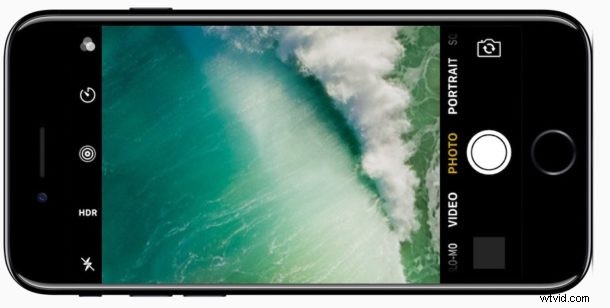
Ever since Apple redesigned the iOS lock screen to remove swipe-to-unlock and require users to press the Home button instead, some iPhone users have discovered that accessing the Camera from the lock screen might be a challenge. The potentially difficult scenario is this; if you press the Home button to show the locked display which you would then swipe to access the iPhone Camera from, pressing the Home button also unlocks the iPhone and skips the lock screen with the camera access. I recently ran into someone who was convinced this set of actions meant their iPhone lock screen camera wasn’t working or no longer existed, so the behavior can lead to some degree of confusion as well.
Fortunately there’s a better way to access the iPhone camera from the lock screen in iOS 10 and newer, and it doesn’t involve using the Home button at all.
This is going to require you to change your habit a bit, and when you want to use the camera on iPhone from the lock screen, you’ll be pressing the power button rather than pressing the Home button (which unlocks the iPhone rather than show the lock screen).
1: Press the LOCK / POWER button to show the iPhone lock screen
Don’t press the Home button, since that is going to attempt to unlock the screen. Instead, get in the habit of pressing the Power button to simply show the screen instead.
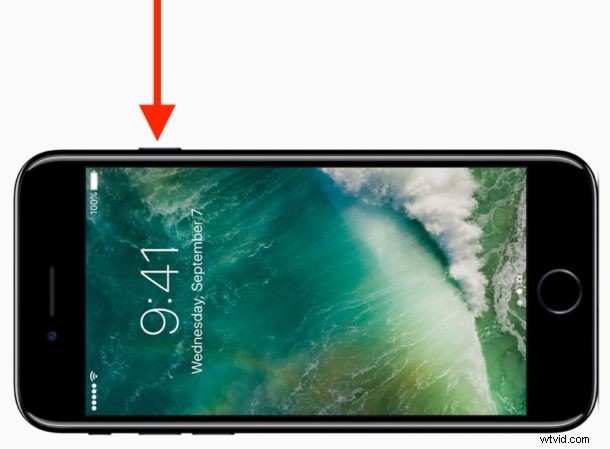
Alternatively, you can use Raise to Wake to show the lock screen on iPhone instead.
2: Now swipe to access the Camera from the Lock Screen on iPhone as usual
Once the iPhone screen is visible, perform the usual swipe-to-access camera gesture.
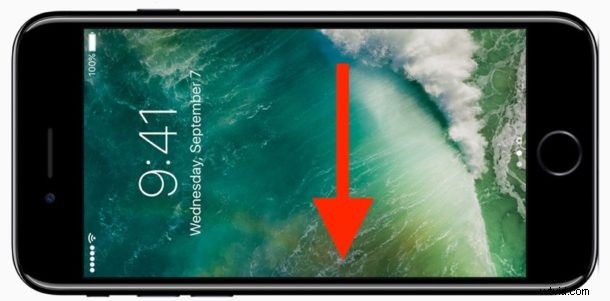
3: Success! Camera has been opened from iPhone lock screen without unlocking the iPhone
Now you’re in the camera and ready to take pictures, from the lock screen. Fast and easy.
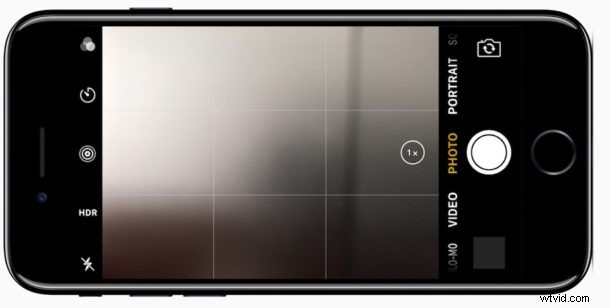
Hooray! Now you have accessed the iPhone camera from the lock screen, without having to press the Home button which also unlocks the iPhone to send you to the Home Screen.
Yes this requires changing your iPhone usage habits slightly, it’s mostly getting used to pressing the Lock / Power button instead of the Home button to show the display. But once you get accustomed to the change, this is now the fastest way to access the iPhone camera. If you’re more verbally inclined, you can also get to the iPhone camera without ever touching the screen by using Siri instead too.
Even now that it has been released for quite some time, some iPhone and iPad users might continue to struggle with the redesigned lock screen in iOS, old habits are hard to break sometimes. If you fall into that group, you can disable Press Home to Unlock in iOS and disable widgets on the lock screen in iOS which might be helpful, and though that won’t offer a return of the iconic slide-to-unlock action, it could make the lock screen a little less confusing for some users.
Don’t forget you can also disable the iPhone camera completely including the lock screen camera if you want too as well.