

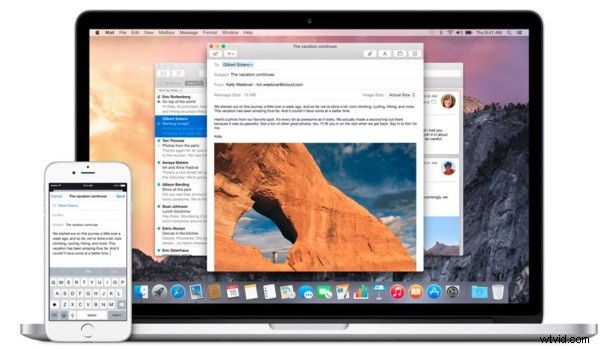
Handoff is the great feature which, much as it sounds, allows iOS and Mac users to ‘hand off’ activity from an app on one device to another, whether that’s an email composition, web browsing session, chat, or work in Pages.
Assuming you have Handoff enabled on multiple Apple devices using the same Apple ID, you can quickly access Handoff quicker than ever by using the same multitasking screen where you quit apps in iOS 9.
All you need to do is double-tap the Home button to bring up the multitasking screen in iOS as usual, and if an app is available to Handoff to the iPhone, iPad, or iPod touch, it will appear at the bottom of the multitasking screen.
The little preview will show an icon and the application name ready to handoff, as well as the device the Handoff session is coming from.
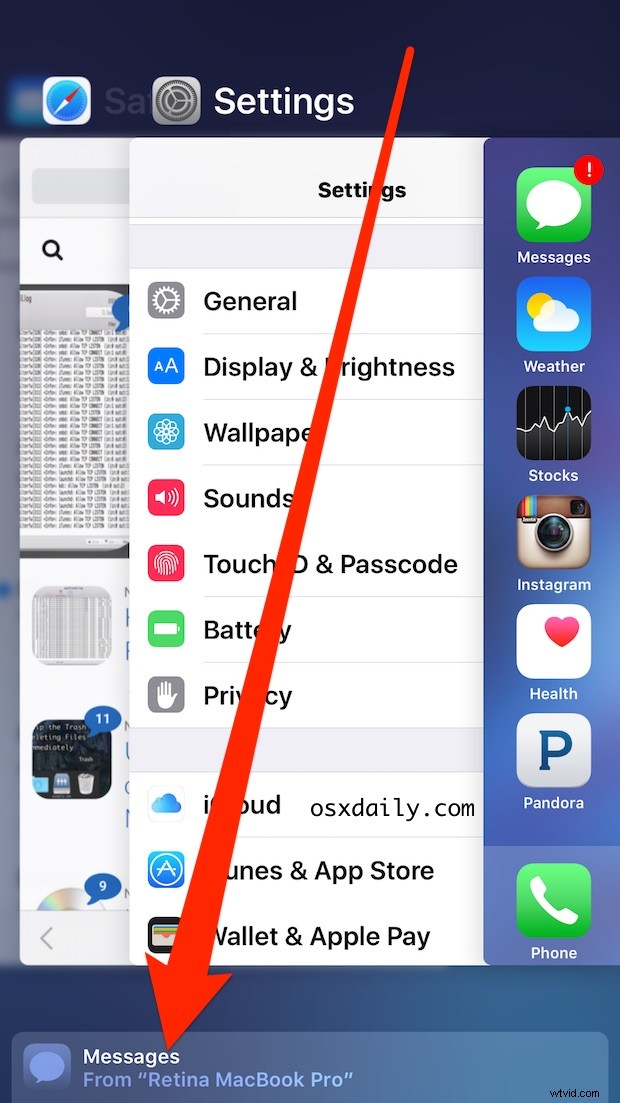
Tapping on the Handoff bar at the bottom of the multitasking screen will bring up the app from the other device, with whatever it’s active application state and usage session.
In this screenshot example it’s the Messages app from a Mac named “Retina MacBook Pro”, ready to continue the conversation started on the Mac over on the iPhone.
Of course, any other app or device that uses the Handoff feature will appear here as well, including browsing the web in Safari, composing an email, working in Pages or Numbers, and many others.
This is much easier and faster than accessing handoff from iOS before, which, while it was also available to use from the multitasking screen, it was at the very end of the app preview cards, making it much more cumbersome to access and, frankly, often forgotten once you had a lot of apps running.
While this quick access method is only available to iOS 9.0 or later, users running the latest versions of iOS and prior versions of iOS can continue to access Handoff from the lock screen as well.
Remember, if you don’t see these features available, it’s likely because the Mac and iOS devices need to enable Handoff support first, though the features are now enabled by default in modern releases of Mac OS X and iOS.