
 You can save many email attachment file types directly from Mail app to iBooks in iOS, this allows for easy offline viewing on an iPhone or iPad, and it offers the benefits of using iBooks for reading and reviewing documents as well.
By saving an email attachment to iBooks, you actually convert and create a PDF file of the attachment in question, and iOS handles it all. For example, if you save a .doc file to iBooks, it will convert that to a PDF. Similarly, if you save a group of multiple images from an email attachment to iBooks, the collection of images will save as a single PDF file within iBooks.
If you don’t want to save the attachments or files as a PDF within iBooks for offline access, you may want to try saving email attachments from iPhone & iPad to iCloud Drive instead. The latter is a better choice for saving attachments that you want to be able to easily edit yourself in an app in iOS too, whether that’s Microsoft Office or Pages or whatever else.
Saving Email Attachments to iBooks in iOS
- From the iOS Mail app, open any email with an attachment file included
- Tap on the attachment icon that appears in the email body, this loads the attachment into the Mail app Quick Look preview viewer for that file
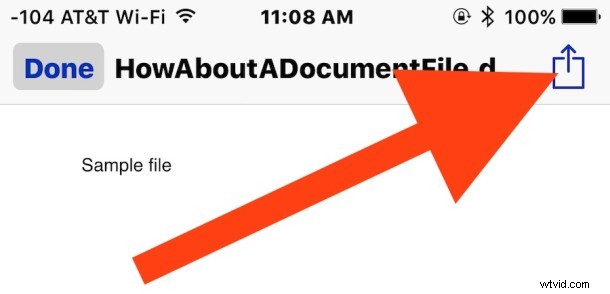
- From the email attachment previewer, tap on the sharing button, it looks like the box with an arrow flying out of it (in the upper right corner of the iPhone)
- Choose the desired save option for the attachment, depending on the file type and what apps you have installed, we’re choosing “Save to iBooks” for the example here since it’s universal on all iOS devices

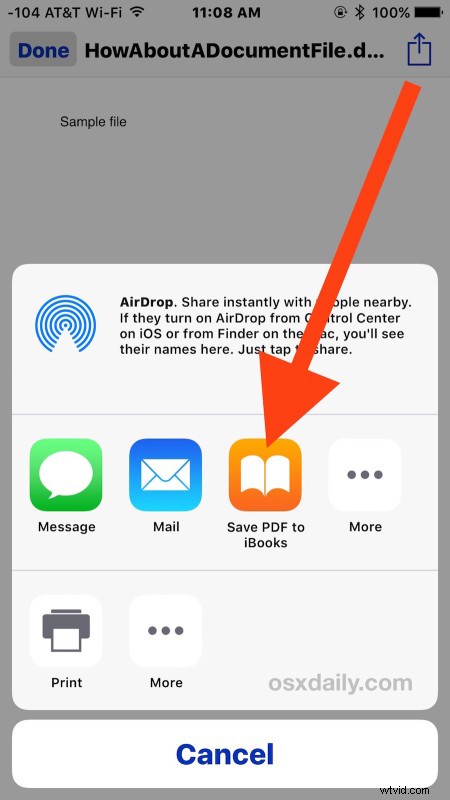
That’s it, now you can visit the app you saved the email attachment to and open the file. If you saved to iBooks as shown above, the document or text file will have been converted to a PDF file, which is great for offline viewing.
* At the moment you won’t see iCloud Drive in this saving list, which is likely a bug. Instead if you wish to save an email attachment to iCloud Drive in iOS Mail app you have to tap and hold on the icon rather than send it into the Quick Look preview. A small difference in action, but it matters as to where you can save files.