
The Mail app in modern versions of iOS adjusted mail threading behavior, so that the oldest message in an email thread appears at the very top of an email message. This chronological ordering means you have to scroll down within the email thread to see the most recent email messages received on an iPhone or iPad, which is fine for some Mail users but the adjustment may be unwelcome to others.
If you’d prefer to have email threads appear in reverse chronological order with the most recent messages appearing on the top of an email thread, you can toggle a settings switch in iOS to achieve that result.
Change Mail Threading to Show Most Recent Messages on Top in iOS
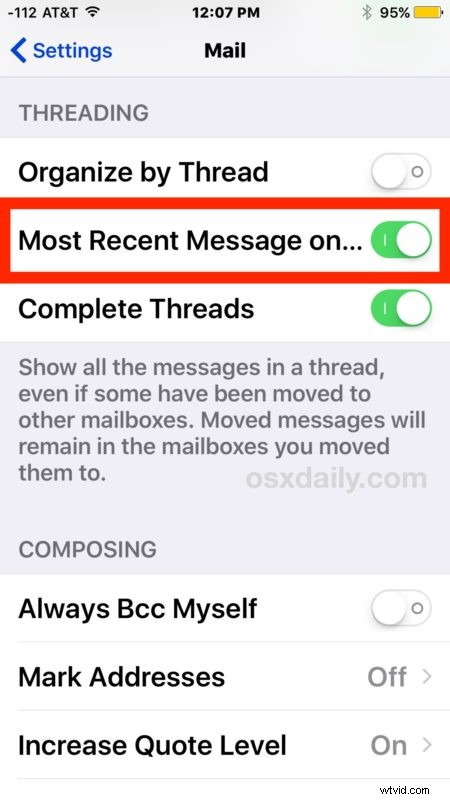
- Open the “Settings” app on the iPhone or iPad and go to “Mail”
- Look under the Threading section and find the switch for “Most Recent Message on Top” and flip that to the ON position
- Exit Settings and return to Mail app to see the new reverse chronological message threading setting in effect
Many users may not even notice a difference here, you really have to be replying to and receiving a lot of email conversations to notice the change to begin with. Nonetheless, you’re not enabling anything particularly new, you’re simply setting the mail threading back to what it was like prior to the most recent iOS releases.
If you make the adjustment to reverse chronological mail threading and decide it’s not for you, you can easily reverse the setting by at any time by toggling the setting back to the off position.
Thanks to Lifehacker for the handy tip.