
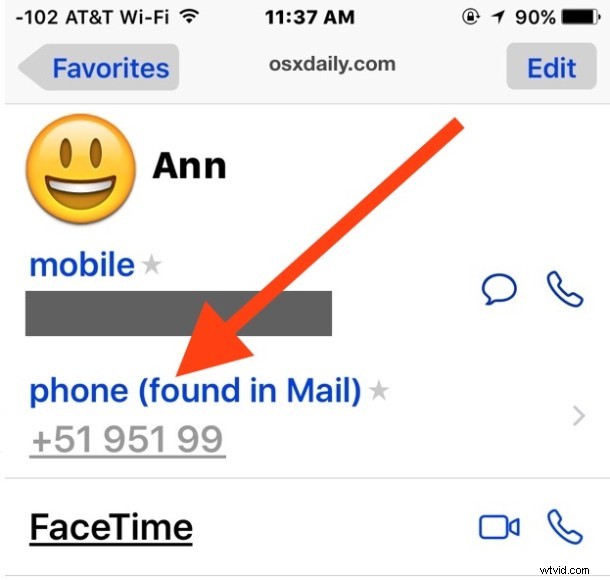
The latest versions of iOS support a feature which scans a users mailboxes for contacts and contact information. While this feature can be really helpful in potentially identifying callers and contacts, it can also lead to erroneous information being filled in to your address book contact cards, erroneous assumptions about callers, and even improper suggestions in the Mail app. For example, perhaps you’ve opened someones contact card and discovered an incorrect and random entry for email or phone with a “(found in Mail)” text appended next to it – that’s this iOS feature in action.
For users of iPhone and iPad who have discovered this feature and find it to be annoying or inaccurate, or perhaps for those who just don’t like the privacy ideas behind suggesting and autofilling in contact information based on scanning email on the same device, you can disable this feature in iOS completely.
Disable Contact Suggestions Found in Mail for iOS
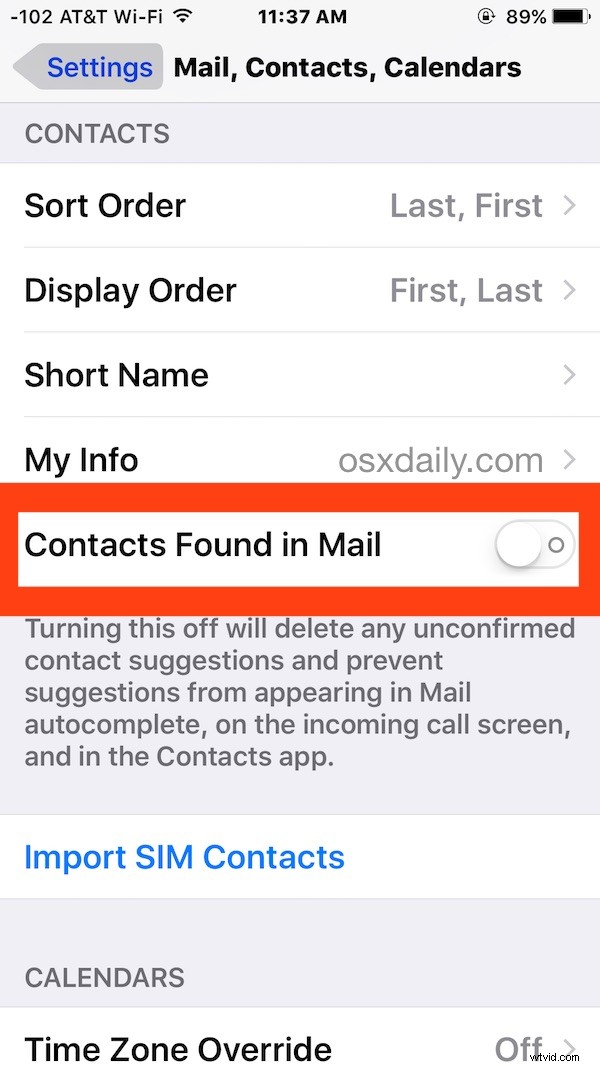
This not only turns off contact suggestions as found in Mail app, but it also deletes any unconfirmed suggestions that were added to contacts through this auto-search suggestion feature:
- Open the Settings app and go to “Mail, Contacts, Calendars”
- Under the “Contacts” section, look for “Contacts Found in Mail” and toggle this switch OFF
- Exit out of Settings as usual, changes take effect immediately
Return to Contacts, or a specific contact with pre-filled suggested contact information, and you’ll find the data from this feature has been removed.
This will have no impact on user defined linked and merged contacts in iOS on the same device, unless that contact linking occurred through the automated feature and wasn’t performed manually. Instead, only the contact details with the “(found in Mail)” note alongside them will be removed from all contacts.
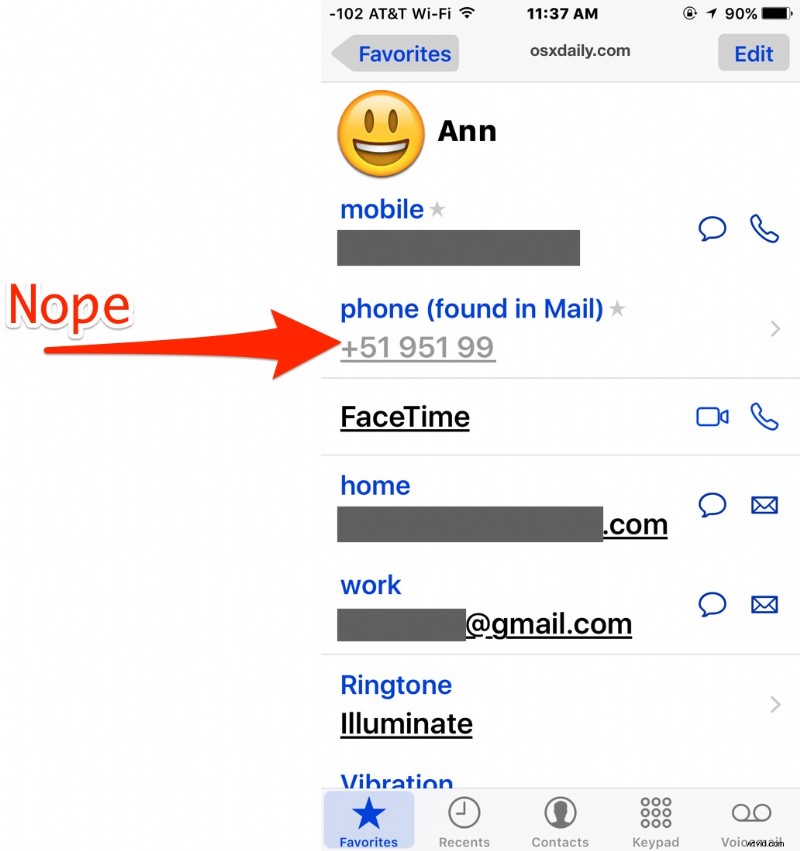
This can be a helpful feature in iOS, as it can help your iPhone identify incoming calls if the number calling is found within an email on the iOS device, but it’s not perfect, and it doesn’t always assign properly or pickup correct information. I have discovered some cases where the contacts found in mail were completely inaccurate, leading to failed messages or improperly assigned details on incoming callers. For example, if one contact emails you contact details like a phone number about another person, that can improperly assign to the first contact. In another example, a person sent me a multi-digit pin code and it was assigned as a phone number (the screenshot example here). This doesn’t always happen, but when it does it can be frustrating as you may find some strange mingling of contact information or assignments of the wrong email or phone number to the wrong person. Anyhow, if you encounter a similar issue in iOS, try disabling the contact suggestions from Mail feature rather than deleting contacts or editing contact information manually, it should take care of the problem.