
Wondering how to add a new contact to iPhone? Maybe you just met someone you’ll be chatting with in the future, or perhaps you want to add a business to your contacts list for easy future access and communication, there are many reasons why you’d want to add a new contact to your iPhone address book.
While there are multiple ways to add new contacts to an iPhone, the most direct way involves using the Contacts app itself to create a new contact card. There you will be able to specify the contacts name, number, email, and much more. We’ll also show you a simple way to add a new contact to your iPhone directly from the Phone app.
How to Create a New Contact on iPhone
Adding a new contact to iPhone is easy, here’s how it works:
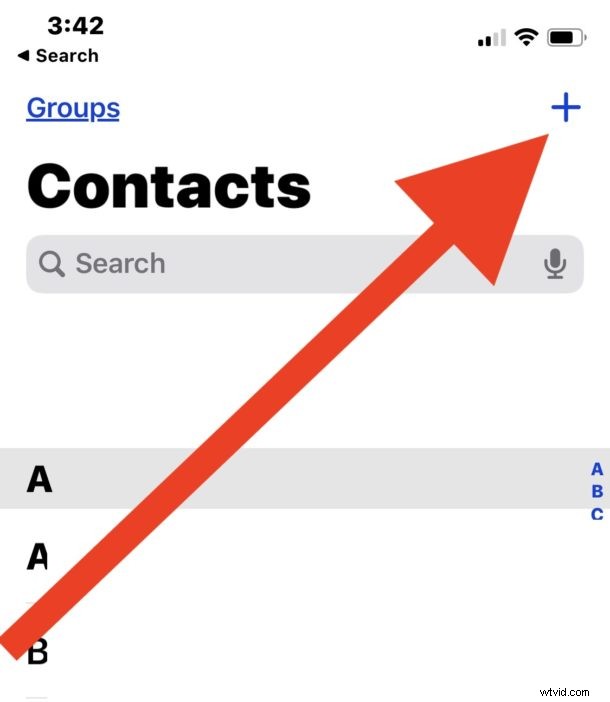
- Open the “Contacts” app on iPhone
- Tap on the plus + button in the corner
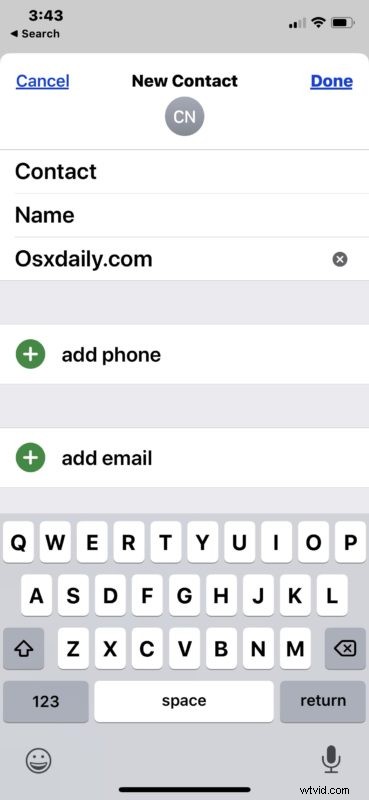
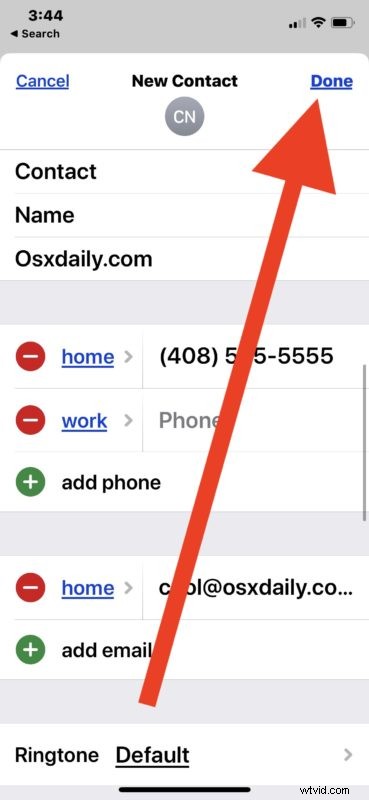
- Fill in the contacts first name, last name, company, phone number(s), email address(es), assign a ringtone if desired, and add other contact details
- Tap on “Done” when finished to complete the creation of that contact
- The completed new contact card will be shown
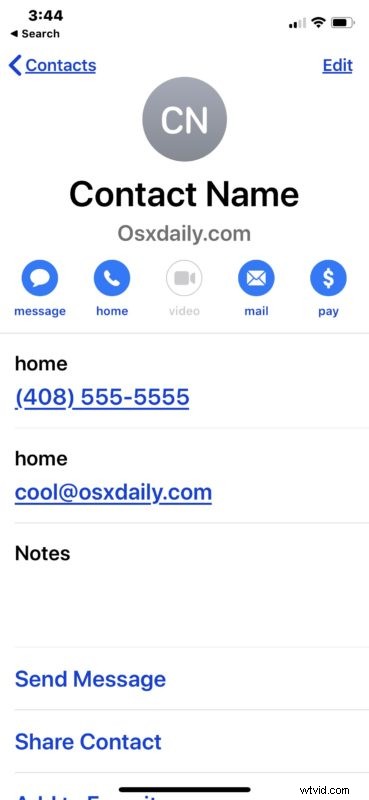
You can repeat the process to create or add a new contact if desired.
If you use iCloud to sync Contacts and you’re using the same Apple ID on multiple devices that you own, say an iPad and a Mac as well as the iPhone, then the newly created contact will automatically sync over and appear on the other devices using the same Apple ID as well.
You can also set your own personal contact info so that you can easily share it with other people. Or you can do what many people do nowadays, which is to simply call or text message someone and then they add your contact information directly to their iPhone or Android, and have them reciprocate.
How to Create a New Contact to iPhone Directly from Phone Calls List
Did someone just call you, or did you just call a number, and now you want to add that person or business as a new contact to your iPhone? That’s easy, here’s how it works:
- Open the Phone app and locate the phone number you want to add a new contact for, then tap the “(i)” button next to the number
- Tap on “Create New Contact”
- Fill in the contact information as necessary then tap on “Done” to add the contact to iPhone
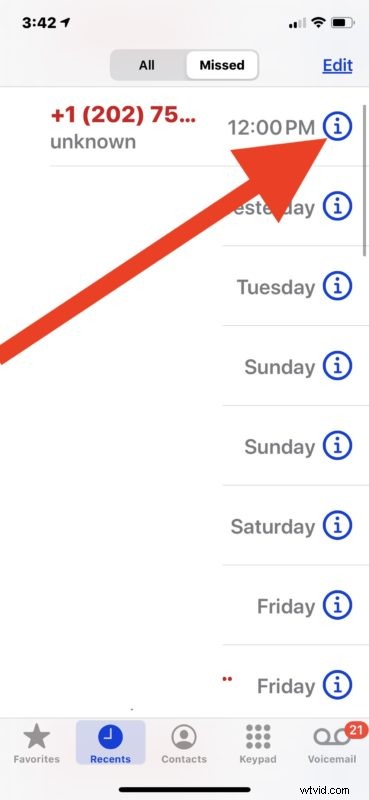
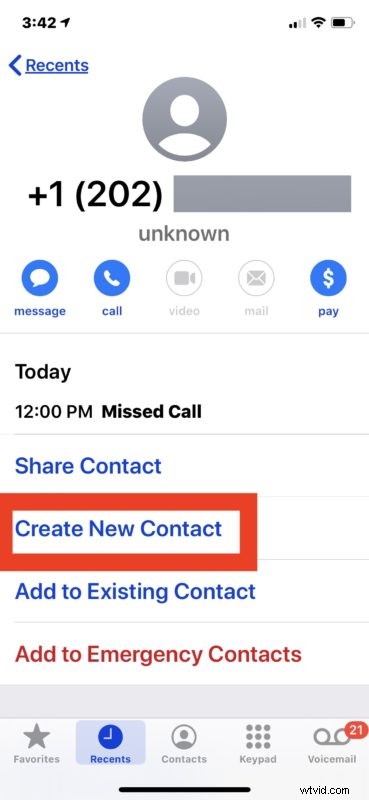
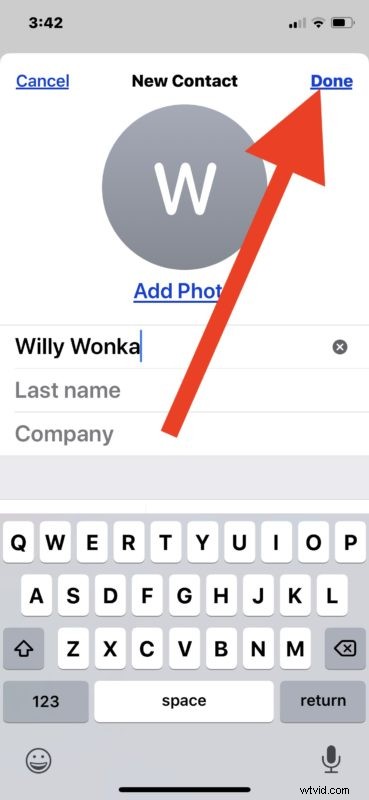
You can do the same thing to add new contacts from incoming text messages and imessages too.
There are other ways of sharing and adding new contacts to iPhone. For example, if you happen to know someone that already has the contact information you’d like to add to your iPhone, then you can also send contacts to and from iPhone easily by sharing the contact information directly. Even if the person has an Android they can still share contact information with your iPhone as long as it’s sent and received in the VCF vcard contact format.
We’re obviously focusing on adding contacts to iPhone here, but the same method applies to adding contacts directly to an iPad and iPod touch as well.