REC

Recommended: Video Production, Editing & Gear Maintenance Guide

 WTVID >> WTVID >  >> Filming equipment >> Cell phones

How to Easily Add a Photo to iPhone Contacts: Simple iOS Guide

How to Easily Add a Photo to iPhone Contacts: Simple iOS Guide

Adding pictures and photos to your iPhone contacts is a nice way to improve the iOS experience for phone calls and messaging, as it helps to quickly identify people in conversations and when reaching out.

Assigning pictures to contacts is quick and easy, and the trick is the same whether on iPhone, iPad, or iPod touch, and regardless of iOS version. Assuming you use iCloud to sync the contacts, the custom contact pictures will automatically transfer over to any shared device or Mac as well.

How to Assign Custom Photos to Contacts in iOS

In this example, the picture chosen is a doodle drawn from Notes app, but you can pick any photo, drawing, or other image stored on the iPhone, or take a new photo with the camera.

    How to Easily Add a Photo to iPhone Contacts: Simple iOS Guide

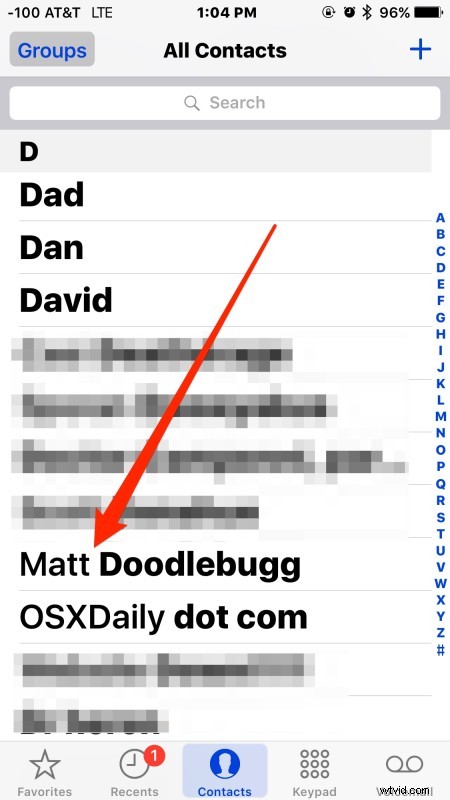
  1. Open the Phone or Contacts app and select the contact you wish to assign a photo to
  2. How to Easily Add a Photo to iPhone Contacts: Simple iOS Guide

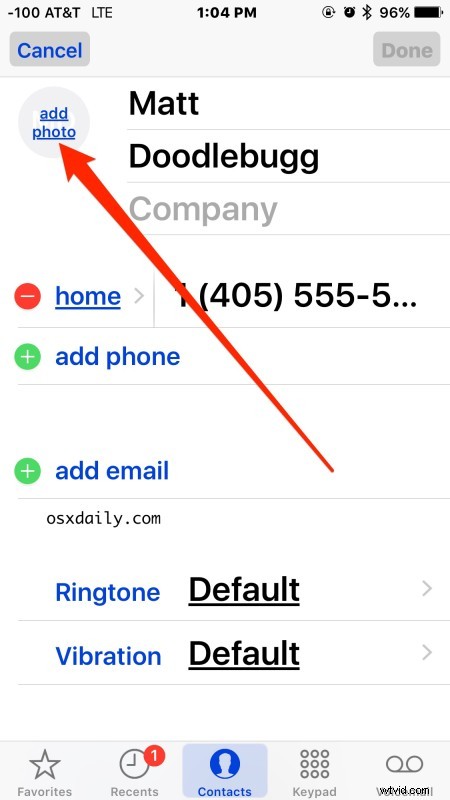
  3. In that users open contact card, tap the “Edit” button in the corner
  4. How to Easily Add a Photo to iPhone Contacts: Simple iOS Guide

  5. Tap on “Add Photo” next to their name
  6. How to Easily Add a Photo to iPhone Contacts: Simple iOS Guide

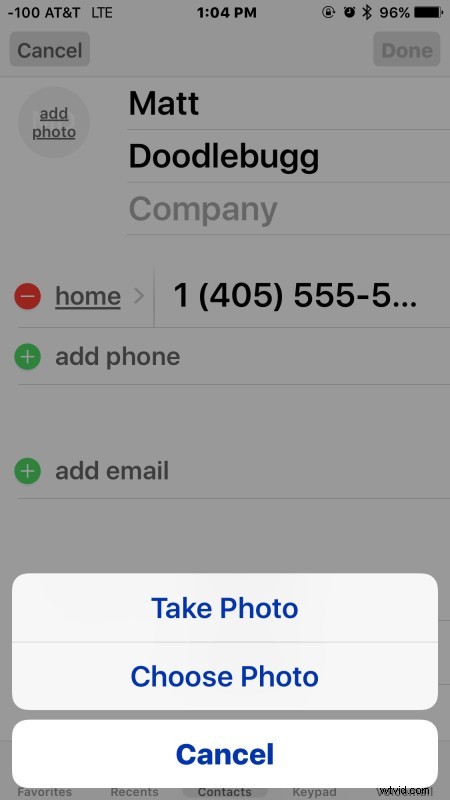
  7. Choose “Take Photo” or “Choose Photo”
  8. How to Easily Add a Photo to iPhone Contacts: Simple iOS Guide

  9. Move and scale the photo as desired then tap on “Choose”
  10. How to Easily Add a Photo to iPhone Contacts: Simple iOS Guide

  11. Tap on “Done” to save and assign that photo this contact
  12. How to Easily Add a Photo to iPhone Contacts: Simple iOS Guide

  13. Repeat with other contacts and other photos as desired
The assigned picture will now appear alongside that users name when browsed in the Contacts app, the Phone app, when calling or being called by that person, and also in the Messages app of iOS.

How to Easily Add a Photo to iPhone Contacts: Simple iOS Guide

You can change, edit, and remove photos for contacts at anytime as well, simply by returning to the Contact, choosing Edit, and making the adjustment to the photo as desired.

Note that if you have chosen to hide the contact photos in Favorites or in Messages lists then you will not see the assigned contacts pictures in those situations.


  1. How to Unblock a Contact on iPhone: Easy Step-by-Step Guide

  2. How to Easily Convert Live Photos to Still Images on iPhone

  3. How to Hide Contact Photos in iPhone Messages: Step-by-Step Guide

  4. How to Safely Downgrade iOS 13 Beta to Stable iOS 12: Step-by-Step Guide

  5. How to Easily Add Nicknames to iPhone Contacts: Step-by-Step Guide

Cell phones
  1. Step-by-Step Guide: How to Safely Install and Update to iOS 11 on iPhone or iPad

  2. Downgrade iOS 11 to iOS 10.3.3 on iPhone & iPad: Step-by-Step Guide

  3. How to Force Quit Apps on iPhone X with iOS 11: Easy Step-by-Step Guide

  4. How to Install iOS 13 Public Beta on iPhone: Safe Step-by-Step Guide

  5. Essential Guide: How to Prepare Your iPhone and iPad for iOS 13 & iPadOS 13

  6. How to Easily Remove Duplicate Contacts from Your iPhone: Step-by-Step Guide

  7. How to Safely Install iOS 14 Developer Beta on iPhone: Step-by-Step Guide

  8. Step-by-Step Guide: Install iOS 14 Public Beta on iPhone Safely