
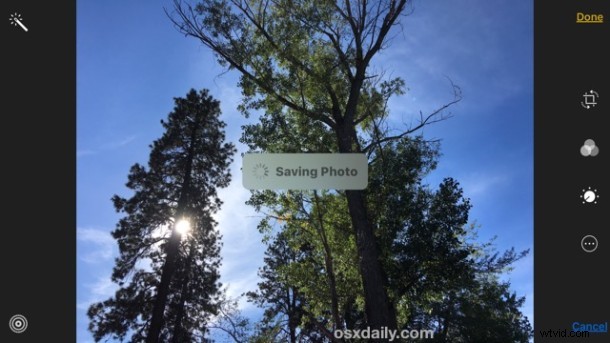
The Live Photos feature on new iPhone cameras is fun and interesting as it turns a still photo into a short live action clip automatically. While you can turn the Live Photos feature off and on easily with a quick toggle, another approach is to not think about it by leaving the feature on, then simply converting the Live Photo to a Still Photo if you no longer want it to be an animated live action shot.
The is a nice quick little trick, allowing you to instantly turn any live photo back into a still photo, right on the iPhone, without having to perform any other adjustments.
How to Convert a Live Photo to a Still Picture on iPhone
This obviously requires an iPhone camera capable of shooting Live Photos (6s or better), otherwise you won’t have the live photos option in general and wouldn’t need to turn it off or convert a picture:
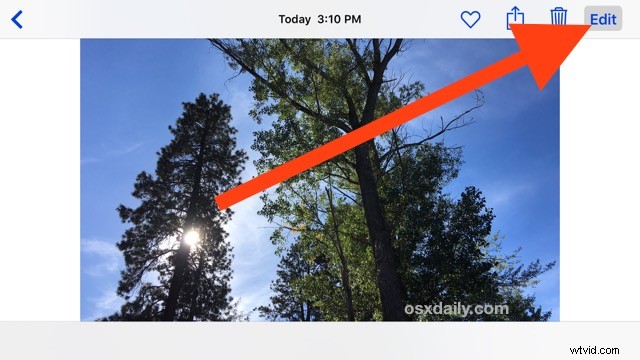
- Open the Photos app on the iPhone and tap to select the Live Photo you wish to convert to a still photo
- Tap the Edit button in the corner of the picture
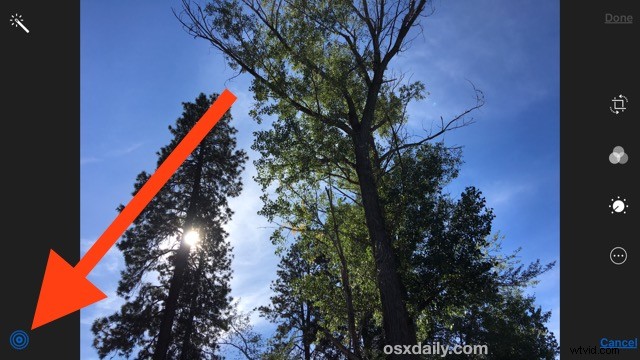
- Now tap the little concentric circles icon button in the opposite corner, this is the same as the Live Photos button in the Camera app, except that tapping it here turns the Live Photo feature off for an already taken image
- Tap on “Done” to convert the live photo to a still photo
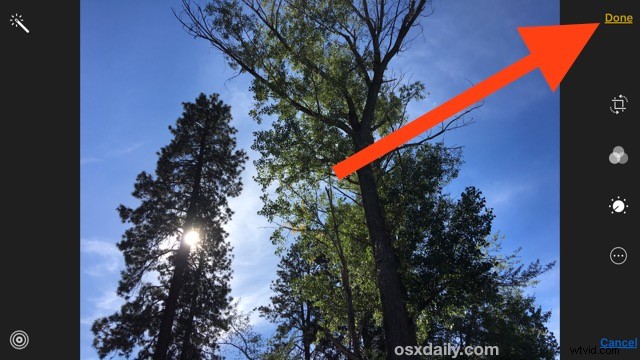
It takes a moment to turn the live animated image to a still.
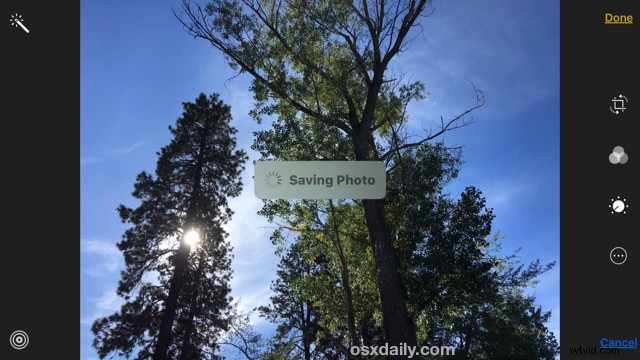
You’ll see a brief “Saving Photo” message and the pictures will be transformed into a still photo. Selecting the image again will display it as a normal photo, and 3D touch will no longer animate the image.
The example image below started off as a Live Photo of wind blowing through trees captured on an iPhone 6s Plus, whereas it’s now a still photo.
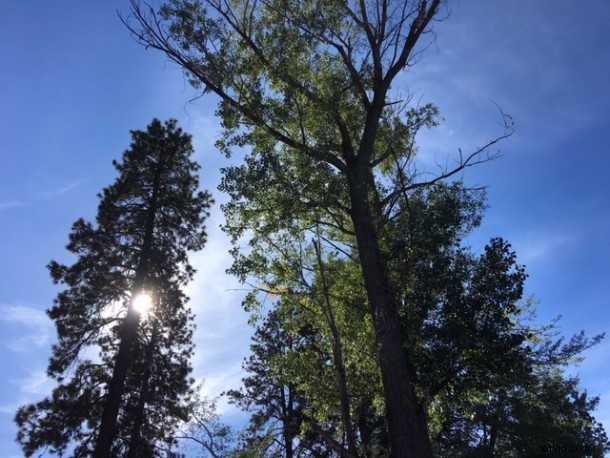
You can actually change it back again and convert the still photo back into a Live Photo by performing the same action but tapping to enable the live photos in the photos editor again, but that’s only possible for pictures that were once taken with Live Photos, you can’t turn a normal still photo into a live photo otherwise.
This is helpful if you want to share a picture with someone but don’t want to share the live photo version of it, or if you’ve had the Live Photos feature on and just don’t use it, you can convert the picture(s) to stills and then when you copy the images to a computer from the iPhone, the Live Photo versions won’t come over with the associated movie files, only still JPEG files will arrive in the transfer.
One final thing to keep in mind is that if you save and modify a converted Live Photo to a regular still photo, it can’t be converted back again, which means something like Live Photo gif conversion would no longer be possible on that specific image.