

Do you use Apple’s Keynote app to create presentations on your devices, but the colleague that you’re working with uses a Windows PC instead? These situations are common, and you may run into compatibility issues when you switch between platforms. Fortunately this can be avoided if you can allocate an extra few seconds of your time, by converting the Keynote presentation file to PowerPoint, and you can do that directly on an iPhone or iPad.
Microsoft PowerPoint, part of the Office productivity suite that’s a major component of the Windows world, isn’t capable of opening and viewing Apple Keynote presentations. On the other hand, Apple’s iWork productivity suite is exclusive to Apple devices. This means trouble, right? Well, no not really. The good news is the Apple’s Keynote app is not only capable of opening PowerPoint presentations, but also convert its native .keynote format to the .ppt format that’s used by PowerPoint. Let’s take a look at how you can convert Keynote files to PowerPoint compatible presentations using just your iPhone or iPad.
How to Convert Keynote to PowerPoint on iPhone & iPad
The Keynote app for iOS/iPadOS devices allows you to access all of your presentation files that were created on the Mac, iPhone, iPad, and iCloud. So, make sure you install the Keynote app if you haven’t already, and simply follow the steps below:
- Launch the Keynote app on your iPhone or iPad.

- Use the Recents or Browse menu to find the file that you want to convert. You need to first tap on the file and open it in the Keynote app.

- This will display all the presentation slides. Here, tap on the triple-dot icon next to the Edit option located at the top-right corner to access more options.

- Now, tap on “Export” as shown in the screenshot below.
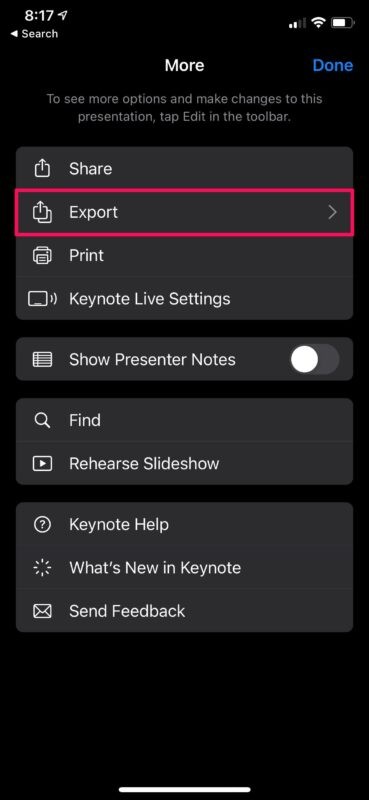
- In this menu, you’ll be able to select the file format for the exported file. Choose “PowerPoint” to start converting the file.

- You’ll need to wait for the conversion to complete. Typically it takes just a second or two.

- Once completed, Keynote will automatically launch the iOS share sheet which can be used to quickly share the converted file via AirDrop, Email, Messages, or any other social networking app. Alternatively, you can save it locally by choosing the “Save to Files” option located at the bottom of the share sheet menu.
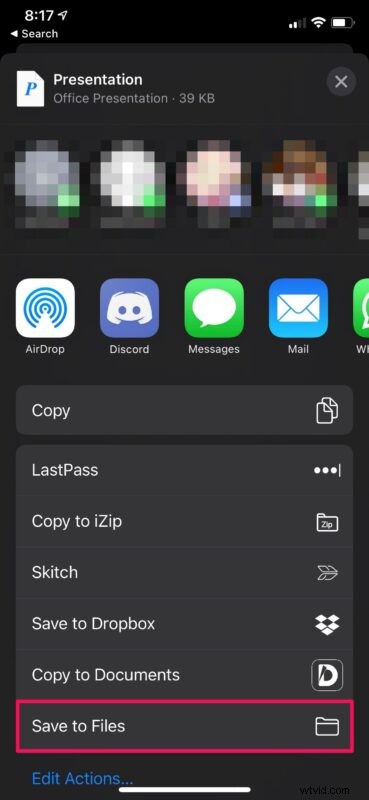
There you go. You’ve successfully converted a Keynote file to a PowerPoint presentation file that can be natively accessed on a Windows PC.
Considering how Apple’s Keynote app and other iWork apps open Office documents natively, we’re not sure why Microsoft still hasn’t added official support for Apple’s formats on Word, Excel, and PowerPoint. The best advice for now would be to use PowerPoint’s format if you’re going to be working with multiple people on a presentation since Keynote will have no trouble opening them.
It’s worth noting that this is just one of the several methods that you can use to convert Keynote files to PowerPoint presentations. If you feel like installing the Keynote iOS/iPadOS app is a hassle, you can use CloudConvert to easily convert .key files to .ppt or .pptx files online. Or, if you’re reading this on a Mac, you can learn how to save .key files as .pptx files using the Keynote app for macOS too.
In addition to the above methods, you can ask the recipient to use iCloud.com to open your Keynote presentations on their Windows computer. All they need is a web browser and an Apple account to open your files. Plus, they will be able to convert these files to PowerPoint presentations and download them onto their device, if they want to view and make changes in PowerPoint later on.
We hope you were able to avoid all the compatibility issues by making use of these various conversion techniques. How do you feel about the lack of compatibility for Keynote presentations in Microsoft PowerPoint? Do you think Apple should bring the iWork productivity suite to Windows? Do you know of another approach to converting Keynote to PowerPoint that is easy? Feel free to share your valuable thoughts and opinions in the comments section down below.