
You can convert any photo on your iPhone or iPad into a PDF file if need be. Typically this would be necessary for compatibility purposes only, since the default file type of a photo in iOS is a JPEG and already widely compatible. Nonetheless if you need to convert a photo into a PDF in iOS, this tutorial will show you exactly how to do it.
We’ll demonstrate how to convert a photo into a PDF file on an iPhone or iPad.
This method will convert a photo into a PDF file for sharing over email, messages, or uploading to iCloud, this uses a variation of the hidden Save As PDF trick in iOS.
How to Convert a Photo to PDF to Share from iPhone or iPad
You can convert a photo to a PDF to share it from iOS, or save it to iCloud Drive. This uses the trick for saving as a PDF using a secret iOS gesture or you can use the 3D Touch method instead, either way you will convert a photo to a PDF file:
- Open the Photos app and choose the picture you want to convert to a PDF
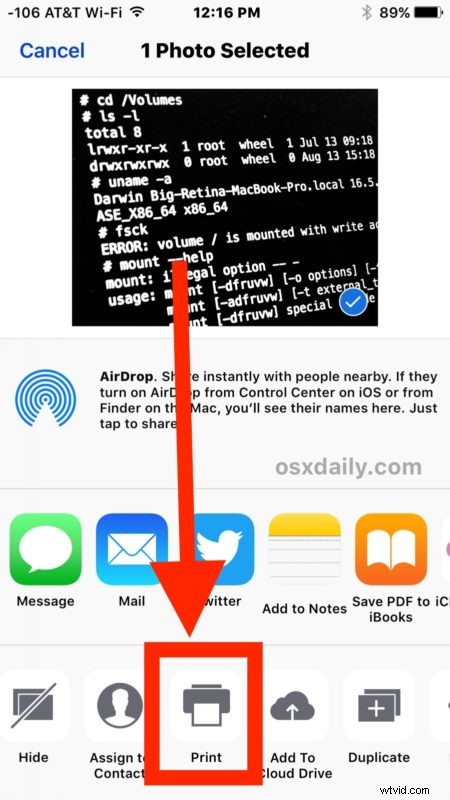
- Tap on the Sharing button and then choose “Print” from the sharing option action menu
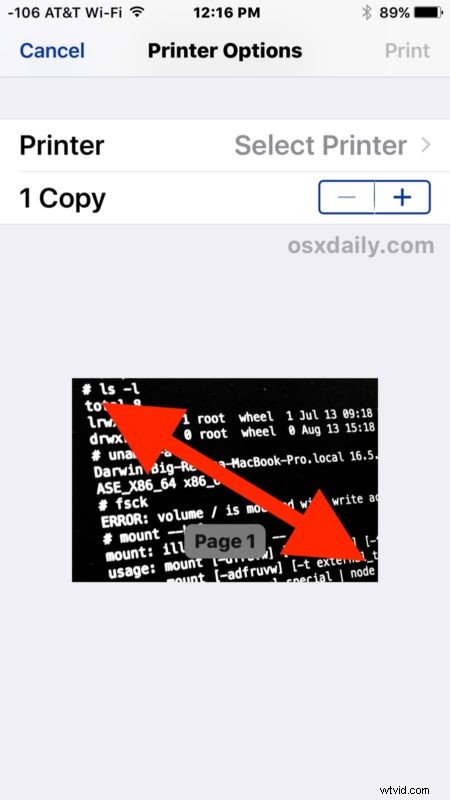
- At the Printer Options screen, use a spreading gesture on the photo preview to access the secret Save PDF option
- Choose to share the converted photo as PDF via Message, Mail, placing it into Notes or another app, or choose “Add To iCloud Drive” to save the converted photo as PDF to iCloud
This will save a photo or picture as a PDF file, which can then be saved locally, shared, uploaded to iCloud Drive, or used for whatever other purposes.
Remember that the default file type of iOS photos is a JPEG which is widely compatible with virtually any scenario, so if you’re just looking to exchange and share pictures there’s no reason to convert a photo to PDF first. However, sometimes some web forms, printers, digitization handlers, or documentation requests require a PDF file, and there are obviously myriad circumstances where a PDF is necessary as well.
So, now you know how to convert photos to PDF directly on the iPhone or iPad. Easy, right? Happy Converting!