
If you’re using a VPN with iPhone or iPad you may wish to eventually delete that VPN from your device, perhaps because you are no longer using the VPN service, or if the VPN is no longer needed. For example, maybe you used a VPN while traveling and are back home and no longer find it necessary, or perhaps you changed jobs and a work-specific VPN is no longer needed.
This article will show you how to delete a VPN from iPad or iPhone.
How to Remove VPN from iPhone or iPad
- Open the Settings app
- Toggle the “VPN” switch to OFF if the VPN you want to delete is not already disabled
- Go to “General” and then tap on “VPN”
- Locate the VPN profile you want to remove and tap the (i) button
- Tap “Delete VPN”
- Confirm that you want to delete the VPN to remove it from the iPhone or iPad
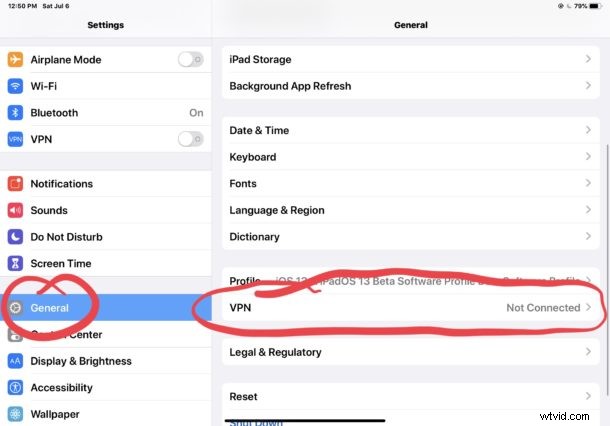
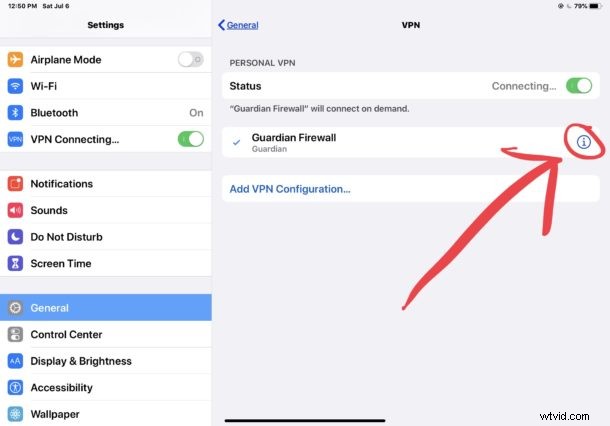
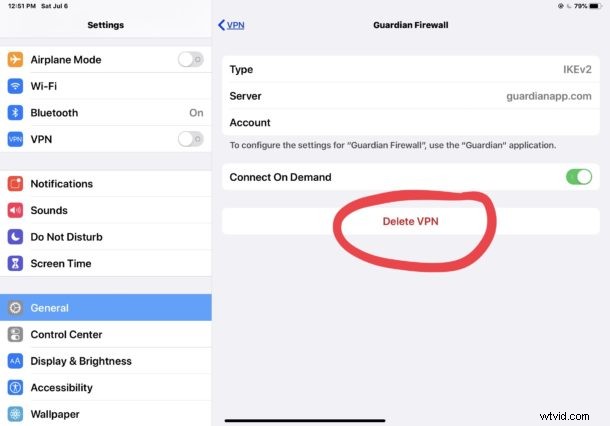
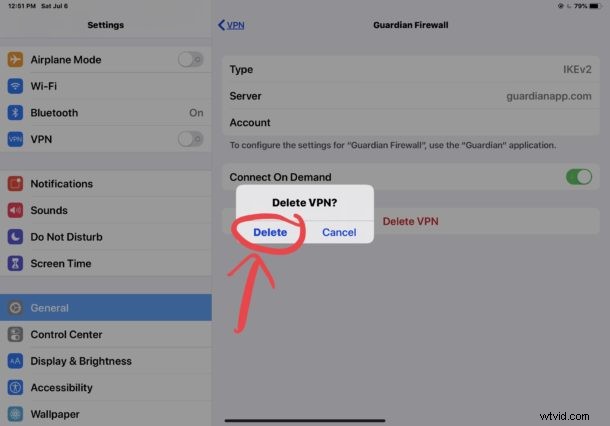
With the VPN deleted, it will no longer be available for use on the iPad or iPhone. If you wanted to use the VPN again, you’d either need to re-add the VPN Profile or reconfigure the VPN manually.
Many VPN services install a VPN profile that make the setup of their service particularly easy, and by deleting the VPN this way you are effectively removing that profile. This also works the same to delete and remove a manually configured VPN on iPhone or iPad too.
Nearly every third party VPN service (that you’d actually want to use anyway, though Opera web browser has a free VPN as do some other services) is a paid service, and they can be very helpful for international travelers and for the privacy conscious or security minded since a VPN will route all internet traffic on a device through the VPN as long as it’s active. Additionally, many businesses and organizations have a VPN that is required to access internal networks and other organization specific data. Whichever the case, once you no longer need the VPN or are no longer paying for the service, you’ll probably want to remove the VPN profile from your iPhone or iPad.
The screenshots here demonstrate removing a VPN from an iPad but deleting a VPN from iPhone is exactly the same, as it is with iPod touch.