

The Calendar app on iPhone and iPad is incredibly useful, but if you are new to the platform or just haven’t bothered to use it much yet, you might be wondering how you can add and delete events from Calendar on your device. Fortunately, managing Calendar events in iOS and iPadOS is quite simple.
It’s hard to keep track of your schedule, especially if you have a lot going on in your everyday life. The Calendar app offers a great way to help you stay on schedule by letting you create and manage events on your iPhone and iPad. Whether it’s a work meeting, doctor’s appointment, football game, or any other sort of event, you could add them to the Calendar app to have a clear idea of what’s ahead of you, setting specific times and dates for events, even adding notes and alarms and invites to others for those events too.
Although you can use Siri to create and show your calendar events, some people prefer taking the manual route of adding and removing events from their Calendar.
How to Add Events to Calendars on iPhone & iPad
Manually adding and managing your events within the Calendar app of iPhone and iPad is not necessarily a complicated procedure, you just need to learn how it works, and once you get the hang of things, you’ll be mastering Calendar app in no time. Simply follow the steps below to get started with calendar events on your device.
- Open the “Calendar” app on your iPhone or iPad.

- Once you’re in the app, tap on the “+” icon at the top-right corner of your screen.
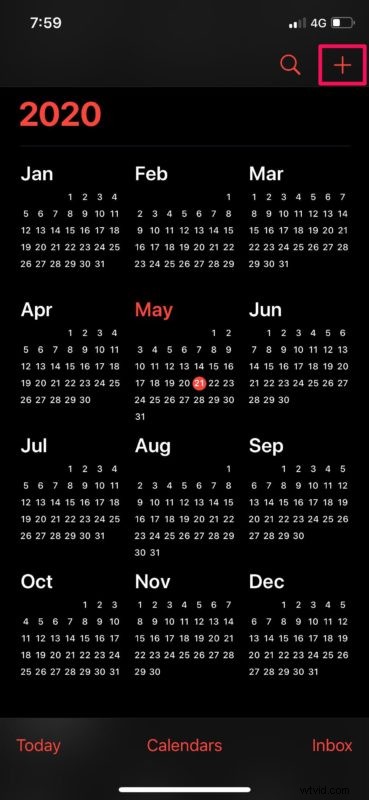
- Here, you’ll be able to enter your event details and set the date and time, according to your requirements. Once you’re done, tap on “Add” to create the event.
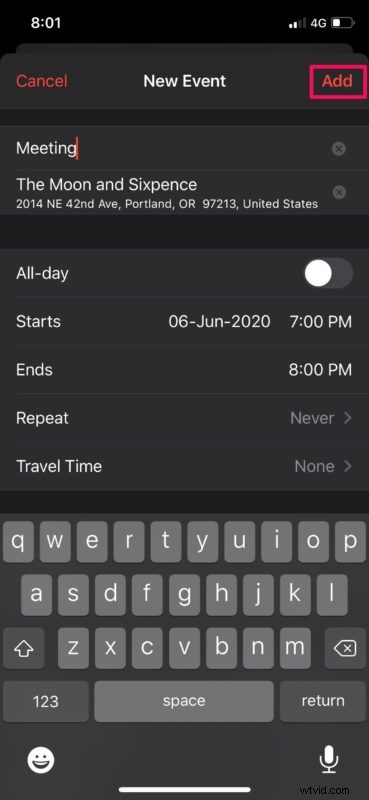
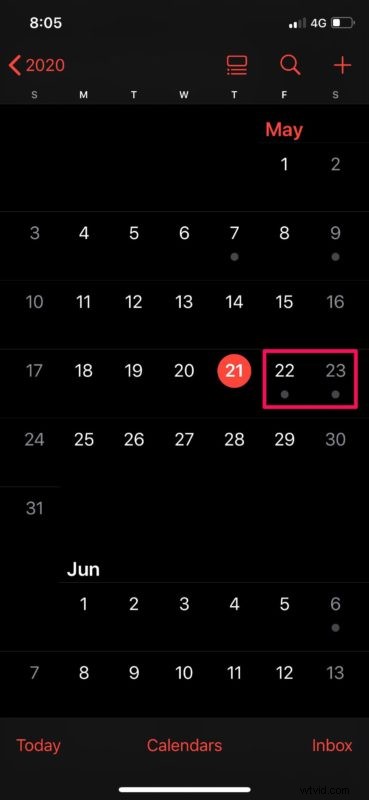
- Days with events are indicated by a gray dot, as shown in the screenshot below.
See how easy it is to add an event? But surely you’ll also want to know how to remove one too, since things can change.
How to Delete a Calendar Events on iPhone & iPad
Removing a Calendar event is equally as simple as adding one, maybe even more so:
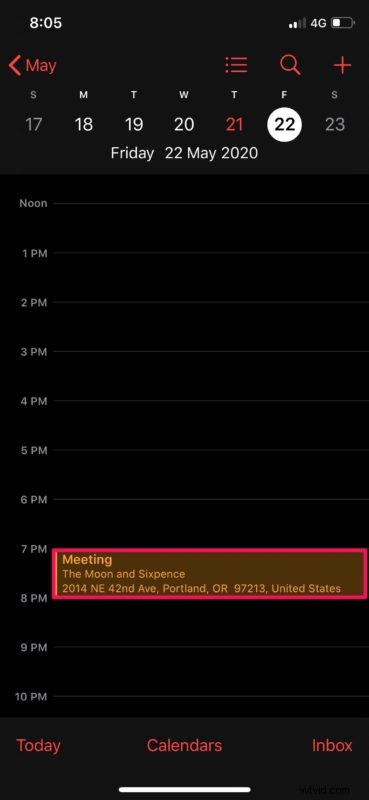
- In order to delete one of your calendar events, tap on the date you want to remove the event from.
- In this menu, you’ll be able to see all your calendar events on that particular day. Simply tap on the event.
- As for the last step, just tap on the “Delete Event” option located at the bottom.
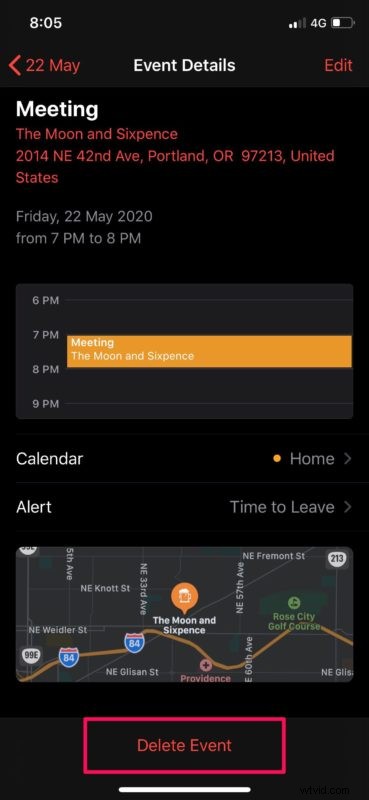
And there you have it, now you know how to create, manage, and remove calendar events on your iPhone and iPad.
Any events that you’ve added or deleted will be synced across all your other Apple devices with the help of iCloud. Therefore, regardless of whether you’re using your iPhone or iPad or decide to switch to your MacBook for work, you can seamlessly keep track of your schedule wherever you are, as long as you’re using the same Apple ID on those devices.
The Calendar app allows users to create multiple different calendars to keep their personal and professional schedules separate. Moving and duplicating calendar events is also an option available within the app.
If you use a MacBook, iMac or any other macOS device, you might be interested in viewing all the calendar events you added from your iPhone or iPad as a list on your Mac. The Mac also makes it easy to merge Calendars if you need to.
Most of us take the built-in Calendar app on iOS and iPadOS devices for granted, and it’s easy to see why once you start relying on it as a day planner and schedule keeper.
Now you know how to manage and make appointments and other events using the built-in Calendar app on your iPhone and iPad, you might also be interested in trying to use Siri to add and remove calendar events on your device too, which allows a hands-free approach to calendar management. Check out more Calendar app tips here.
Share any other helpful tips, tricks, thoughts, opinions, or experiences you have with Calendar for iPhone and iPad in the comments below!