
If you’re a privacy buff who owns an iPhone 11 or iPhone 12 (or better), you might want to disable the U1 chip on your iPhone to prevent it from tracking your location in the background.
The U1 is a custom chip developed by Apple just like the H1 and W1 chips that were made for AirPods. However, unlike the other two chips, the U1 chip is designed to precisely determine the distance between U1 chip-equipped devices. The U in U1 stands for ultra-wideband, a short-range radio technology used for wireless data transmission. However, this technology is prohibited in certain countries and as a result, Apple needs to collect the device’s location data constantly to know if the user is in a supported region. This lead to several complaints from some iPhone users, as their devices were tracking location data even when location services were disabled. To fix this, Apple added an option to disable the U1 chip.
In this article, we’ll cover how you can prevent background location tracking on your iPhone by disabling the U1 chip.
How to Disable U1 Chip on iPhone to Prevent Background Location Tracking
Before you go ahead with the following procedure, make sure your iPhone 11 or iPhone 12 is running iOS 13.3.1 or later, as the option to disable the U1 chip isn’t available on older versions.
- Head over to “Settings” on your iPhone.

- In the settings menu, scroll down and tap on “Privacy”.
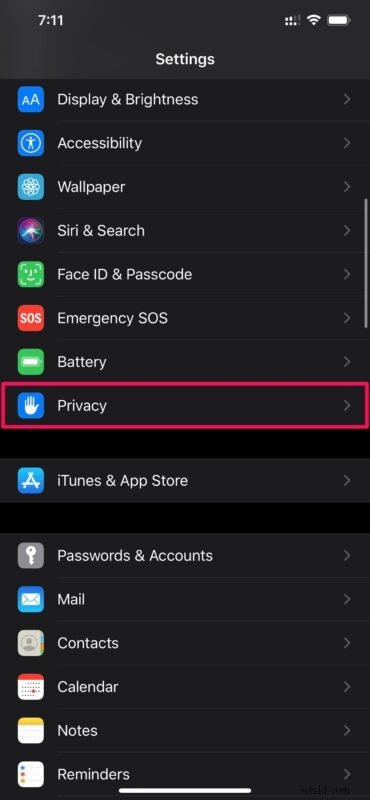
- Here, tap on “Location Services” located right at the top.
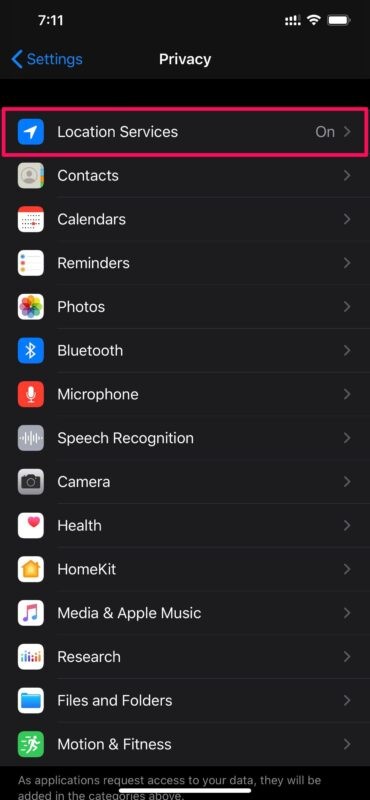
- Next, scroll down all the way to the bottom and tap on “System Services”.
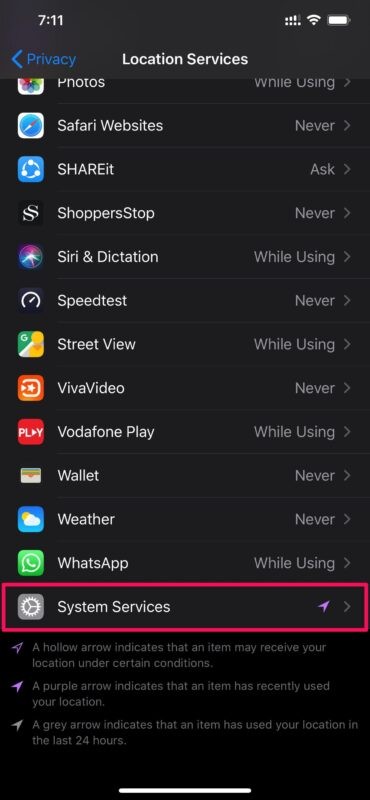
- Now, find the “Networking & Wireless” option. Use the toggle to turn it off. When you’re prompted to confirm, choose “Turn Off” as shown below.
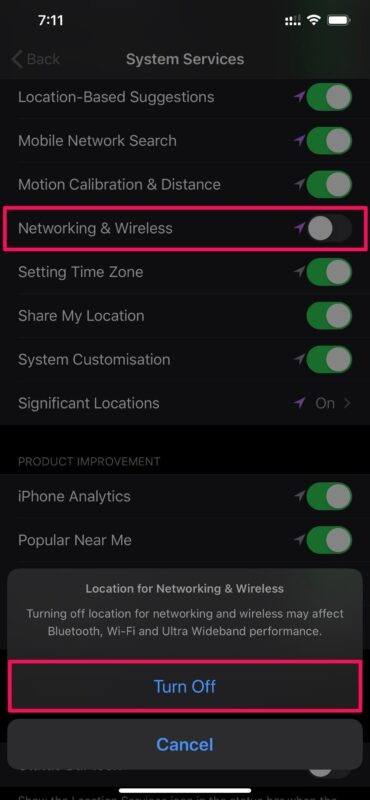
That’s it, by toggling that setting you’ll have successfully disabled the U1 chip on your iPhone indefinitely. Pretty straightforward, right? Of course you can always turn it back on again, since some features require using the U1 chip to function and behave as intended.
From now on, you don’t have to worry about your location being tracked in the background when location services are off, as Apple no longer needs to check if you’re in a supported country to use the U1 chip once it’s disabled. Note that by doing this, your iPhone will also not use location services to enhance Wi-Fi and Bluetooth connections.
To re-enable the U1 chip on your iPhone at any point, all you need to do is follow this procedure again and use the toggle for “Networking & Wireless”.
Are you not sure how to turn off location services? Regardless of whether you own an iPhone or iPad, you can check this out to easily disable location services on your iPhone or iPad completely. You can also disable location services on a Mac too, if you own one.
Have you found any practical use with the Apple U1 chip on iPhone? Do you have any thoughts on this feature or the capability? Let us know in the comments.