
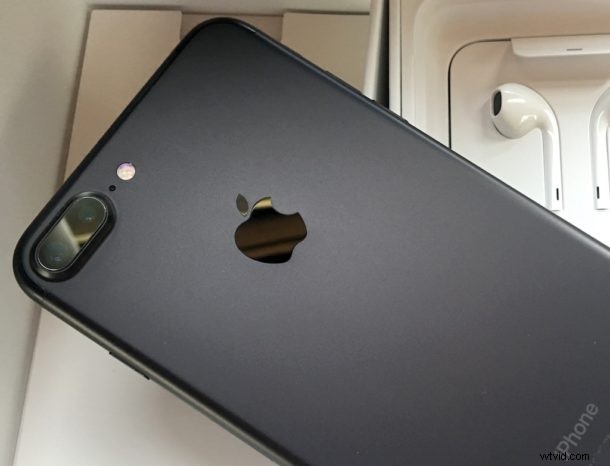
The new iPhone models offer subtle system haptic feedback when performing various actions in iOS. This physical haptic feedback is performed through the Taptic Engine built into iPhone, and you’ll notice it throughout iOS when activating different features, toggles, buttons, and functions.
You’ll find system haptic feedback when opening Notification Center, Contrl Center, toggling UI switches, opening Spotlight, using onscreen zoom, when scrolling through date and number pickers, refreshing Mail, activating the arrange app icon or delete apps feature, and more.
Some users may not like the system haptics on iPhone however, and may prefer to turn this feature off.
Disabling System Haptic Feedback on iPhone
- Open the Settings app on iPhone and go to “Sound & Haptics”
- Scroll to the very bottom and toggle the switch for “System Haptics” to the OFF position
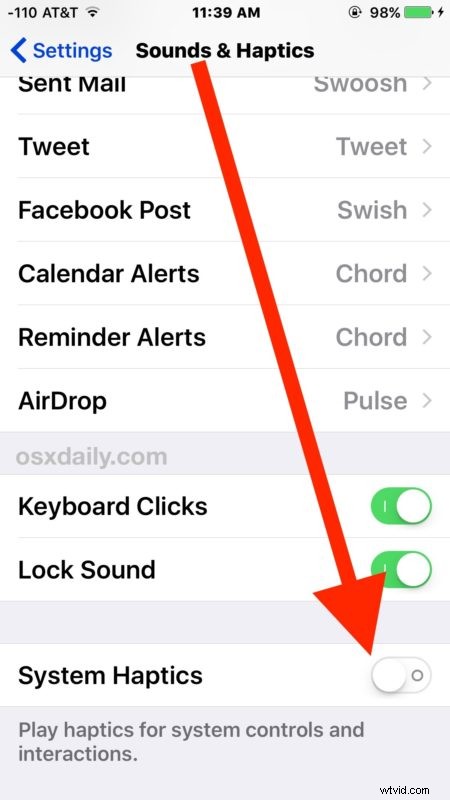
You’ll immediately feel the haptic feedback has been disabled because flipping the OFF switch will no longer offer a little physical sensation.
If you don’t see the setting option to toggle system haptics on and off, it’s likely because you do not have an iPhone 7 or better.
The system haptics feedback feature is generally quite nice and most users like the sensation of physical feedback when adjusting various onscreen elements, but for those who don’t or aren’t quite sure, it’s easy to toggle the setting off (and back on again if you choose to re-enable haptics again in the future).
It’s fairly likely that haptic feedback will come to other iOS devices in the future as well, including iPad and maybe even the Mac Touch Bar, but for now it’s predominantly an iPhone and Apple Watch sensation.