
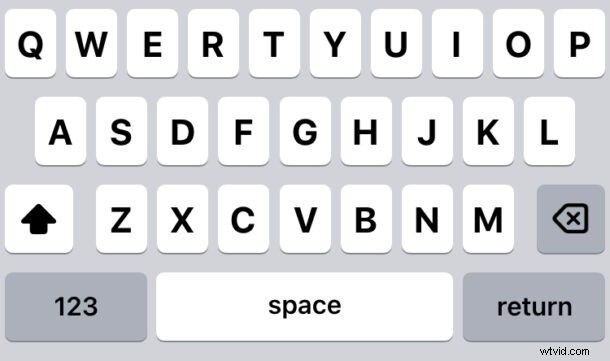
One of the more interesting new features available to iPhone users with iOS 16 onward is the haptic feedback keyboard. When this feature is enabled, your iPhone will offer physical feedback every time you type a key on the virtual keyboard, making it feel almost as if it the keys have some give to them.
Some users really like the haptic feedback feature on the iPhone, and it may help improve typing or at least the sensation of typing for these users. So, want to try it out yourself? It’s easy to toggle on and give it a go.
How to Enable Haptic Feedback Typing on iPhone Keyboard
- Open the Settings app on iPhone
- Go to “Sounds & Haptics”
- Go to “Keyboard Feedback”
- Toggle the switch for “Haptic” to the ON position
Now go to any app where you can type, whether it’s Messages, Notes, or otherwise, and start typing on the onscreen keyboard. You’ll immediately feel a little haptic feedback as you tap on each key.
Optionally, while you’re in the same Settings screen, you can toggle the switch for Keyboard Sound feedback, a feature which annoys some people who want to turn off the keyboard click sounds but other users appreciate. Personally I think combining the sounds with the haptic feedback are a nice touch and seems to improve typing, but to each their own.
This is a small feature but for some iPhone users it’s a very welcome change, and perhaps it should be included as one of the best features of iOS 16 if it helps you type easier on the iPhone.