
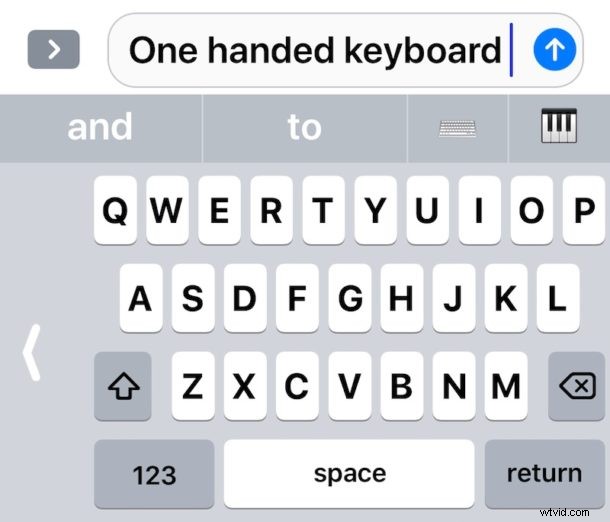
The latest iOS versions support one-handed keyboard mode for iPhone. One Handed Keyboard shifts the touch screen keys over on the screen to the left or to the right, so that it’s theoretically easier to reach the keys with a single thumb. This keyboard feature can be particularly helpful for users who have the larger iPhone Plus and iPhone X models and find them challenging to type on one handed.
It’s very easy to enable and use the one handed keyboard on iPhone, but like so many other iOS features it’s also easy to overlook or miss entirely. This tutorial will show you how to enable and use the iPhone One-Handed Keyboard feature.
You will need a modern version of iOS for iPhone to have this feature available, anything beyond iOS 11 has the capability. The iPad does not have one handed keyboard support.
How to Enable and Use One Handed Keyboard on iPhone
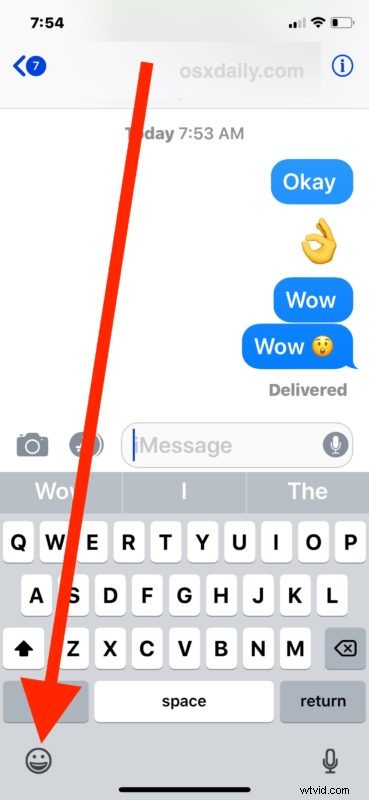
You can quickly switch into and out of One Handed Keyboard mode on iPhone, here’s how it works:
- Access the keyboard anywhere on the iPhone as usual, whether in Messages, Mail, Safari, Notes, etc does not matter
- Tap and hold on the Emoji icon in the lower left corner of the keyboard (it looks like a little smiling face icon)*
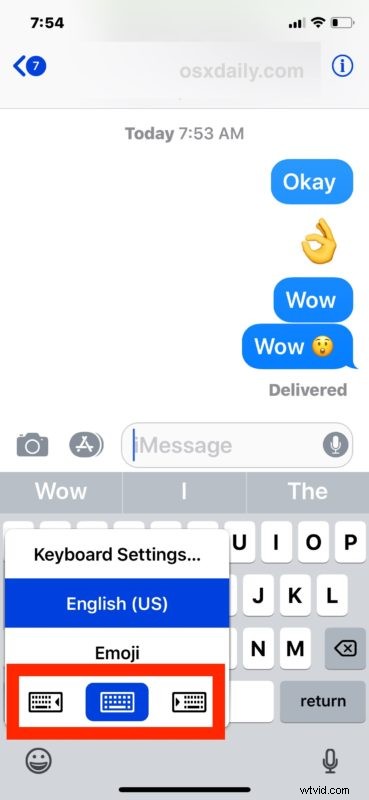
- When the pop-up keyboard menu appears, tap on the keyboard icons to shift into the equivalent One Handed Keyboard mode:
- Left: keyboard shifts to the left, if you type with your left thumb this is likely what you’d use
- Center: the default iPhone keyboard, centered and not shifted over into One Handed Mode
- Right: keyboard keys shift to the right, if you want to type with your right thumb this is probably what you’d use
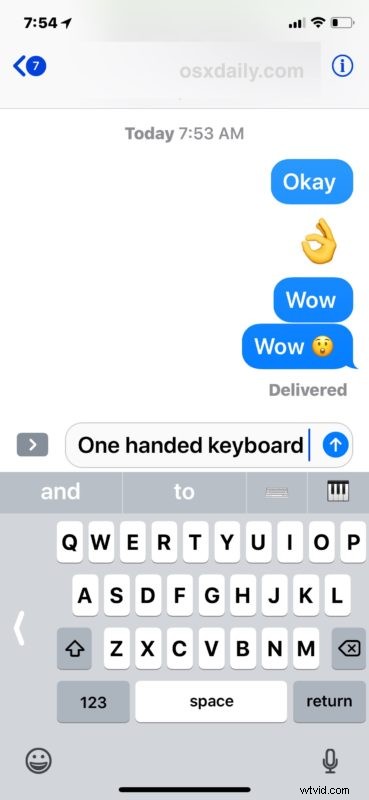
- One Handed keyboard will be enabled, shifting the keys over to the left or right side of the screen depending on what you chose
If you struggle with typing with a single hand and usually rely on using two hands for texting and typing, try out the one-handed keyboard, it might help you out and you might just like it.
* Note the Emoji access icon, which is now a smiley face, used to be a little globe icon, and is also where you switch keyboard languages in iOS if you have multiple different languages and/or emoji enabled. If you somehow don’t have Emoji enabled you can easily turn it on in iPhone settings.
Exiting One Handed Keyboard on iPhone
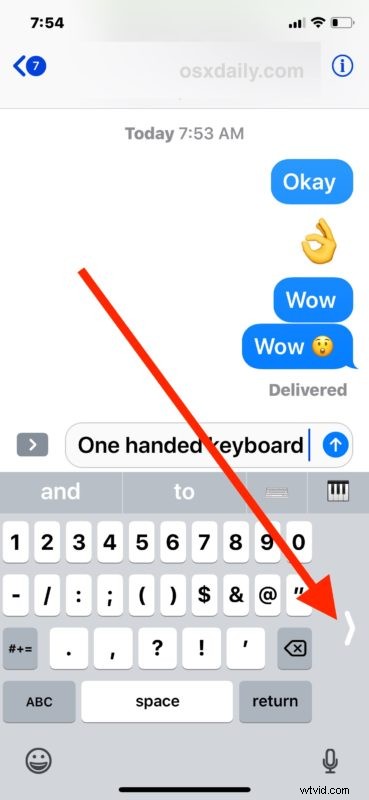
Note that once One Handed Keyboard is enabled, you can quickly disable it and go back to the normal default keyboard by tapping the arrow button on the side of the iPhone one-handed keyboard.
This feature is only available for iPhone and iPod Touch, perhaps for obvious reasons it is not on iPad. The iPad does have some other nifty keyboard typing tricks though, including the split keyboard which can help typing with thumbs only. If you like this, you may appreciate some other helpful iOS touch screen typing tips too.