
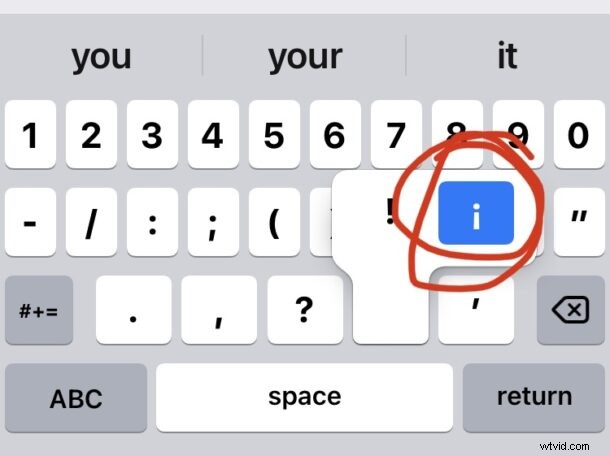
The upside-down exclamation point is frequently used in some languages, and if you’re on an iPhone or iPad you may be wondering how to type the inverted exclamation point on the virtual keyboard.
Like most things on iPhone and iPad, it’s simple, at least once you learn how it’s done. We’ll show you how to type the inverted exclamation point on iPhone and iPad using both the onscreen virtual keyboard, and with a physical keyboard as well.
¡ Typing the Upside-Down Exclamation Point¡ on iPhone or iPad
The most direct way of typing the upside-down exclamation point on an iPhone or iPad is to use the onscreen keyboard.
From the keyboard, hit ‘123’ to access the punctuation and numbers screen, then tap and hold on the regular exclamation point ! character key. You’ll soon see a pop-up, where you can slide over and choose the inverted exclamation point to type that instantly.
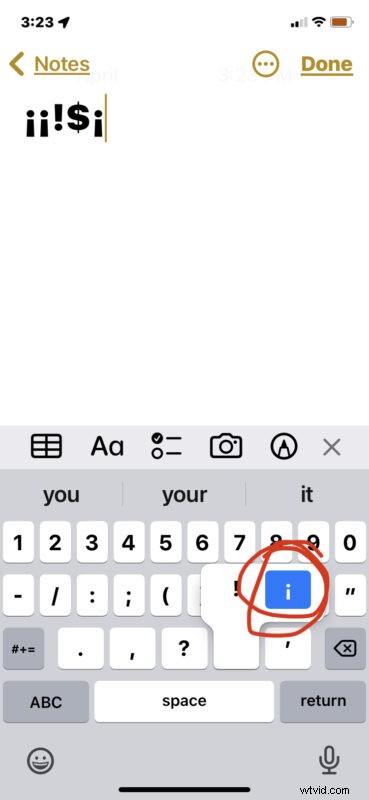
This is super easy to remember since it’s accessed using the same key, you just need to remember to tap and hold to select the alternate upside down exclamation mark.
If you’re already familiar with typing the upside down question mark on the iPhone or iPad keyboard then this should be familiar to you, because it’s using the same methood.
For iPad Keyboard Users, Type Inverted Exclamation Mark ¡ with Option 1
If you have an iPad with a physical keyboard, like an iPad Magic Keyboard, Smart Keyboard, an external keyboard, or third party keyboard case, you can also simply use Option+1 to type the upside down exclamation point character.
Option+1 instantly types ¡, which is also how it is typed on a Mac keyboard, making this easy to remember for cross-platform users.
So there you go, that’s the two ways you can type the upside down exclamation point on iPhone or iPad, whether using the onscreen keyboard, or a physical keyboard.