

The Notes app on modern iPhone and iPad system software versions includes a handy feature that lets you scan text directly into the notes app. The text you want to scan can be printed or handwritten, and the scanning is done directly within the Notes app instantaneously. After the text is scanned into the Notes app, you can edit it as needed at any time if you’d like to.
This is a great feature if you want to digitize a collection of anything that is printed or handwritten, be they letters, family recipes, receipts, manuscripts, books, magazines, flyers, or just about anything else you can imagine.
How to Scan Text Directly Into Notes on iPhone & iPad
To have access to the Scan Text tool in Notes app, you will need iOS 15.4 or iPadOS 15.4 or later, as earlier versions of Notes app don’t include the scan text tool.
- Get the text you want to scan visible in reasonably acceptable lighting
- Open the Notes app on iPhone or iPad
- Tap the Camera icon
- Tap on “Scan Text”
- The text will instantly start appearing in the note, tap on “Insert” to scan the text directly into that note
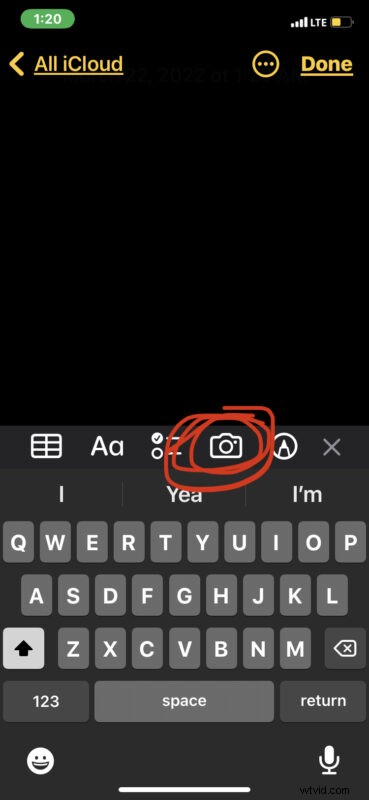
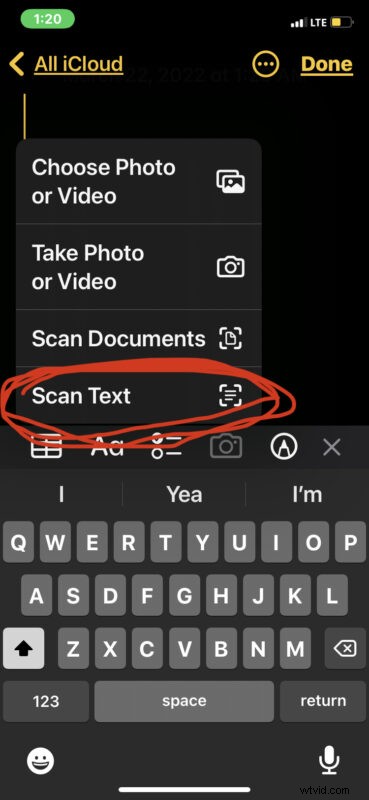

You can now save the note, edit it, share it, or do whatever you want with it as normal.
For best results, you’ll want reasonably tolerable lighting and the text should be reasonably legible. Illegible handwriting will often turn up erroneously scanned, but overall the character recognition is quite good and impressive.
Because the first lines of text in any new note shows as larger font size and bold, you may want to put a note header on the top of the note before scanning the text. For example, “Expense Receipts” or “Pumpkin Bread Recipe”.
Remember this requires iOS 15.4 or newer, or iPadOS 15.4 or newer.
If you’re using an older version of iOS or iPadOS that doesn’t have the Scan Text capability, you can still scan documents as images into the Notes app, and scan documents with the Files app too. What’s unique about the Scan Text feature discussed here is that rather than scanning the item as an image file, the text is directly selectable and editable as it appears into the notes app like any other typed text.
If you’d like a video walkthrough demonstrating the feature and how it works, Apple Support provides a short handy YouTube video, embedded below:
This is obviously focused on iPhone and iPad, but the Mac also can scan documents and use the Live Text feature to select, copy, and paste text from those documents if you wish. And you can even use the Continuity Camera feature on a Mac to use the iPhone or iPad camera to scan stuff and or take pictures and insert it directly to the Mac in an app or document.
Do you use this scanning feature on your iPhone or iPad? Let us know what you think in the comments.