

iPhone and iPad users have long been able to zoom into still photos and pictures on their devices, and now with the latest versions of iOS, you can zoom into and out of videos and movies that are playing as well.
Zooming in and out of video is done the same way as zooming in and out of photos, meaning you use a spread or pinch gesture, depending on if you’re trying to zoom in, or zoom out. Because this is now a dedicated feature, you no longer need to enable system wide zoom gestures (which can lead to getting stuck in zoom mode accidentally) simply to zoom a video.
The video does not need to be actively playing for the zooming gestures to work.
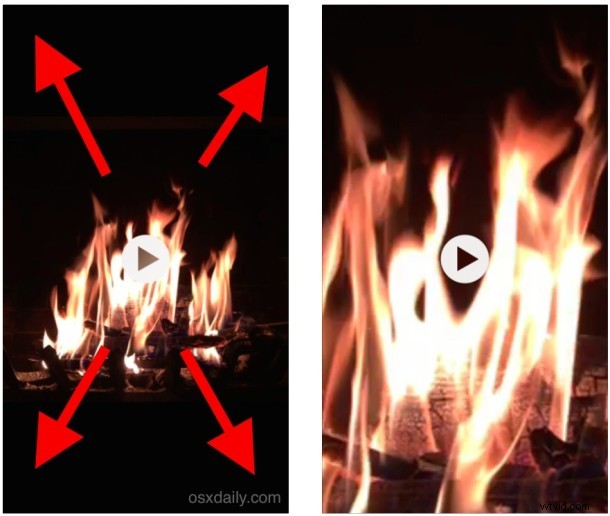
Zoom Into Video in iOS with a Spread Gesture
You can zoom into video quite a bit by using the spread gesture repeatedly, which is great if you’re trying to get rid of the little black or white bars at the top and bottom of many movie trailers and videos posted online. It can also be a handy way of getting away from the dreaded Vertical Video capture though you’d be likely cropping out important subjects by doing so.
Zoom Out of Video with a Pinch Gesture
Zooming out of video works much the same way as zooming in, but you’ll hit a limit and only be able to size down until the sides of the video meet the sides of the screen. That makes sense, since a tiny video doesn’t make a ton of sense (unless perhaps you’re going to send it into Picture In Picture mode, which you can resize on it’s own anyway).
This is a pretty simple tip, but it’s really quite useful for some situations, particularly if you’re exporting a video from an iPhone, iPod touch, or iPad to another display either through AirPlay or an HDMI connection. As mentioned, you’ll need the device to be running iOS 9 or newer.