
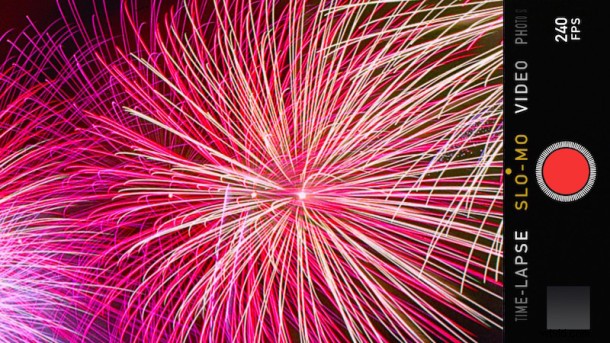
We’ve shared some tips to take great pictures of fireworks with iPhone before, but fireworks are obviously in motion, so perhaps the best way to capture a firework show is with some great video. Fortunately, the iPhone and iPad have a wonderful video recording camera built right in, and with a few tricks, you’ll be able to capture stunning video of a firework reports, explosions, or even the entire show, using nothing but the iPhone and it’s built-in feature set.
Obviously we’re aiming this for the 4th of July in the USA, but fireworks are a common means of celebrating all sorts of events, dates, and other happenings, so even if you’re not thinking of Independence Day, you can take these tips with you to New Years Eve, or even your crazy uncles house who lights off mortars when his team wins a game.
1: Prop the iPhone Against Something, or Use a Stand
Since video capture is almost always best with a still camera shot, propping the iPhone against something or using a stand is recommended. Now I know what you’re thinking, who has an iPhone stand? Almost nobody, right? Right, but you probably do have some sunglasses, and sunnies actually work really well as a little iPhone stand that points the camera up into the sky, perfect! Of course, a bag of chips, a beer can, hot dog bun, a T-bone, or just about anything else can work to prop up an iPhone or iPad as well, just be sure it’s sturdy and stable enough that it won’t blow around in the wind.
2: Lock the Exposure for Best Results
Since fireworks are bright against a dark sky, the camera may attempt to overcompensate in either direction and either blow out the picture with too much light, or make it way too dark as it compensates for the flash of a firework boom. Fortunately, you can quickly lock the camera exposure when you’re in video recording mode in iOS. Try out a few different exposures, but generally you’ll want to aim for a darker sky so that the fireworks aren’t washed out.
3: Record the Entire Firework Show in Time Lapse
The iPhone can record amazing time lapse video, so why not capture the entire fireworks show in a time lapse? The iPhone time lapse feature is quite smart and works really well, and the longer the video capture time you feed it, the better the results. If you have enough space available on the iPhone, try to capture the entire firework show in time lapse, then crop the video down later to shorten the clip.
Here’s a sample time-lapse video recording of a fireworks show from Sydney Australia (not shot with an iPhone, but the iPhone camera is just as capable!), about half-way in the video really picks up with the firework action and you can really get a feel for how great time lapse is for this sort of thing:
And here’s another time-lapse shot of a firework show from Louisville Kentucky:
Record the evenings show with time-lapse, it’ll be awesome!
4: Use Slow Motion Capture
Fireworks happen quick, so why not slow down the action with slow motion video recording?
Slow motion video capturing is a bit more forgiving than time lapse, so you don’t necessarily need a stand for capturing a slow movie of exploding fireworks, just hold steady and point at the right direction, you’ll almost certainly get a good capture, and the result will be impressive.
The slow-motion video of fireworks below was shot with a different digital camera, but the iPhone is easily just as capable, but check out how neat this clip is:
Remember, you can even adjust the slow motion capture speed if you have a newer model iPhone, meaning super-slow-motion firework explosions are a possibility with 240fps recording. Try it out!
Have any other tips or tricks for capturing and recording video of a firework show? Do let us know in the comments. And if you’d rather aim for still pictures, we’ve got some great tips for getting photos of fireworks with iPhone as well. Enjoy the celebration!