
 If you’re shopping on the web from Safari with iPhone, you can make your check-out time faster and much easier by using a great built-in scanning feature to scan credit card details. This uses the iPhone camera to pull info directly from the card, preventing you from having to manually enter the sixteen digit number, card name, and expiration date.
To access the credit card scanner, you simply need to be at a checkout portion of any website in Safari for iOS. In this example, we’ll use Amazon.
Once at the checkout page where the site is requesting credit card information be entered, tap into the credit card entry area, then look above the keyboard for the “Scan Credit Card” button. Simply tapping that will open the iPhone Camera, where you are able to scan the credit card.
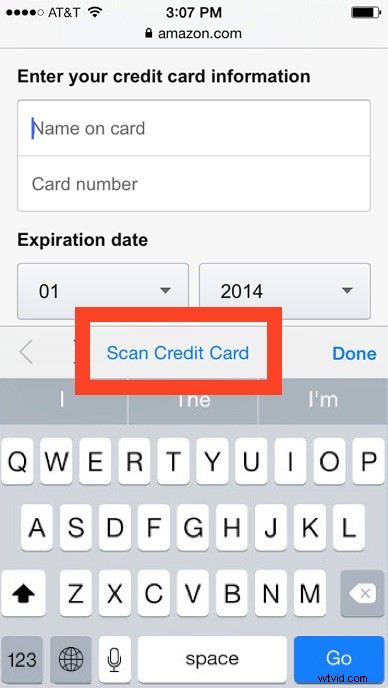
For best results, set the credit card to be scanned down against a neutral surface, then just hold the camera steady and it will pull the details from the front of the card.
All credit card information will be scanned this way, including he name on the card, the card number itself, and the expiration date. You’ll still have to enter the security code yourself from the back of the card (assuming it’s a Visa or Mastercard), but that’s certainly much easier than entering all of the data on your own.
This feature is available on all iPhone and iPad hardware that is able to run a modern version of iOS and equipped with a camera. That makes it a bit more universal than, say, configuring Apple Pay, which requires the latest models.
Finally, another option worth mentioning for quick payments is to use iCloud Keychain and save credit card details which can be autofilled across iOS and OS X.