
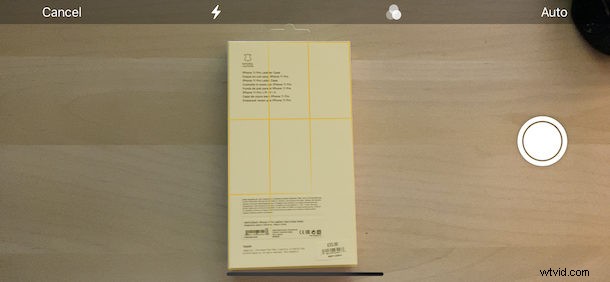
Did you know you can scan documents with the Notes app by using your iPhone or iPad camera? Scanning documents is a great way of removing your reliance on paper and it makes it easier to find things in your digital life, too. The Notes app on iPhone and iPad is perfectly suited to the task and you already have it on your device. Here, we’re going to run through how to scan documents with the iPhone and iPad Notes app.
While you might be using the Notes app to keep tabs on your shopping list or make notes in meetings, you probably aren’t already using it to scan and save your documents. And that’s a shame because it’s great at doing exactly that. And with iCloud quietly syncing everything across your devices your documents will always be there in Notes app when you need them.
How to Scan Documents into Notes App on iPhone & iPad
- Open the Notes app if you haven’t done so already, then either create a new note or open an existing one.
- Tap the camera icon in the Notes toolbar
- Tap the “Scan Documents” button.
- Position the document in the viewfinder. The app will automatically take a shot when it’s ready. If you want to manually start the scan, tap the shutter button. You will then be able to manually adjust the edges of the document as well. In that case tap “Keep Scan” and proceed.
- If you need to scan more pages, repeat the process. If not, tap the “Save” button.
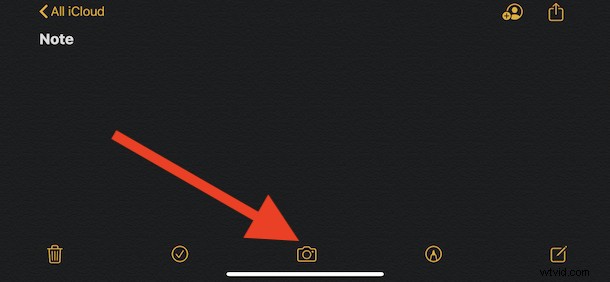
You’ve just successfully scanned a document and saved it to a note in the Notes app.
Assuming you’ve scanned something into Notes stored on iCloud, the scanned documents will then sync over to your other devices sharing the same Apple ID and iCloud account, whether that’s a Mac, iPhone, iPad, or any combination of those.
You can also directly scan documents into the Files app on iPhone and iPad, if that’s something you’d prefer. And you can even use the Continuity camera feature on Mac to scan using an iPhone camera and discussed here, which can be really handy if you’re needing to scan a document into a computer.
Scanning documents into Notes app with an iPhone or iPad is essentially the same regardless of which device you’re using, although the better your devices camera, the better the scans will be.
This particular feature has been available for Notes app users on iPhone and iPad for several versions now, so even if you’re not running the absolute latest release of iOS or iPadOS you may still have the scanning ability available within the Notes application. And of course when you do update to a later system release, your scanned notes will come along for the ride.
Do you try to avoid using paper, preferring instead to keep documents digitally? If so, we’d love to know what your current paperless setup is and whether Notes is part of that. Now that you know how to scan documents and save them in Notes, will you make more use of it? Let us know down in the comments.