
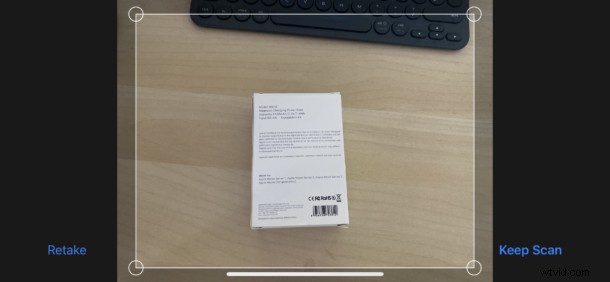
Have you ever wished you could scan a document with your iPhone or iPad? You can easily do that right from the Files app and with your devices camera!
With the arrival of iOS 13 and iPadOS 13 Apple has made the Files app much more useful. Not only can it now be used to access external storage devices and SMB shared locations, but it can also be used to directly scan documents to a folder as well.
By adding that workflow Apple has removed the need to use third-party scanning apps while also giving users the ability to place scans directly into iCloud and local folders. No more hunting for scans inside app folders or resorting to third-party solutions like Dropbox or Google Drive.
If you’re a big document scanner this could turn out to be your most used addition to the latest iOS and iPadOS software updates.
How to Scan Documents in the Files App
You’ll need to have the Files app open on your iPhone or iPad before we get started.
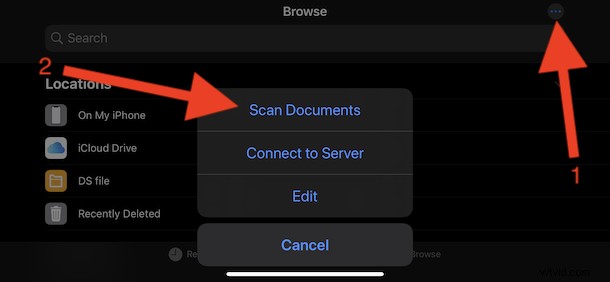
- Tap the “…” button to the top-right of the “Browse” section, and then tap the “Scan Documents” button from the menu. *
- Place your document on a flat surface and position it in the iPhone or iPad’s viewfinder. When the document is perfectly placed the scan will automatically happen. If not, tap the circular capture button to take the shot.
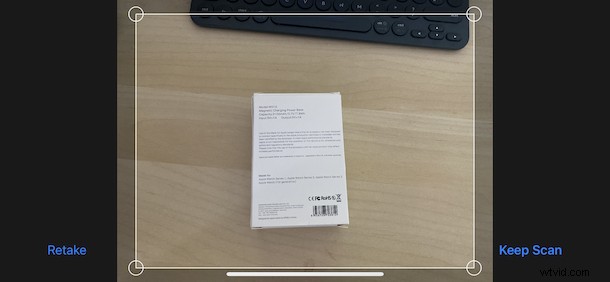
- Drag the corners of the image to reduce or increase the scan area. Tap “Keep Scan” to move on.
- Now you can scan any additional pages by repeating the process. If you’re done, tap “Save” to progress.
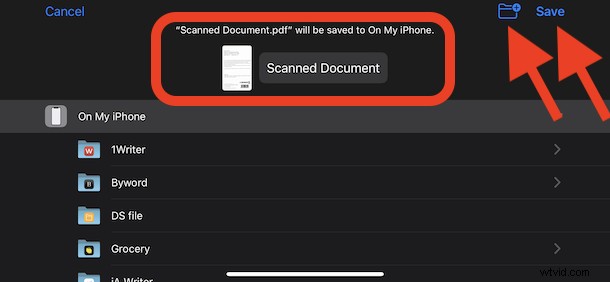
- Select a location to save the scans and then tap “Save” again. You can create new folders by tapping the “New Folder” button and you can rename the file by tapping the filename at the top of the screen, too.
If you’d prefer to scan documents directly into a location within Files app, that’s also possible. Open the location in the Files app and tap the same “…” button and proceed as normal. You might need to pull down on the screen slightly to reveal the button, though.
The Files app is growing increasingly powerful and capable as a file manager on iPhone and iPad, and this is just one of many available tips for Files app for iOS and ipadOS.
There are of course plenty more tricks and features to enjoy in iOS 13 and iPadOS 13, too. If you’ve just recently updated, or bought a new iPhone or iPad, now would be a great time to follow along iOS 13 coverage to learn about everything the new software has to offer.
* The Browse section of Files app is visible by default Files app for iPhone, and it’s the left sidebar on the Files app for iPad when in Horizontal mode. From the Browse tab or section, just tap the (…) button to access the menu options with Scan Documents.
Are you a big document scanner and if so, will you be using this new Files app approach instead of your previous method? Do you have a preferred method or better way to scan documents on an iPhone or iPad? Let us know how you manage your scans and documents on iPhone or iPad in the comments below.