
The Files app on iPhone and iPad serves as a file system of sorts to the iOS world, complete with many commonly used file system functions. One of the more frequently used features in file systems is the ability to change how you sort files or folders, and the iOS Files app also allows for sorting of files and folders using a variety of methods, including sorting files by name, sorting files by date, sorting files by size, and sorting by tags.
The ability to sort files in the Files app on iPhone and iPad is a little hidden however, and if you open the app initially you won’t see any sorting capabilities immediately available. Instead, the iOS Files sorting functionality is hidden from initial user view, but it’s quite simple to reveal and use once you learn how.
Though sorting files and folders in Files app for iOS is basically the same on iPhone and iPad, the two are slightly different in appearance and behavior, so we’ll be covering them separately. Nonetheless if you learn to sort the Files app on one device, you can apply the same general logic to the other device too.
How to Sort Files by Date, Name, Size, or Tags on iPad
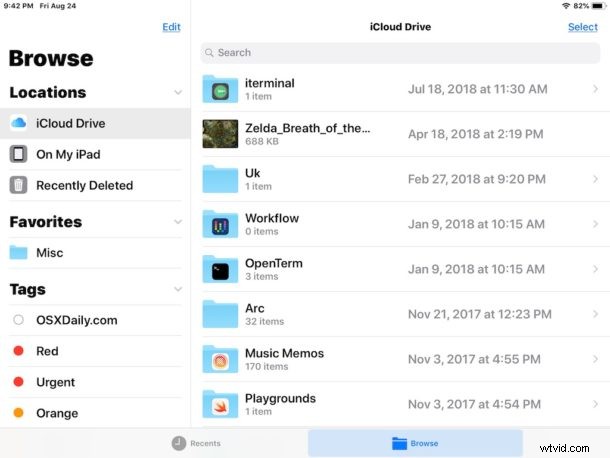
Changing how files are sorted in the Files app for iOS on iPad is simple enough, the screenshots here show the Files app in horizontal landscape orientation but it works the same in vertical portrait orientation too:
- Open the “Files” app in iOS
- Navigate to any folder within the Files app
- From the file view, tap and pull down on the file listing to reveal additional options including the Sorting options for Files app
- Choose the Files sorting you’d like to apply to the active folder:
- Name – sort alphabetically by file / folder name
- Date – sort by date of file / folder added
- Size – sort by file size
- Tags – sort by tags used on files / folders
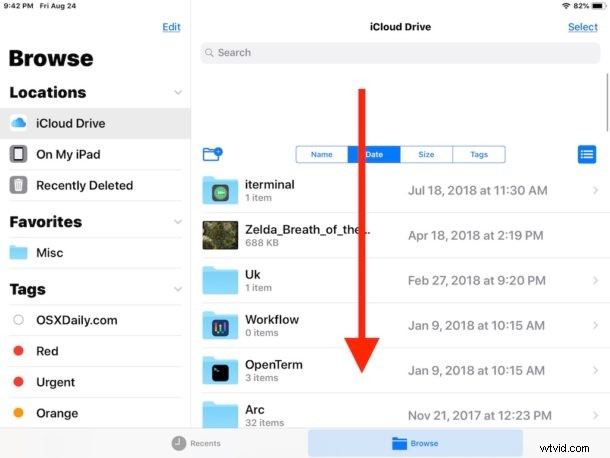
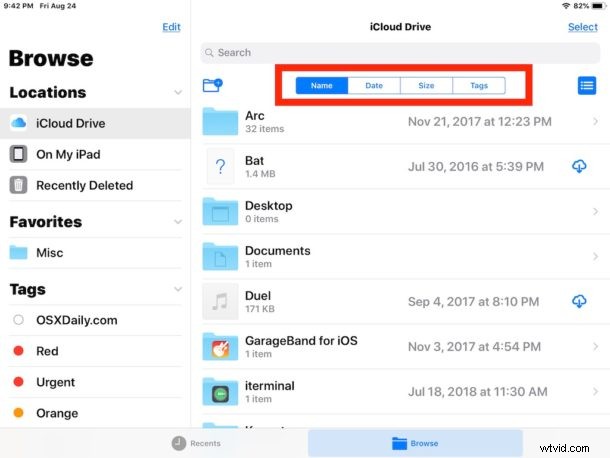
Changes to file sorting takes effect immediately.
How to Sort Files by Date, Name, Size, Tags on Files app for iPhone
The file sorting features in Files app for iOS on iPhone is basically the same as the iPad, though the app looks a little different to accommodate for the smaller iPhone display, and the sorting options show up in a pop-up window rather than at the top of the Files app display:
- Open the “Files” app on iPhone
- From any folder or file view, tap and drag down on the file listing to show the file sorting options for Files app
- Choose the sorting method for Files from the pop-up option that appears to change the files sorting in the current folder:
- Name – sort alphabetically by name
- Date – sort by date added
- Size – sort by size
- Tags – sort by tags used
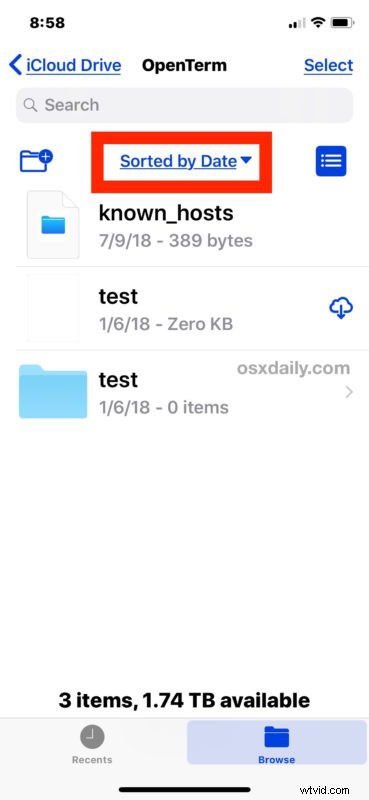
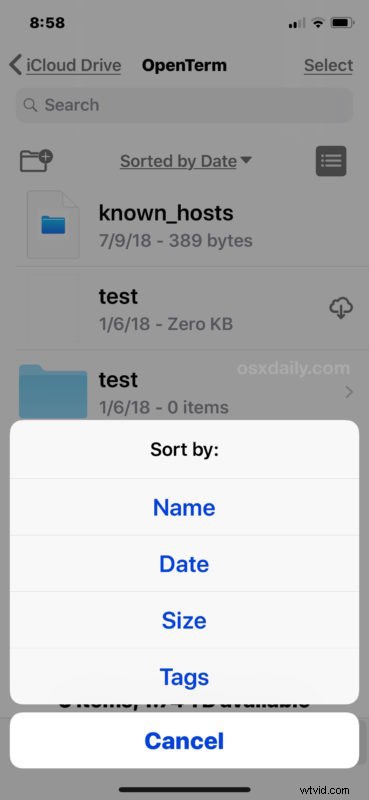
Whichever sorting method you choose will take effect instantly on either the iPhone or iPad, and you can change it again at anytime by repeating the steps above and selecting a different sort method in the Files app.
Sorting by name or sorting by date are perhaps the most useful sorting options for most iOS Files app users, both of which are equally useful and popular on the Mac too. And yes, as most Mac users probably know, the Finder in Mac OS also offers file sorting by date, name, kind, size, and much more. Finder on the Mac is much more capable and feature rich than Files on iOS. however, so if you’re accustomed to the myriad options available in Finder you may have to scale back your expectations when using the Files app in the iPhone or iPad world.
File sorting is just one of a variety of great features in the Files app for iOS, which functions as a simple file management and storage solution for iPhone and iPad users, for both local storage and storage through cloud services like iCloud Drive, Google Drive, Dropbox, and others. The Files app has a variety of convenient file management options available, including folder creation, file and folder renaming, file tagging, simple zip file handling for saving and previewing, a customizable sidebar with Favorites, and much more. The Files app in iOS is sure to develop further and gain even more functionality as iOS continues to evolve too, so there should be even more exciting options and features available down the road in future releases of system software for the iPad and iPhone.
Do you use file sorting on the Files app on iPhone or iPad? Do you have any other useful Files for iOS app tricks? Share with us in the comments!