
As you may know, the iPhone and iPad camera can scan a QR code simply by pointing the devices camera at a QR code. Easy enough, right? Well, not if it doesn’t work. Sometimes users may find that QR code scanning is not working on their iPhone or iPad camera, and this can be an understandably frustrating experience.
Fortunately, it’s typically a super easy fix to get QR code scanning working again on iPhone and iPad cameras. Read along and you’ll be back to scanning QR codes in no time.
Enable Scan QR Codes in Settings on iPhone / iPad
This is a quick fix:
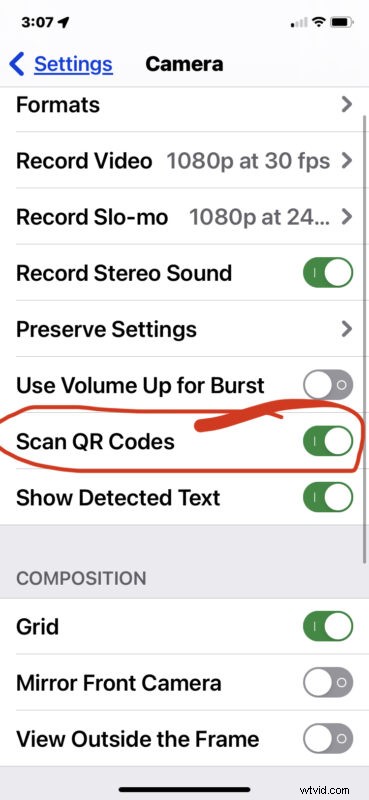
- Open the “Settings” app on the iPhone or iPad
- Go to “Camera”
- Locate “Scan QR Codes” and make sure that is toggled ON
- Exit Settings
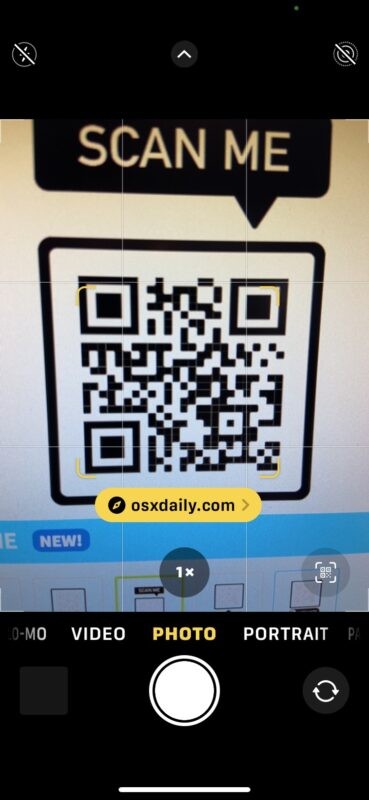
- Open the Camera app on iPhone or iPad, then point it at a QR code (like the one below) and keep the camera steady to read and scan the QR code as usual, confirm it’s working by tapping on the item on screen
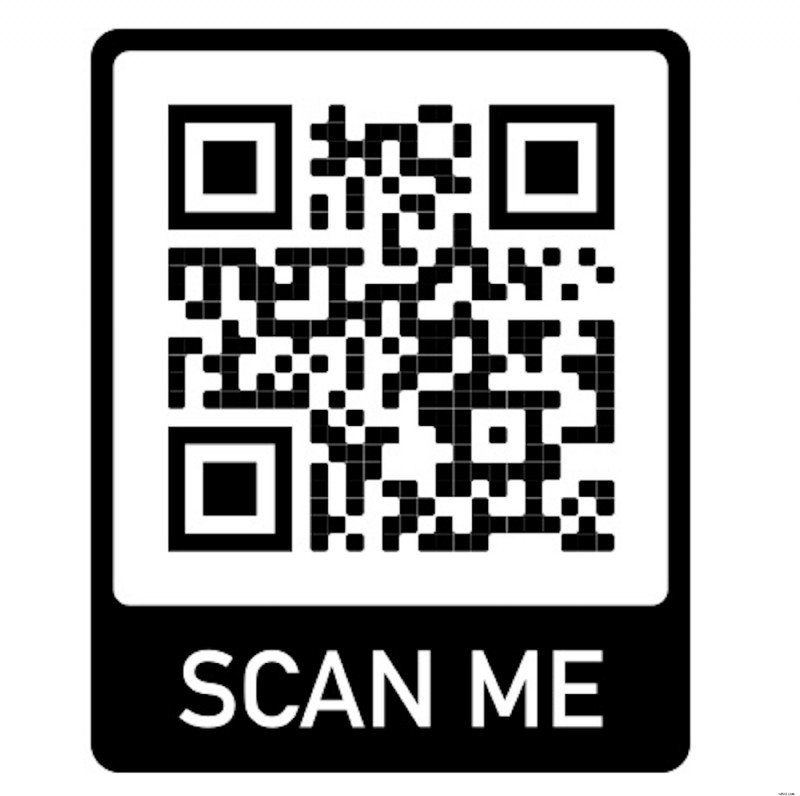
There you go, QR code scanning should be working as expected again.
For many users, the QR code scanning feature is disabled for whatever reason on their device camera, so simply turning it back on again in settings resolves the problem.
Remember, this feature is only available on semi-modern versions of iOS and iPadOS, from iOS 11 and newer, so if you’re running a much earlier version of system software on your device you will need to use a third party app for QR code scanning instead.
If you’re still experiencing issues with QR scanning on iPhone or iPad, try the following:
- Reboot the iPhone or iPad by turning it off and on
- Install any available software updates on the iPhone or iPad by going to Settings > General > Software Update
- If all else fails, use a third party QR code scanner like Chrome or other third party apps
There are a lot of useful purposes for QR codes and they’re used widely in day to day use, whether for checking out menus at restaurants, scanning in equipment, checking out books or materials, keeping track of packages and products, inventory management, getting coupons, sharing wi-fi passwords via QR code, and so much more.
Did you get QR code scanning working on your iPhone or iPad camera as expected? Let us know in the comments if this worked for you, or if you found another solution.