
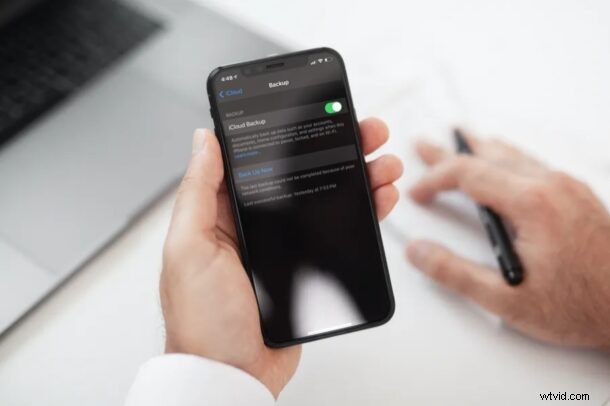
Are you having trouble backing up your iPhone or iPad to iCloud? More specifically, did you get an error notification saying “iPhone Backup failed” on your lock screen? This issue is not really uncommon, but it’s usually a pretty easy to fix if you do encounter it.
Typically, iCloud backups happen automatically when your iPhone or iPad is charging, locked, and connected to Wi-Fi. The whole process is seamless for the most part as you don’t have to do anything apart from just turning on the feature. However, iCloud backups may fail sometimes due to various reasons like lack of enough iCloud storage space, slow and irregular internet connection, or just buggy firmware in general.
If you’re one of the many iOS users who can’t get their devices to back up to iCloud, we’re here to help.
Troubleshooting iCloud Backup Issues on iPhone & iPad
You can follow each of these troubleshooting steps individually and see if you’re able to successfully back up your iPhone or iPad to iCloud without any errors.
Check Your iCloud Storage
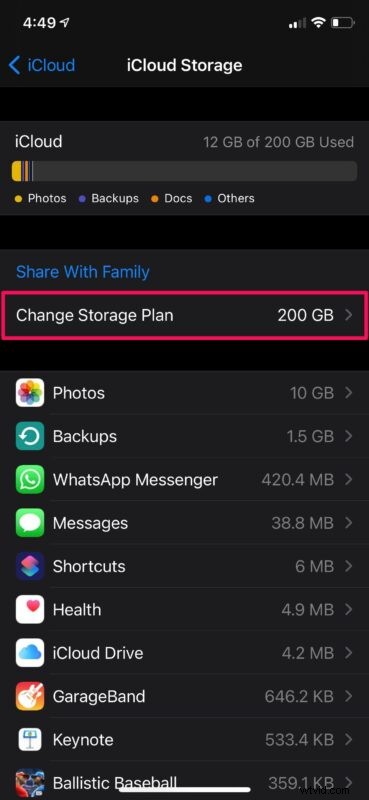
The first thing you want to do whenever your iCloud backup fails is to see how much free space you have on iCloud. Lack of enough storage space can prevent iCloud backups from completing, as a result of which you may get the error message on your screen. To check your iCloud storage space, head over to Settings -> Apple ID -> iCloud on your iPhone or iPad. Here, you’ll be able to see all the necessary details. If you’re very low on storage, you can tap on “Change Storage Plan” to upgrade to a more expensive plan with higher storage limit.
Check Your Wi-Fi Connection
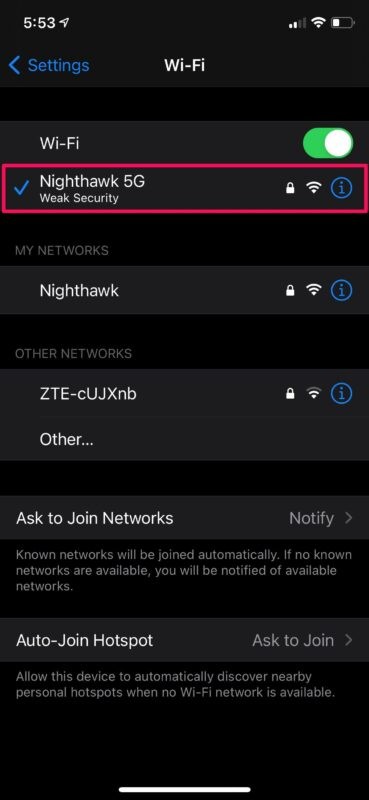
Your Wi-Fi connection is just as important as free storage space for successful backups. Slow and irregular internet connection can cause an iCloud backup to fail and you may get the error as a notification. Also, you cannot use a cellular collection if Wi-Fi isn’t available to perform iCloud backups as they’re usually huge in size and could use up a lot of your internet data. Therefore, make sure you’re connected to a working Wi-Fi connection. To check this, go to Settings -> Wi-Fi and see if there’s a tick mark next to the network you usually connect to. Plus, you can use the Speedtest app to check your connection speed and reliability.
Reduce Your iCloud Backup Size
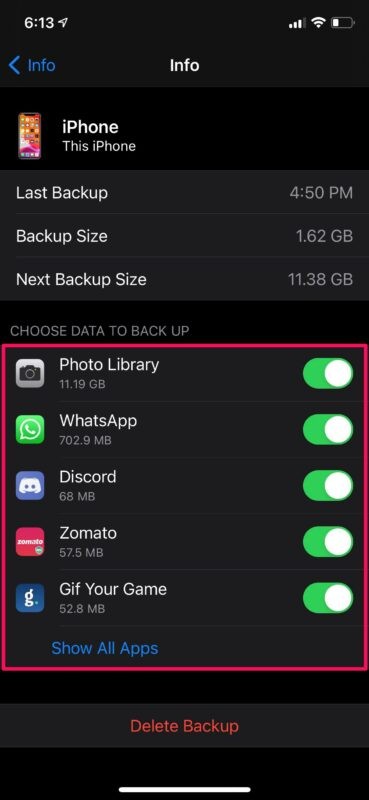
Although iCloud backups happen automatically, you can still reduce the data size for your next iCloud backup if you’re running low on cloud storage space. This can be done by limiting the data and content that will be backed up to iCloud. To do this, go to Settings -> Apple ID -> iCloud -> Manage Storage -> Backups -> iPhone/iPad. Doing this will take you to the following menu, as shown in the screenshot below. Here, you can use the toggle to uncheck the data that you don’t want to include in your next iCloud backup and reduce the size of your backup effectively.
Free Up iCloud Storage Space
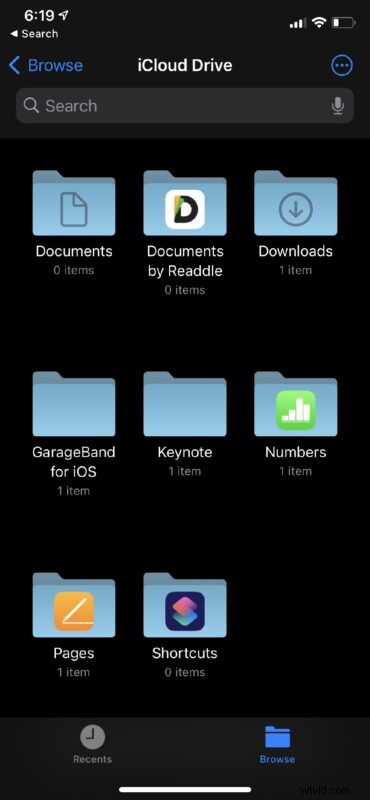
If you don’t want to upgrade to an iCloud plan with more storage, you may want to free up the storage space you have. A considerable amount of space can be freed up by simply disabling iCloud Photos. Just go to Settings -> Apple ID -> iCloud -> Photos and use the toggle to turn off iCloud Photos. Also, if you store a lot of documents on iCloud, you can remove the unwanted files and documents from iCloud Drive. You can do this easily using the built-in Files app on your iPhone or iPad.
Update the Software
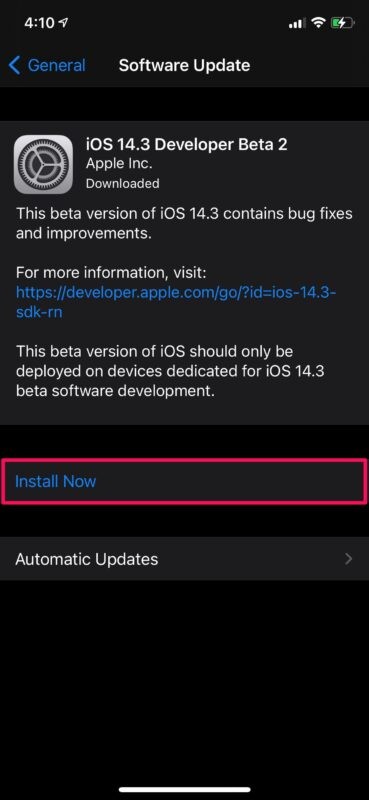
If freeing up iCloud storage space and checking your Wi-Fi connectivity didn’t resolve the backup issues you’re facing, there’s a chance that it’s a firmware-related problem. Apple is typically quick to address the issues that are reported by users with a subsequent hotfix or software update as a point release. Therefore, it’d help if you’re on the latest possible firmware. To check for any available updates, head over to Settings -> General -> Software Update and tap on “Install Now” if you see anything.
Hopefully by now, you should’ve resolved the issues you were facing with iCloud backups on your iPhone and iPad.
–
If none of the above troubleshooting steps worked for you, you can try restarting your iPhone or iPad and see if you’re still getting the error. If that didn’t help either, you can try force restarting your device which is slightly different from a normal reboot. On iPhones and iPads with physical home buttons, this can be done by simply holding the power button and home button simultaneously until you see the Apple logo on the screen. On newer devices with Face ID, you’ll need to click the volume up button first, followed by the volume down button, and then hold the side/power button until you see the Apple logo.
As a last resort method, you can restore your iPhone or iPad, but only do this if you’ve tried all the other steps. This can be done by going to Settings -> General -> Reset -> Erase All Content and Settings on your iPhone. However, make sure you have a backup of all your data stored in iCloud or iTunes before you proceed with the restoration. Failing to back up can result in permanent loss of data.
If you need any additional help, you can always get in touch with Apple Support. They will be able to help in ways that we couldn’t. You can either chat with an Apple Support tech or talk to a live person at Apple according to your preference.
We hope you were able to finally back up your iPhone or iPad to iCloud without any error messages. Which of these troubleshooting methods worked for you? Do you have any additional tips that can help with backup-related issues? Let us know your valuable thoughts and share your experiences in the comments section down below.