
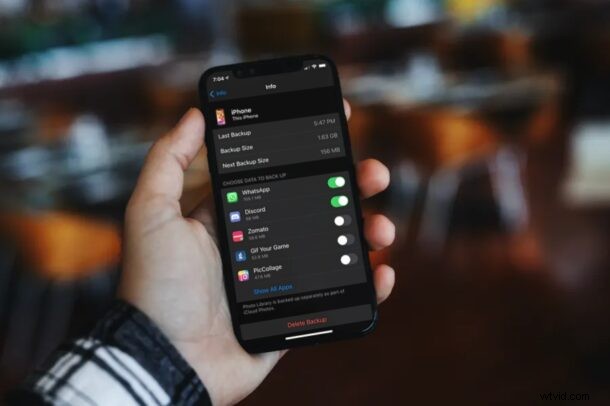
Are you running low on your iCloud storage space? If an iCloud backup is too large for the iCloud plan you have, you won’t be able to backup the iPhone or iPad, and this is one of the most common reasons iCloud backups fail. If you’re not planning to upgrade to an iCloud plan with a higher storage limit, you may want to reduce your next backup size to make sure you don’t exceed your limit.
Apple’s iCloud service comes with 5 GB of free storage space, which is not nearly enough for the vast majority of people who own iPhones, iPads, and other Apple devices. And depending on what you keep on your iPhone or iPad, even the 50 GB $0.99 per month plan might not make the cut for many users, but with proper storage management, you can try to make it work. This can be done by prioritizing the data that you want to back up to iCloud. If you’re unable to successfully finish an iCloud backup due to a lack of enough space, we’re here to help. Let’s take a look at how you can reduce the backup size of your iCloud backups from an iPhone or iPad.
How to Reduce iCloud Backup Size from iPhone & iPad
You can reduce your backup size by manually choosing the data for your next iCloud backup. This is actually pretty easy to do, just follow along to learn how:
- Head over to “Settings” from the home screen of your iPhone or iPad.

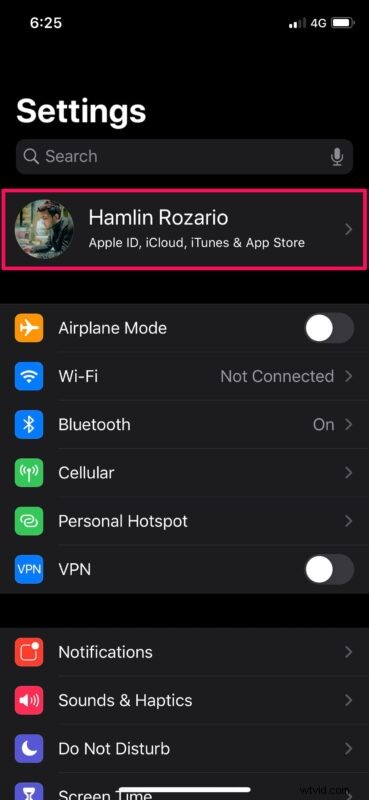
- In the settings menu, tap on your Apple ID name located right at the top.
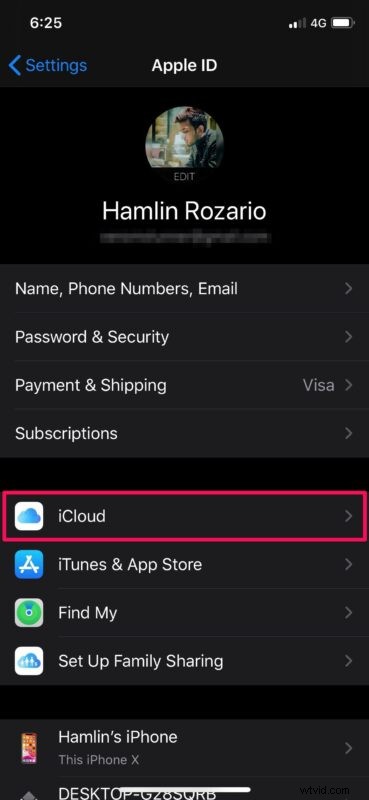
- This will take you to the account settings. Here, select “iCloud” to get started with storage management.
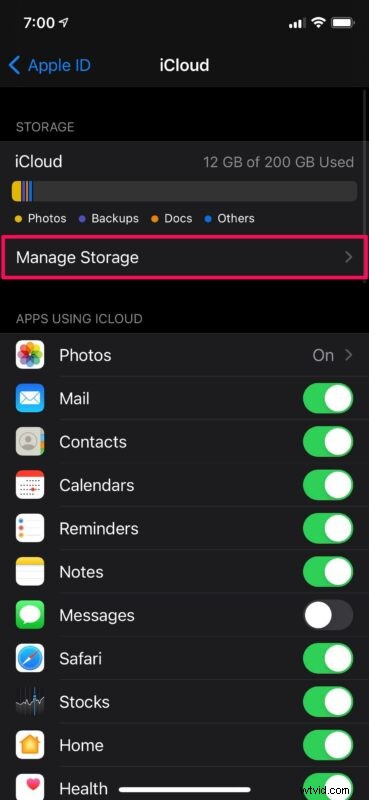
- Here, you’ll be able to see how much free iCloud storage space you have. Tap on “Manage Storage” located right below the storage details to continue to the next step.
- Now, choose “Backups”. Note that this backup data doesn’t include your Photos.
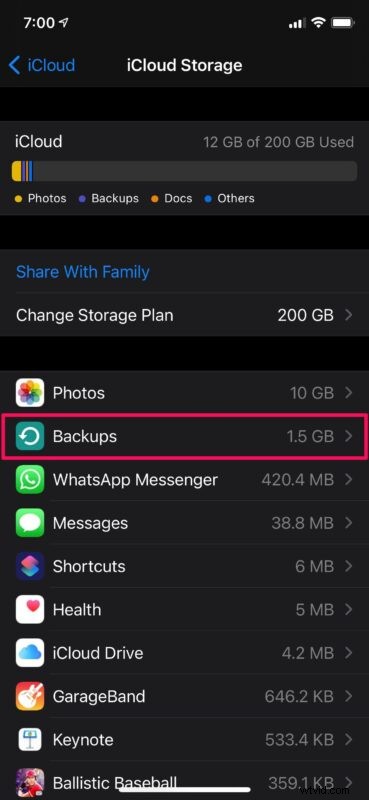
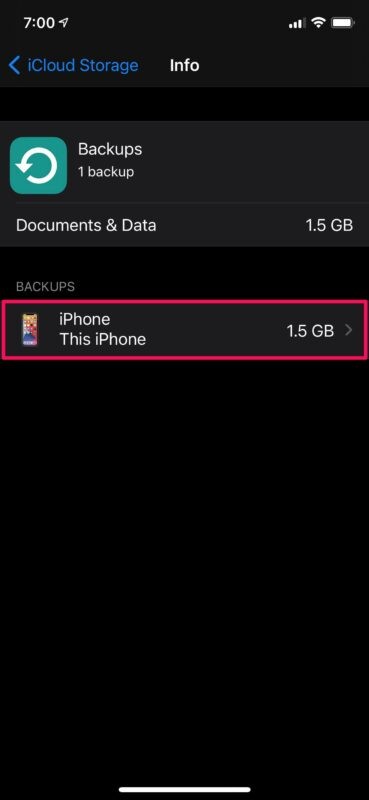
- Next, select your iPhone or iPad that’s used for iCloud Backups.
- Here, simply use the toggle to disable backup of data for the apps you don’t regularly use. The more apps you uncheck, the lesser the size of your next iCloud backup.
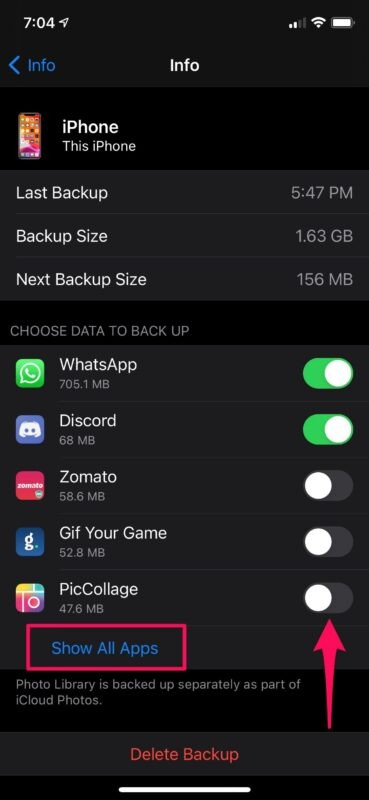
There you go, you have reduced the size of your next iCloud data backup.
It’s worth pointing out that iCloud backup data doesn’t include photos or any data from Apple’s stock apps like Messages, Mail, Safari, etc. Those data are basically synced with iCloud and don’t get counted under your next backup size.
For further control over the iCloud storage that’s used up by stock apps, you can always head over to the Manage Storage section of iCloud and delete the app’s data from iCloud and free up space.
If you take advantage of iCloud to frequently back up your iPhone or iPad, it is possible you have backups that you don’t actually need anymore. These could be iCloud backups from older devices that you’ve sold, or just outdated backups in general. So, make sure you delete the old iCloud backups from your device every now and then, as well, as that can free up a considerable amount of iCloud storage space.
Managing your available iCloud storage space properly is key to getting the most out of your money. You don’t always have to upgrade to a 200 GB, 1 TB, or 2 TB plan unless you’re sure that you’re going to need it. The larger storage plans are mostly targeted towards people who own multiple Apple devices, or who keep a lot of stuff on them.
Were you able to reduce the size of you iCloud backup to avoid getting the “iCloud backup failed” errors? What iCloud storage plan are you currently on? Do you think Apple should include a larger free iCloud storage plan with the purchase of an iPhone, iPad, or Mac? Do you have another approach to reduce the size of iCloud backups? Share your thoughts, tips, and experiences in the comments!