

Wondering how long an iCloud backup restore to an iPhone or iPad will take to complete? Restoring an iPhone or iPad from an iCloud Backup can take a while, depending on the size of the iCloud backup, and the speed of the internet connection the iOS device is connected to.
If you want to check on the progress of an active iCloud Restore, you can do so in modern versions of iOS.
How to Check Progress of iCloud Restore from Backup on iPhone or iPad
- Open the “Settings” app in iOS
- Tap on “Your Name” at the top of the Settings
- Tap on “iCloud”
- Tap on “iCloud Backup”
- Locate the data remaining information on the iCloud backup restore process under the ‘Stop’ button to get a rough idea of how much longer the restore will take
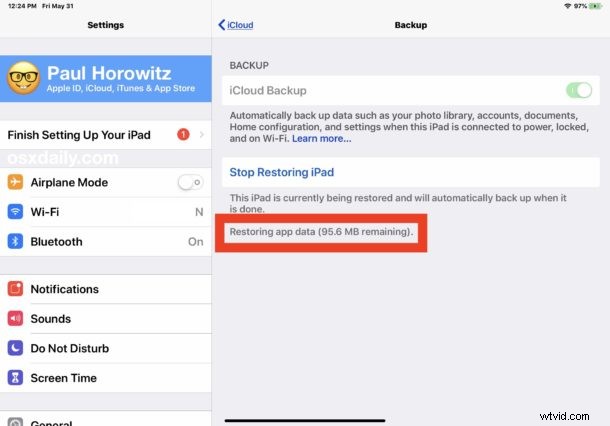
The data remaining information will be shown in megabytes (MB) or gigabytes (GB).
It’s best to let the iCloud Restore process complete, however long it may take. Failure to let the iCloud restore from backup process complete can lead to permanent data loss.
Optionally, but not recommended, you can stop an iCloud Restore from backup to an iOS device. Stopping an iCloud Restore can result in data loss and is therefore not recommended unless there is a compelling reason to do so.
While the iCloud Restore process is ongoing, you may notice notably poor battery life on the iPad or iPhone as the devices “Ongoing Restore” background activity and downloading of data uses more energy than usual. Letting the iCloud Restore process complete will return the device to normal expected battery performance.
Note that much earlier versions of iOS do not support this feature.
By comparison, checking the restore progress of an iTunes backup restore is much more obvious because the iTunes window has a progress indicator showing the current progress and how long it will take to complete.