
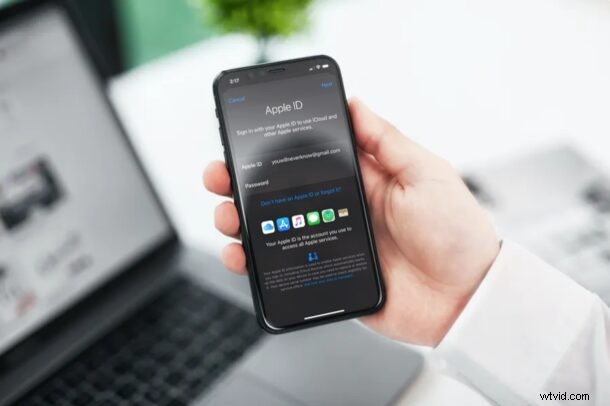
Do you want to change the Apple ID that’s linked to your iPhone or iPad? Perhaps you need to use a different iCloud account if you lost access to your other Apple ID? Fortunately, this is pretty easy to do on an iPhone and iPad.
Most of us are already aware of the fact that you need to link your Apple ID to get the most out of your iPhone or iPad. Sure, it’s not mandatory, but you’ll miss out on a ton of features like iCloud, App Store, Apple Music, device syncing, features like Handoff, and more. Although it is strongly recommended to only use a single Apple ID (since all data and purchases are linked to a single Apple ID), some users may have more than one, whether to keep their personal and work accounts separate, or perhaps for some other reason or purpose.
So yes, you can switch between Apple ID and iCloud accounts, even if it is not recommended, and this article will show you how it is done.
How to Change Apple ID / iCloud Account Used on iPhone & iPad
Changing the linked Apple account is a pretty simple and straightforward procedure on iOS/iPadOS devices, follow the steps below to get started.
- Head over to “Settings” from the home screen of your iPhone or iPad.

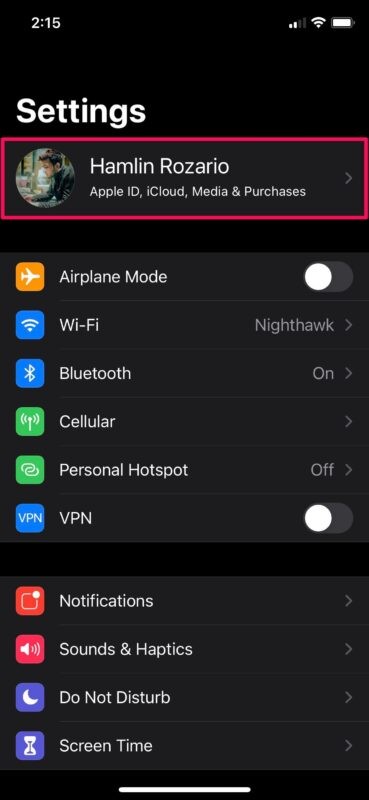
- In the settings menu, tap on your Apple ID name located right at the top.
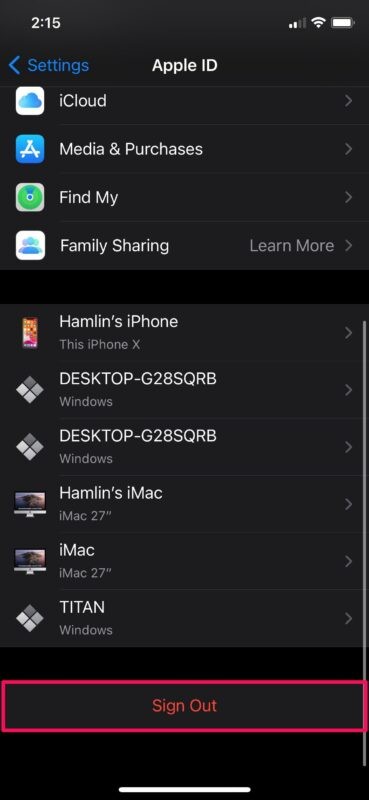
- Next, scroll down to the bottom and tap on “Sign Out” to proceed further.
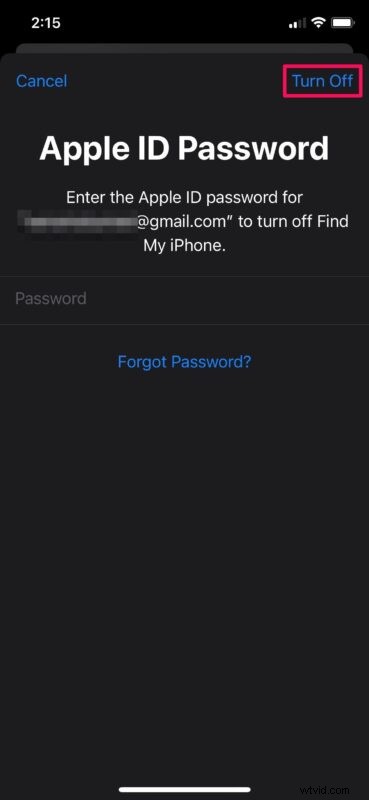
- If you have “Find My” enabled on your device, you’ll be prompted to enter your Apple ID details. Tap on “Turn Off” after entering your login information.
- Next, you’ll have the option to keep a copy of data like Contacts, Keychain, Safari, etc on your device. Select the data you want to keep and choose “Sign Out”.
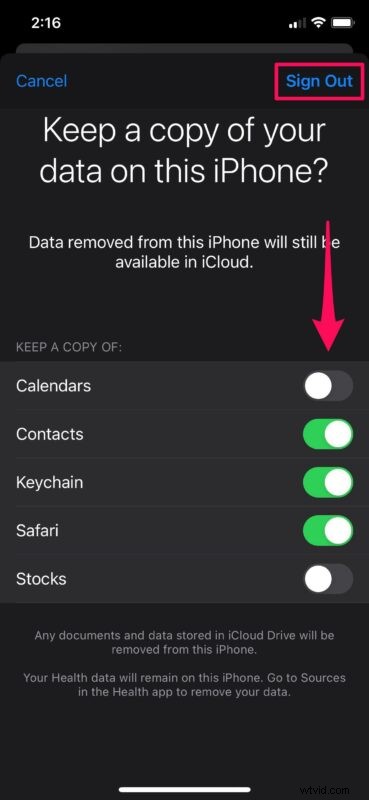
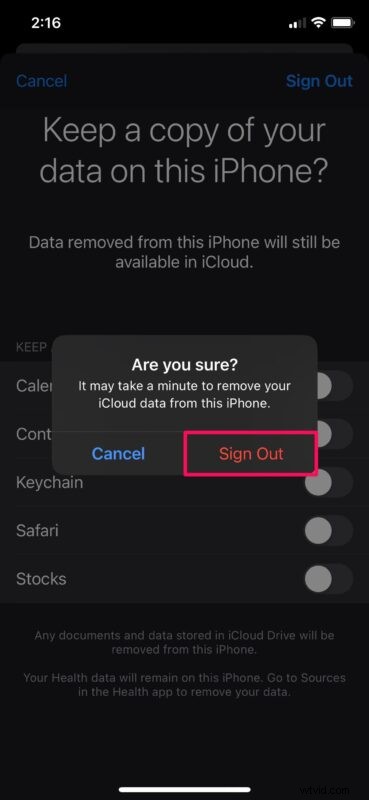
- When you’re prompted to confirm your action, tap on “Sign Out” again.
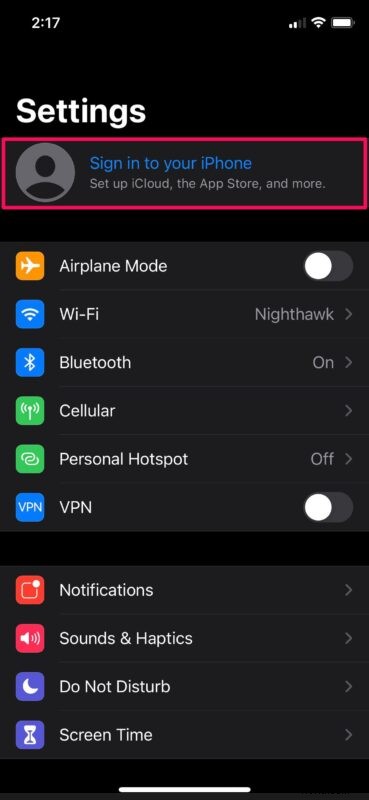
- Now, go back to the settings menu and tap on “Sign in to your iPhone (or iPad)” as shown in the screenshot below.
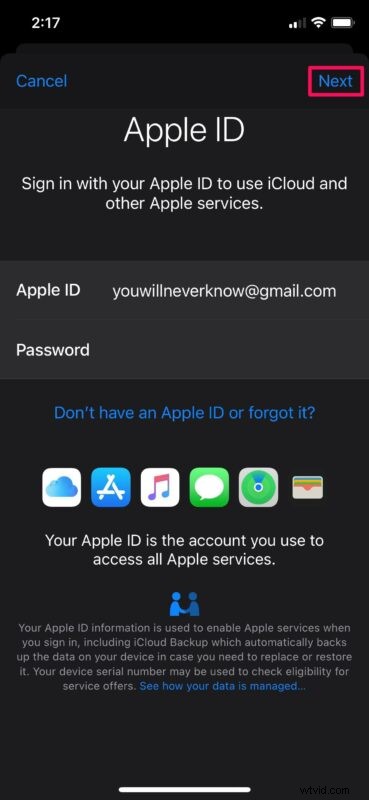
- Type in the login credentials of your alternate Apple account and tap on “Next” at the top-right corner of the screen.
- You will be asked to enter your device passcode to access saved passwords and other sensitive data you store in iCloud. Once you enter the passcode, you’ll have the option to merge the contacts on your device with iCloud.
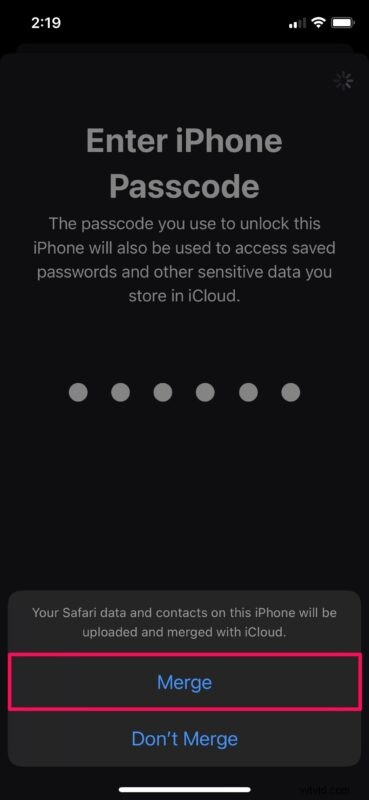
That’s pretty much all there is to it. Now you know how to switch to a different Apple account on your iPhone or iPad.
If you’re one of those iOS/iPadOS users with multiple Apple accounts, you can link an alternate account to your work iPhone and keep your main account and all its data private. This also allows you to keep separate iCloud data for personal and professional use. For example, you may have Notes, reminders, documents, and other important files stored in iCloud for work use, but you wouldn’t necessarily want these data on your personal device for privacy reasons.
Do you use iMessage on a regular basis? If so, you might be interested in using a different Apple account just for iMessage. By default, iMessage uses the Apple ID that’s linked to your iOS device. Contacts who don’t have your number will be able to send texts to this Apple ID email address. However, you can use a completely different Apple account for use with iMessage without affecting other account data that’s linked to your device.
It is strongly recommended to only use a single Apple ID for all of your data, purchases, and device usage in the Apple ecosystem. Using multiple Apple ID’s can lead to all sorts of issues with data, since it can’t be synced between Apple ID’s, and so things like photos, notes, and backups may not be retrievable. Nonetheless, it’s helpful to know how to switch accounts if you end up in a scenario where you need to, or want to for whatever reason.
Did you change to a different Apple account for use with iCloud and other Apple services on your iPhone & iPad? What’s your reason for switching to an alternate account, or why do you have multiple Apple ID accounts? Make sure to drop your valuable thoughts and opinions in the comments section down below.