
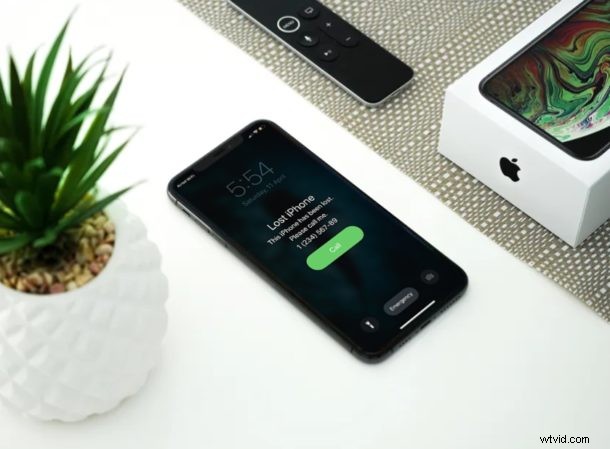
Did one of your Apple devices go missing? Don’t start panicking, because you can use Apple’s Find My service to quickly locate your lost or stolen iPhone, iPad, Mac, and even AirPods within a matter of seconds.
Apple’s Find My app has been available for years now, and it’s accessible across iOS, iPadOS, and macOS devices. It allows users to conveniently track the last recorded location of their Apple devices and help them retrieve their lost or stolen iPhones, iPads and MacBooks. Since many of us own a single Apple device like an iPhone, you might be wondering how you can access this feature on a non-Apple device. This is exactly where Apple’s iCloud web cllient comes into play, as it can be accessed on any device with a web browser.
Interested in discovering how you can track your lost Apple device using another device, Mac, iPhone, iPad, Android smartphone, or a Windows PC? Then read on to learn how you can find your lost iPhone, iPad or Mac using iCloud.
How to Find a Lost iPhone, iPad, Mac with iCloud
Let’s take a look at the necessary steps to recover any of your missing Apple devices with iCloud’s web client. It’s important to note that the following procedure will only work if you had Find My service enabled on your Apple device.
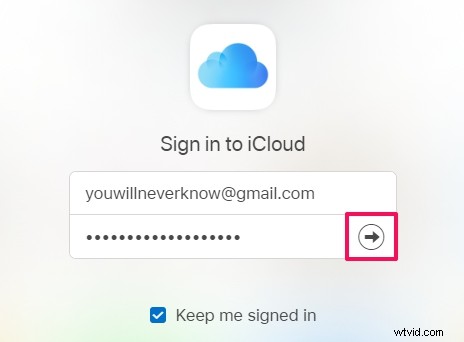
- Open any web browser like Chrome, Safari, Firefox, etc. from any device, whether it’s a Mac, Windows PC, Android smartphone or any other device and type iCloud.com in the address bar. Log on to iCloud by clicking on the “arrow icon” once you’ve typed in your Apple ID and password.
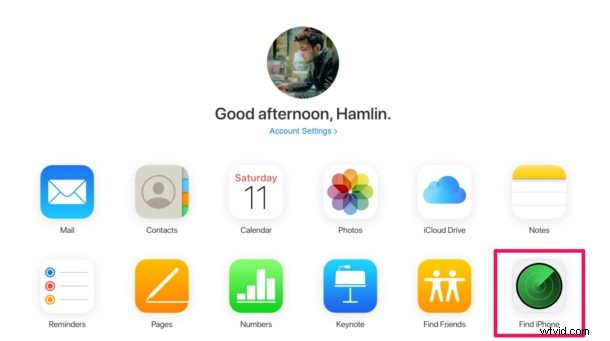
- In the iCloud home page, click on the “Find iPhone” option located at the bottom-right.
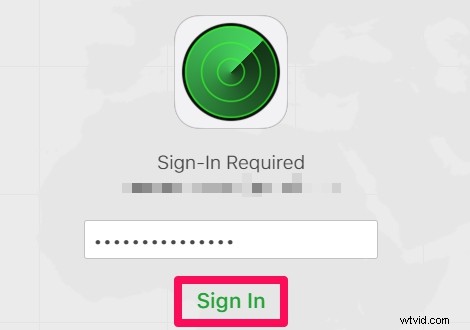
- You’ll need to authorize by logging in with your Apple account. Enter your Apple account password and click “Sign In”.
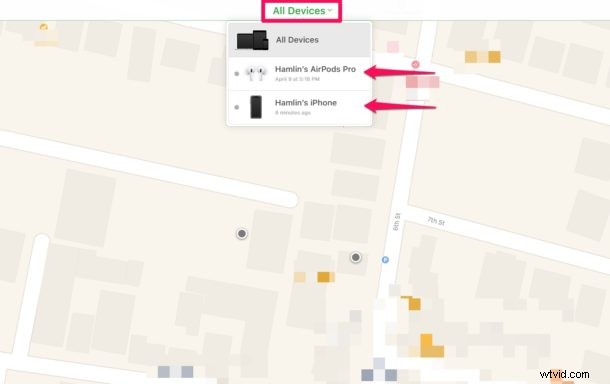
- Here, you’ll see your devices marked on the map. Click on “All Devices” which is located at the top of the menu to see a list of all your Apple devices. Choose the iPhone, iPad or Mac that you lost by clicking on it, as shown below.
- As you can see here, you have three options that can help you retrieve your device. If you simply misplaced your device somewhere in your home or workplace, simply click “Play Sound” which will playback an alert on your device even if it’s in silent mode. You also have the option to “Erase iPhone” to wipe all the data and keep your information secure.
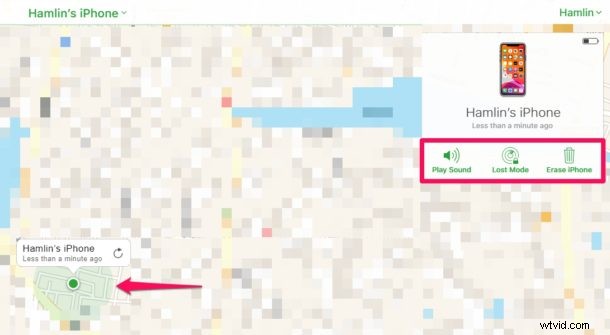
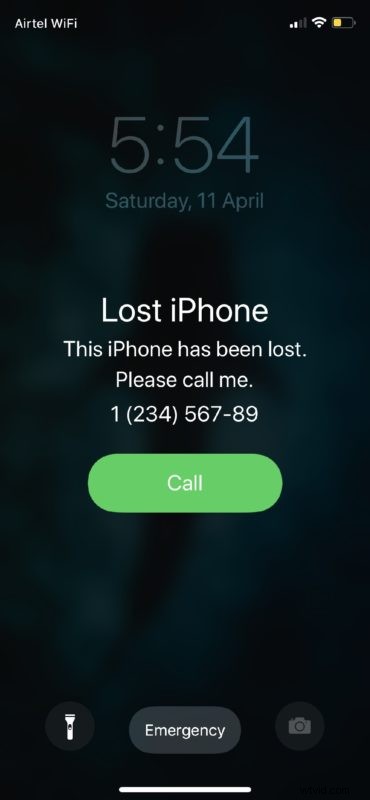
- The most important option would be “Lost Mode”. By choosing this, you have the option to enter your phone number and type in a custom message which will be displayed on the lost iPhone or iPad’s screen. Lost Mode will also force lock your device to make sure all your data remains protected.
There you go. Now you’ve learned how you can easily track and retrieve your lost iPhone, iPad, or Mac on just about any device with only a web browser.
It’s important to note that Find My app shows the last recorded location of your Apple devices. Therefore, in some cases where your device is powered off, the location that you see might not be accurate. However, even if location services are disabled on your iPhone or iPad, enabling Lost Mode will temporarily restore location services to track your device.
The Find My service that’s accessible from the iCloud web client would prove to be extremely useful for people who just own a single Apple device like an iPhone or iPad. That being said, if you own multiple Apple products, you might want to know how you can locate your lost iPhone or iPad using the pre-installed Find My app on any of your other Apple devices. You can also use Siri to find a lost iPhone or iPad too, which is convenient.
We hope you located and retrieved your lost, missing, or stolen Apple device without any issues. What do you think about Apple’s Find My service and how it’s used? Let us know your experiences and thoughts in the comments.