

Want to play Fortnite on an iPhone, iPad, or Mac again, in 2021? You can play the popular game entirely for free, despite the ongoing dispute between Apple and Epic, thanks to GeForceNow. Best of all, it works impressively well, and with high graphics settings too (possibly even better graphics than you’d be able to run natively on your hardware).
So, ready to play Fortnite with GeForceNow on iPad, iPhone, or Mac? It’s pretty easy! So forget that pesky ongoing legal battle between Epic and Apple which has made Fornite no longer playable to iOS, macOS, and idPadOS users, or available in the App Store, and play anyway.
Prerequisites to Play Fortnite on GeForceNow
You will need a reliable and fast high speed internet connection for this to work, because the entire gaming experience is streamed rather than downloaded locally.
We’re going to assume you already have an EPIC Games account for Fortnite, but if you don’t you can create one within Fortnite or on the Epic website separately.
Yes, game controllers work for iPhone, iPad (read about connecting Xbox One controllers or PS4 to iOS or iPadOS), and Mac (pair a PS4 controller, Xbox One controller, or PS3 on MacOS), and so do keyboard and mouse controls, if you’d rather use those. (And yes this whole process works on the PC too, but we’re obviously focused on Apple devices here).
How to Play Fortnite on Mac, iPad, iPhone with GeForceNow (Free)
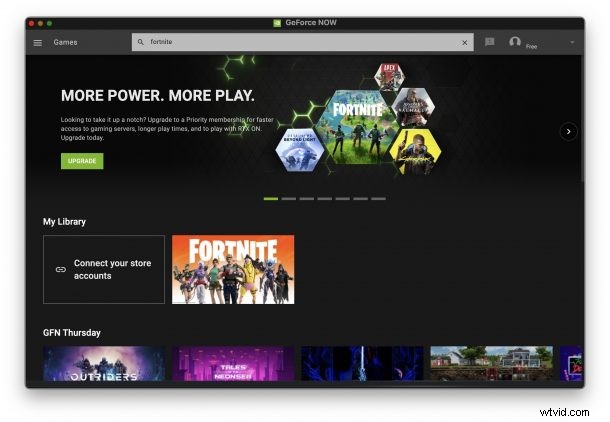
- Open Safari and go to https://play.geforcenow.com and sign up for a free account
- For Mac, download the GeForceNow client and authenticate
- For iPhone / iPad, access the game through the web browser
- Choose “Fortnite” as the game to play, login with your Epic account when asked to
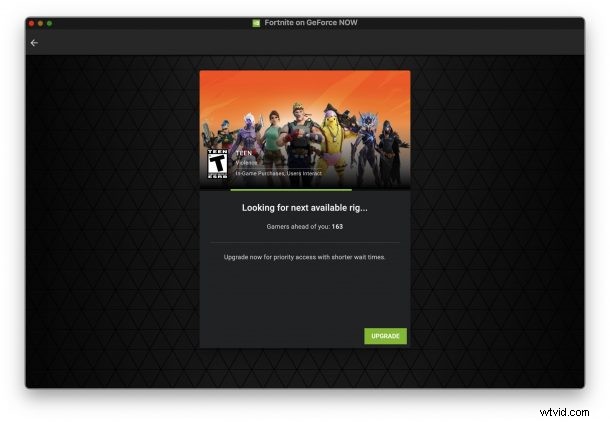
- If you’re using the free version of GeForceNow, you will be placed in a game queue, whereas paid versions get prioritized access, so wait a few minutes (this can take a while if there are a lot of people in front of you)
- When it’s your turn, you’ll be sent into Fortnite as usual, whether you’re playing on Mac, iPad, or iPhone – enjoy!

As mentioned earlier, you can use a game controller, or a mouse/trackpad and keyboard, whichever you’d like.
Because this streams the desktop version of the game from a PC to your Mac, iPad, or iPhone, touch controls are not really great, but you can configure those settings if you’d like to.
This works particularly well on the Mac, so if you miss playing Fortnite on your computer and don’t have Windows in Boot Camp (or can’t use Windows because of an Apple Silicon Mac), then this works quite well.
Resolving Connection Errors, or Problems with GeForceNow on iPhone or iPad?
If you’re having problems on the iPhone or iPad, or you’re unable to find Fortnite available, you may try the following:
- Make sure the iPad or iPhone is on a super-fast internet connection, preferably a wi-fi network as most cellular connections are not quick enough (5g and some LTE connections can be an exception)
- Disable “Low Battery Mode” if it is turned on
- Try accessing the GeForceNow website using the free Cloudy browser (App Store link here), and then spoofing the devices user agent by clicking the settings option and choosing to change the user agent to one of the following:
- Try disabling content blockers on the iPhone / iPad
User Agent 1:
Mozilla/5.0 (X11; CrOS x86_64 13597.66.0) AppleWebKit/537.36 (KHTML, like Gecko) Chrome/88.0.4324.109 Safari/537.36
User agent 2:
Mozilla/5.0 (Macintosh; Intel Mac OS X 10_15_6) AppleWebKit/605.1.15 (KHTML, like Gecko) Version/14.0.3 Safari/605.1.15
Did you get Fortnite working and playing on your Mac, iPad, or iPhone with GeForceNow? This is pretty cool, right?
As you may have noticed, other games are available in GeForceNow, but of course this article is focused on Fortnite. Game on!