
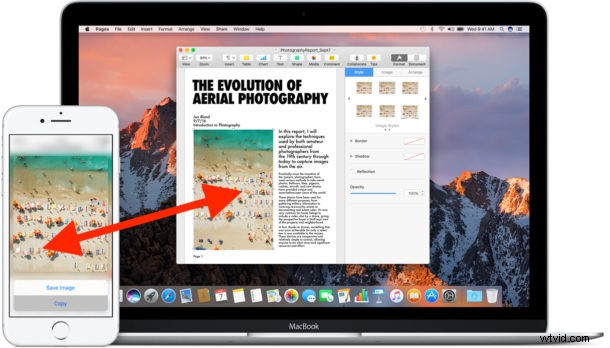
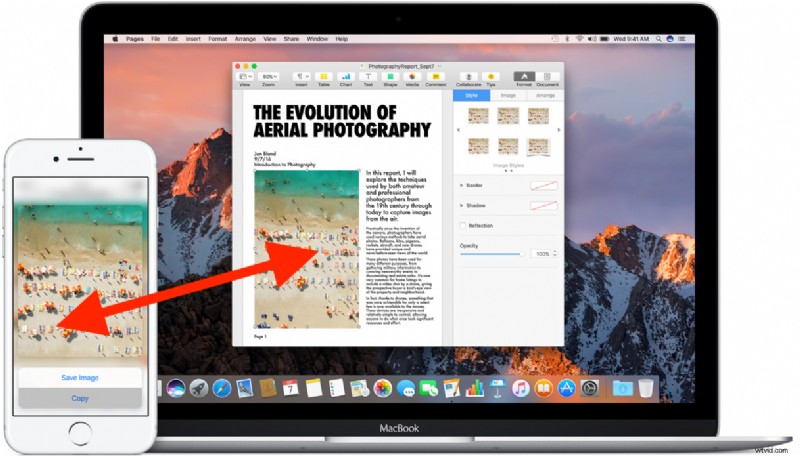
Universal Clipboard is one of the greatest features available with the latest versions of macOS and iOS which allow you to copy and paste between devices across platform or devices. For example, you can copy a link on a Mac and then paste it into an email on the iPhone, or copy a picture on the iPhone and paste it into a document on the Mac. You could also copy something from an iPhone and paste it over to an iPad, or from one Mac to another, and vice versa.
Universal Clipboard is part of the Continuity set of features and it works seamlessly, allowing you to copy text, images and pictures, even video, between Macs or iOS devices. If you aren’t yet using this feature, you really should be, so let’s cover the requirements and how it works.
Universal Clipboard Requirements
To have access to Universal Clipboard, you will need the following:
- Modern OS versions: In order to have access to Universal Clipboard, the Mac must be running macOS Sierra 10.12 or later and the iPhone or iPad must be running iOS 10 or later. Earlier devices and iOS versions will not have access to the feature
- Same iCloud account signed into all devices wanting to use Universal Clipboard
- The Mac must be from 2012 onward, not just one of the Macs which supports Sierra (in other words, some Macs which can run Sierra do not have Universal Clipboard ability)
- The devices must be on the same wi-fi network, with Bluetooth enabled
In my experience having all hardware on the same wi-fi network with Bluetooth enabled is the most reliable way to get Universal Clipboard to work.
Assuming you have met the requirements to use Universal Clipboard on a Mac, iPhone, or iPad, here’s all you need to do:
How to Use Universal Clipboard to Copy & Paste Between iOS & Mac
Using Universal Clipboard is just as easy as copying and pasting elsewhere natively, except it’s accomplished with Continuity. Here’s all you have to do:
- From a Mac, iPhone, or iPad, select and copy anything as usual
- On Mac: Copy & Paste from the “Edit” menu
- On iOS: Copy & Paste with a tap-and-hold
- Move to the target device where you wish to paste the prior copy, and paste into the desired spot
If the receiving end is on a Mac, you’ll see a little pop-up window with a status bar saying “Pasting from “Device”

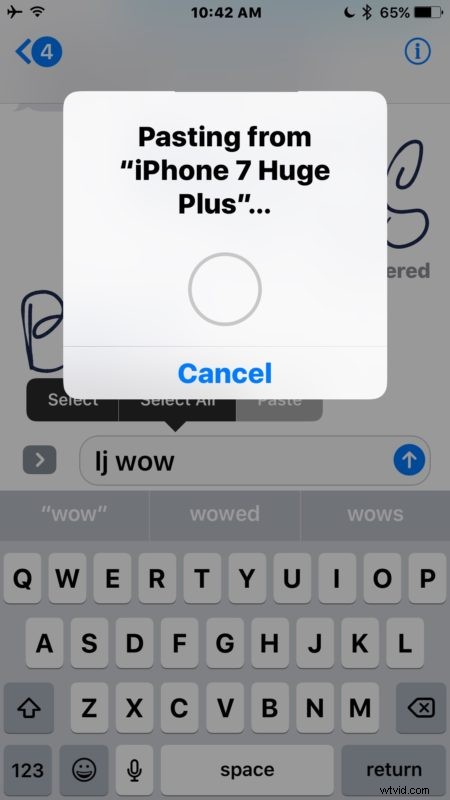
If the receiving end is an iPhone or iPad, you’ll see a pop-up window with a progress bar stating “Pasting from (device” as well:
Universal Clipboard is perhaps the single best productivity feature (collaborative Notes may be a close second) in the latest versions of iOS and Mac OS for users who juggle between different devices on a regular basis, and it goes great with the other Continuity features like Handoff.
Troubleshooting Universal Clipboard
Is Universal Clipboard not working for you? Run through the method to configure outlined above, because Universal Clipboard should work flawlessly with the above requirements and steps, but if you’re having difficulties it’s likely because something is not configured properly or the device is not running a compatible software version.
- Be sure you know how to copy and paste on a Mac
- Be sure the devices are compatible with Universal Clipboard
- Double-check that each device is running iOS 10.0 or later, or macOS Sierra 10.12 or later, install any lingering system software updates on either device
- Enable wi-fi and join the same network for all devices involved
- Enable Bluetooth on all devices involved
- Insure all devices are using the same Apple ID and have iCloud enabled
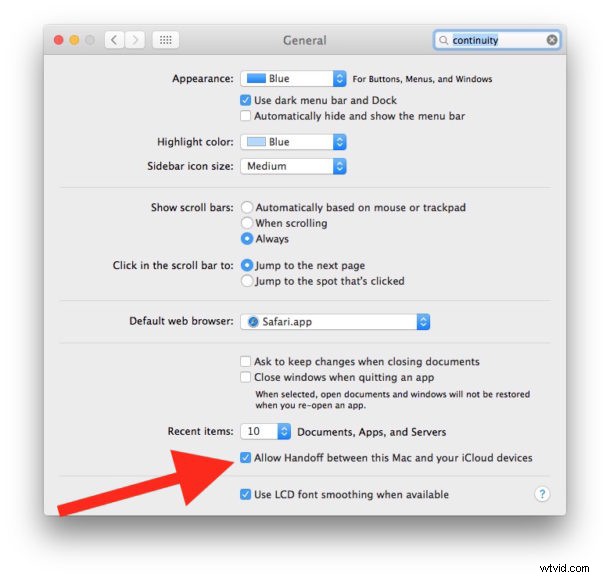
- Insure that Handoff is enabled in iOS (Settings > General) and Mac OS (System Preferences > General)
- Log out and back into iCloud and try again
- Reboot the hardware and try again
Remember, you copy and paste on a Mac with Edit > Copy / Paste, and on iPhone or iPad with a tap-and-hold > select > Copy / Paste.
Do you use Universal Clipboard on your Mac, iPhone, or iPad? Let us know your comments below!