
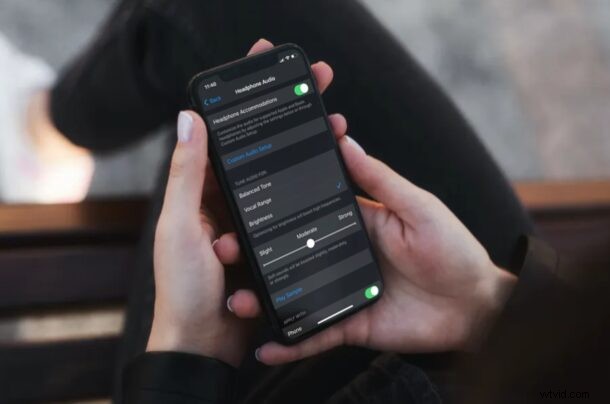
Are you the kind of person who likes to fine-tune their iPhone or iPad audio to your liking? Or perhaps, you have a hearing impairment that gives you trouble hearing certain sounds? In that case, you’ll be interested in checking out the Headphone Accommodations accessibility feature that iOS and iPadOS have to offer.
Headphone Accommodations are a feature that works with Apple and Beats headphones to customize audio levels according to the user’s preference. It’s designed to amplify soft sounds and adjust certain frequencies to better suit an individual’s hearing. This could make a noticeable difference during phone calls, and even enhance the experience while listening to music, podcasts, or watching movies on your iPhone or iPad.
Using Headphone Accommodations on iPhone & iPad
Be sure to connect your Apple or Beats headphones to the device to properly set the feature up. Also, make sure your iPhone or iPad is running iOS 14/iPadOS 14 or later to have access to this feature.
- Head over to “Settings” from the home screen of your iPhone or iPad.

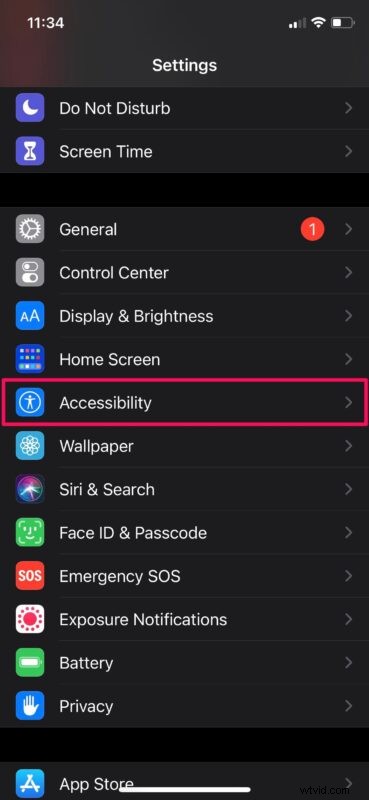
- In the settings menu, scroll down and tap on “Accessibility”.
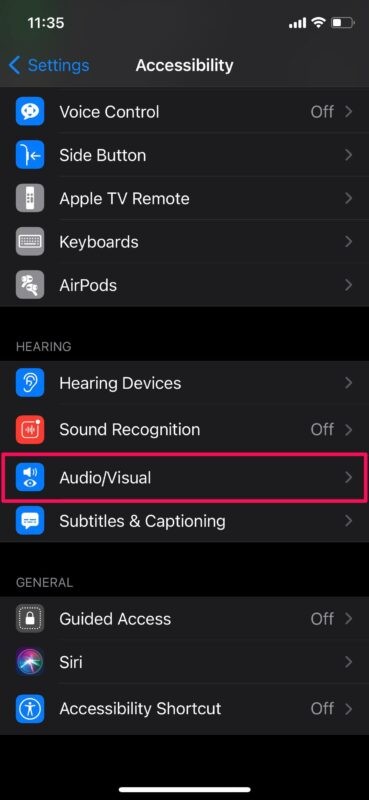
- Next, scroll down to the “Hearing” category and tap on “Audio/Visual” to proceed further.
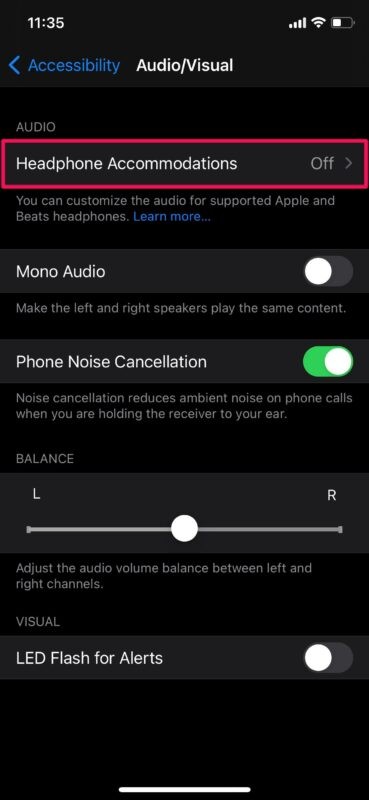
- Here, you’ll find the Headphone Accommodations option located right at the top. Tap on it to continue.
- Now, simply use the toggle to turn this feature on and access all the various audio controls.
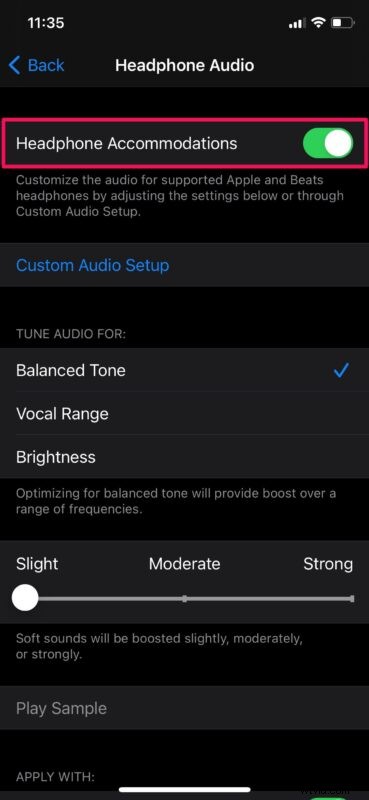
- As you can see here, you can tune the audio for balanced tone, vocal range, or brightness according to your preference. You can also adjust the slider to control how much the soft sounds will be boosted. To fine-tune even further, you can tap on “Custom Audio Setup” and proceed with the on-screen instructions.
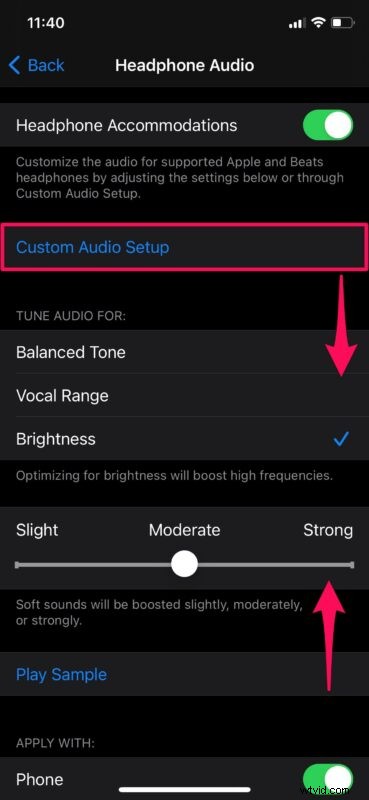
There you go. You’ve successfully managed to set up Headphone Accommodations for use with headphones on your iPhone and iPad. Pretty easy, right?
It’s worth noting that not all Apple or Beats headphones are supported. Headphone Accommodations work with Apple EarPods, AirPods (2nd generation or newer), AirPods Pro, Powerbeats, Powerbeats Pro, and Beats Solo Pro headphones. Although compatibility is a bit limited, support for EarPods means you can try it with the headphones that came along with your iPhone.
Headphone Accommodations also supports the Transparency mode on AirPods Pro, which means it can be used as some sort of a hearing aid by amplifying quiet voices to make them more audible and tuning the ambient sounds to an individual’s hearing.
If you own multiple Apple devices, you’ll be pleased to know that your custom audio settings will transfer between your iPhone, iPad, and your paired Apple Watch when you use automatic device switching. However, these audio settings won’t transfer to your Mac (as of now anyway).
Do you use the Headphone Accommodations feature on your iPhone or iPad? What do you think? Share your thoughts and experiences in the comments.